HackTheBox | Unit42 | Sherlock Walkthrough
Investigating Masquerading Malware Using Sysmon Logs and the Windows Event Viewer.

Image Credit: https://app.hackthebox.com/sherlocks/632
Introduction:
Welcome back to another weekly walkthrough! If you’ve stumbled across this blog while searching for a comprehensive guide to the Unit42 Sherlock challenge from Hack The Box, you’re in the right place.
This is the third challenge in the Intro to Blue Team track, but you can jump in in any order. If you’re following along or you’re a completionist, check out my write-up of the previous challenge — BFT:
HackTheBox— BFT Sherlock Walkthrough
This challenge leans heavily into endpoint forensics using a real-world inspired narrative. It’s up to us to piece together what happened using only the provided Sysmon logs. We’ll use tools like Windows Event Viewer, VirusTotal, and MITRE ATT&CK to uncover and document the infection chain.
This one’s a great opportunity to explore how attackers might abuse legitimate cloud-based delivery mechanisms to deliver trojanized installers masquerading as legitimate tools.
So, if you’re new to Sysmon or just want to sharpen your log analysis skills, this is a great challenge to put your hands on. Let’s get into it!
And if you find this walkthrough helpful — whether it levels-up your skills, gets you over a stumbling block, or serves as a handy reference — please give it a clap and consider following me for more content like this.
Thanks for reading and going on this investigation with me!
Challenge Scenario:
In this Sherlock, you will familiarize yourself with Sysmon logs and various useful EventIDs for identifying and analyzing malicious activities on a Windows system. Palo Alto’s Unit42 recently conducted research on an UltraVNC campaign, wherein attackers utilized a backdoored version of UltraVNC to maintain access to systems. This lab is inspired by that campaign and guides participants through the initial access stage of the campaign.
Setup the Analysis Environment & Extract the Challenge File:
Safety first! It’s always important when working with lab/challenge files from Hack the Box (or any educational lab/challenge/range) to keep yourself protected by performing these tasks in a dedicated, isolated virtual machine environment. As this is a Windows-based challenge, I’m using FLARE-VM for this challenge which is “a collection of software installations scripts for Windows systems that allows you to easily setup and maintain a reverse engineering environment on a virtual machine (VM).”
To keep this write-up focused I’m going to skip the step-by-step setup of FLARE-VM but _i_f you’d like to set up your own environment, please follow the directions provided directly by FLARE-VM on GitHub.
GitHub — mandiant/flare-vm: A collection of software installations scripts for Windows systems that… _A collection of software installations scripts for Windows systems that allows you to easily setup and maintain a…_github.com
Once you have a safe virtual environment created, updated, isolated, and snapshotted, we can extract the challenge file and start the investigation!
Question 1: How many Event logs are there with Event ID 11?
Let’s kick off our investigation by extracting the unit42.zip archive. This leaves us with a Windows Event Log file: Microsoft-Windows-Sysmon-Operational.evtx, which we can analyze using Windows Event Viewer. Go ahead and double-click the file to launch Windows Event Viewer.
But first, before we go any further, let’s take a step back and get a quick refresher on what Sysmon is and what’s contained in its event logs.
If you haven’t heard of it before, Sysmon is a utility that’s part of the Microsoft Sysinternals Suite. It runs as a system service and monitors detailed system activity like process creation, file creation, and network connections, and logs it to the Windows Event Log. Sysmon also has its own event types that can be used to filter specific activity in the logs, which is exactly what we’ll do in this challenge.
Let’s jump back to Event Viewer and make sure we’re looking at the Microsoft-Windows-Sysmon-Operational logs under Saved Logs.
To answer Question 1, we’re looking for only Event ID 11 (FileCreate), so we need to filter the log to accurately count these events. We can do this by clicking Filter Current Log… on the right-hand column and entering 11 in the Event ID box.
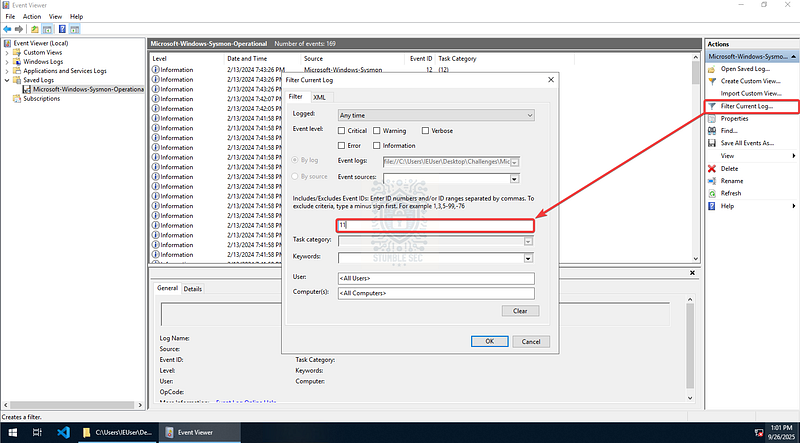
Windows Event Viewer: Filtering Sysmon Event ID 11
Once the filter is applied, we can see the number of events in the filtered log above the entries:
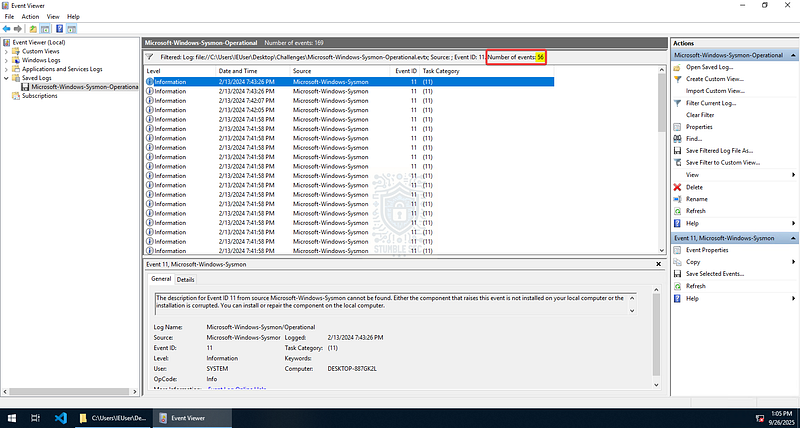
Windows Event Viewer: Identifying the number of filtered events
This result tells us that there are 56 file creation events captured by Sysmon on the victim system.

Question 2: Whenever a process is created in memory, an event with Event ID 1 is recorded with details such as command line, hashes, process path, parent process path, etc. This information is very useful for an analyst because it allows us to see all programs executed on a system, which means we can spot any malicious processes being executed. What is the malicious process that infected the victim’s system?
For our next task, we need to determine which malicious process infected the victim’s system. To do this, we’ll filter the Sysmon logs again, this time searching for Event ID 1.
According to the Sysmon documentation, Event ID 1 details process creation events and “provides extended information about a newly created process. The full command line provides context on the process execution.”
Once we’ve filtered the process creation events, we can start analyzing them. For readability, I’ve switched to the Details tab instead of the default General tab.
Starting with the earliest events first, the second entry reveals something suspicious — an unusual executable, Preventivo24.02.14.exe.exe, located in the victim’s Downloads folder. Of all the events, this one stands out as the most likely culprit with the available data.
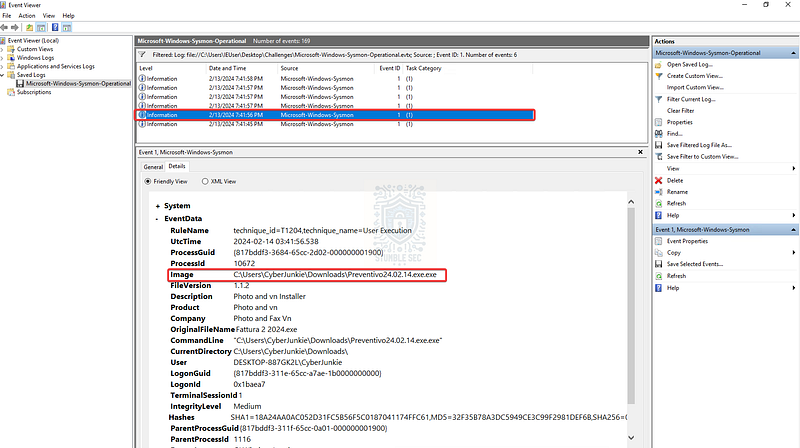
Windows Event Viewer: Identifying the malicious process with Sysmon Event ID 1
But we don’t have to guess! Sysmon also handily provides the file hash values under the Hashes field. We can use these hashes to pivot out to an external threat intelligence service like VirusTotal to check if this exact binary has been analyzed before and make a more informed decision.
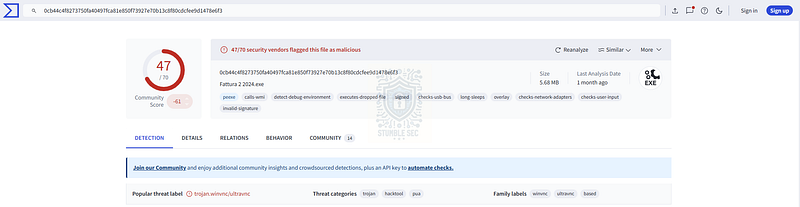
https://www.virustotal.com/gui/file/0cb44c4f8273750fa40497fca81e850f73927e70b13c8f80cdcfee9d1478e6f3
We can see right away that this file hash is detected as malicious by most of the platforms, and there’s a ton of great information about what this executable does. Let’s proceed with our investigation and see what we can gather just by looking at the provided Sysmon logs, shall we?

Question 3: Which Cloud drive was used to distribute the malware?
Our next order of business is to determine which cloud storage drive the malicious executable was downloaded from. For this, we can identify the Referrer URL in the Zone.Identifier metadata of the file. This is part of the Mark of the Web metadata stream and can help us analysts identify the source of a file.
We can uncover this information by filtering the event log for Event ID 15. This event label is FileCreateStreamHash, and while it sounds complicated, the Sysmon documentation clarifies:
This event logs when a named file stream is created, and it generates events that log the hash of the contents of the file to which the stream is assigned (the unnamed stream), as well as the contents of the named stream. There are malware variants that drop their executables or configuration settings via browser downloads, and this event is aimed at capturing that based on the browser attaching a
Zone.Identifier“mark of the web” stream.
Putting all this together, filtering for Event ID 15 returns two results. The one at the top contains the Mark of the Web stream information for the malicious binary we identified in the previous question.
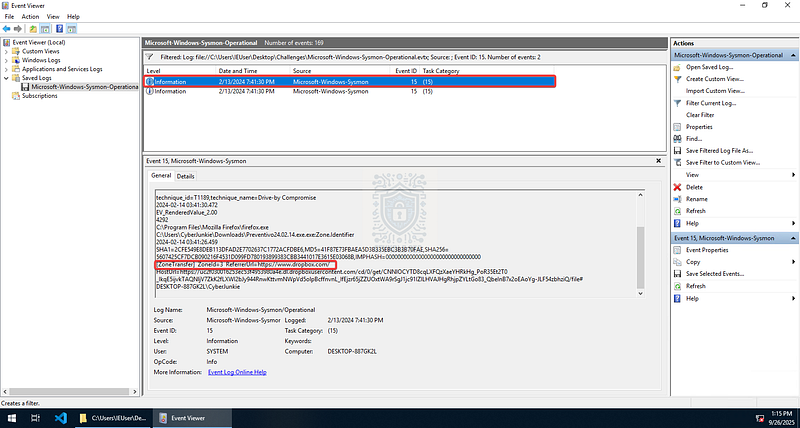
Windows Event Viewer: Identifying the referrer URL using Sysmon Event ID 15
This entry shows the Zone.Identifier metadata, including the ReferrerUrl which points to Dropbox, a common and very popular cloud storage solution, as the source of malware download.

Question 4: For many of the files it wrote to disk, the initial malicious file used a defense evasion technique called Time Stomping, where the file creation date is changed to make it appear older and blend in with other files. What was the timestamp changed to for the PDF file?
Next up, to answer Question 4, we’ll need to identify a PDF file related to the attack and then determine what the manipulated timestamp of the file is.
The first step is to filter the Sysmon logs for Event ID 2: A process changed a file creation time. This event ID is helpful for detecting timestomp activity on a victim system. According to the Sysmon documentation:
The change file creation time event is registered when a file creation time is explicitly modified by a process. This event helps tracking the real creation time of a file. Attackers may change the file creation time of a backdoor to make it look like it was installed with the operating system. Note that many processes legitimately change the creation time of a file; it does not necessarily indicate malicious activity.
Once we’ve applied the filter, we can use Windows Event Viewer’s built-in Find function and search for the keyword pdf to quickly pinpoint the event we’re seeking.
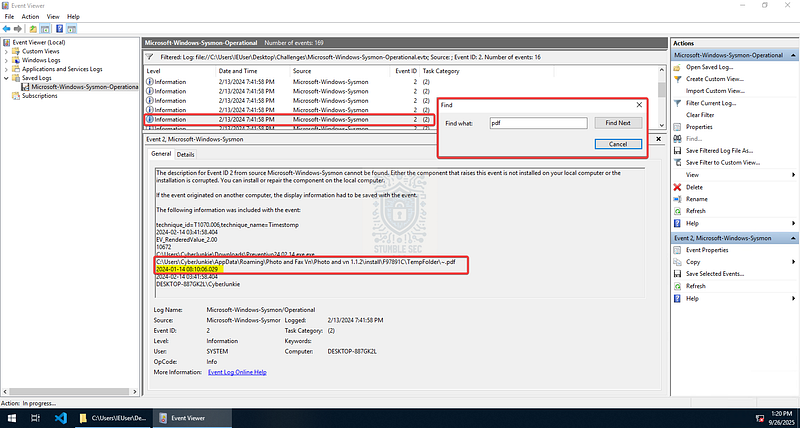
Windows Event Viewer: Identifying timestomp events using Sysmon Event ID 2
Take a look under the file path for ~.pdf — we can see two different timestamps, which confirms that the file was manipulated using a timestomp technique (MITRE ATT&CK T1070.006). We’re looking for the older, original timestamp to answer the question.

Question 5: The malicious file dropped a few files on disk. Where was “once.cmd” created on disk? Please answer with the full path along with the filename.
Moving on to Question 5, we need to figure out the file path of another related file: once.cmd.
The key phrase in the question is “dropped a few files on disk”, which tells us we’ll need to filter for Event ID 11 (FileCreate) again. Once we’ve applied the filter, we can use the Find function to search for the file in question — once.cmd.
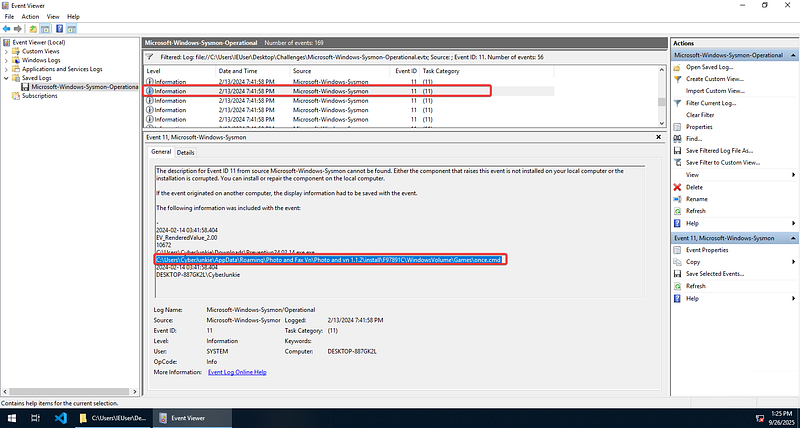
Windows Event Viewer: Identifying dropped file path event using Sysmon Event ID 11
Once we’ve located the event, we’ll learn the full file path of the dropped file.

Question 6: The malicious file attempted to reach a dummy domain, most likely to check the internet connection status. What domain name did it try to connect to?
Now’s the time to start moving away from file-related events and pivot to network events within the Sysmon log. To answer Question 6, filter for Event ID 22: DNSEvent (DNS query) events to identify DNS lookups to external domains.
This event is generated when a process executes a DNS query, whether the result is successful or fails, cached or not. The telemetry for this event was added for Windows 8.1 so it is not available on Windows 7 and earlier.
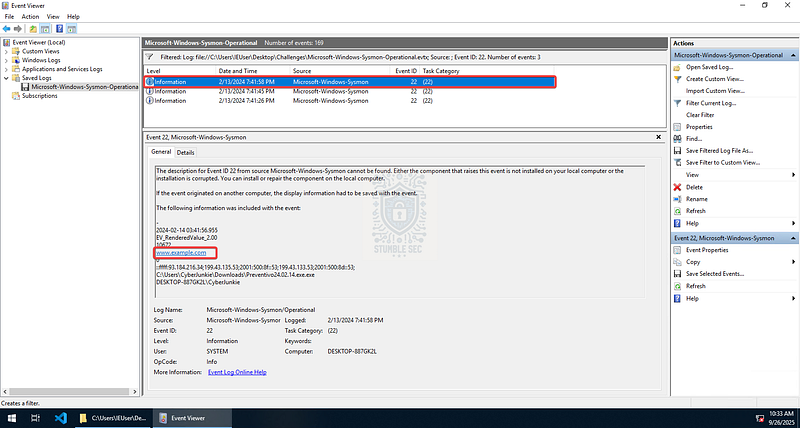
Windows Event Viewer: Identifying DNS connection check event using Sysmon Event ID 22
Applying this filter returns three events, with the top event revealing a DNS lookup to a specific domain — this is the one we’re after, and it seems to be used as an internet connection check.

Question 7: Which IP address did the malicious process try to reach out to?
To answer Question 7 and continue our analysis of network-related artifacts in the Sysmon log, we’ll now need to determine the IP address that the malicious process reached out to.
For this, we’ll filter the Sysmon log for Event ID 3: Network connection. According to the Sysmon documentation:
The network connection event logs TCP/UDP connections on the machine. It is disabled by default. Each connection is linked to a process through the
ProcessIdandProcessGuidfields. The event also contains the source and destination host names IP addresses, port numbers and IPv6 status.
Applying this filter yields one result. For ease of viewing, I’ve selected the Details tab. Scroll down to the DestinationIp field to find the remote IP that the malware connects to.
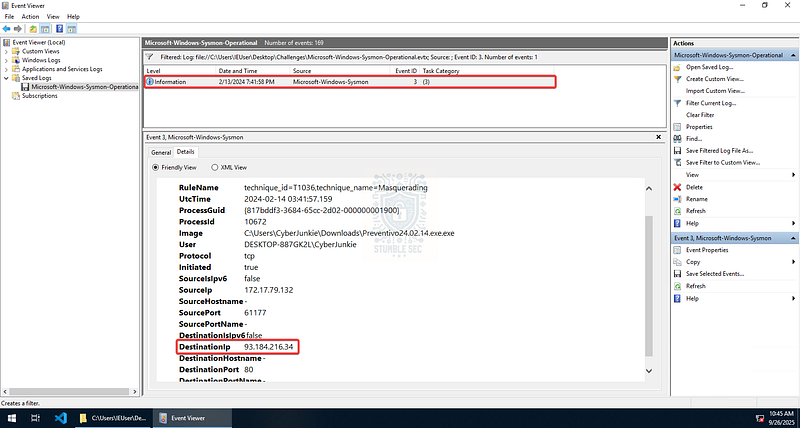
Windows Event Viewer: Identifying C2 IP using Sysmon Event ID 3

Question 8: The malicious process terminated itself after infecting the PC with a backdoored variant of UltraVNC. When did the process terminate itself?
For our final question, we just need to figure out when the malicious process Preventivo24.02.14.exe.exe terminated.
We can discover this information easily by filtering for Event ID 5: Process terminated events.
The process terminate event reports when a process terminates. It provides the
UtcTime,ProcessGuidandProcessIdof the process.
This will return a single event, and we can grab the termination timestamp from the event details.
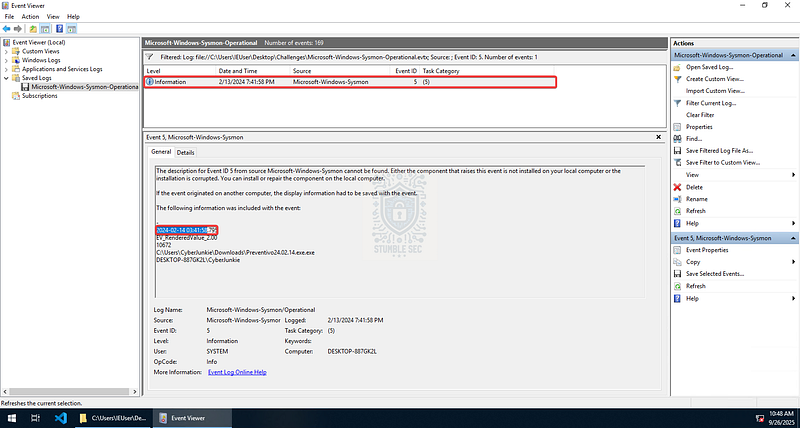
Windows Event Viewer: Identifying malware process termination using Sysmon Event ID 5

So, What Happened Here? Bringing it All Together and Contextualizing the Infection Chain
Before we jump down to the conclusion, let’s take a step back and look at the LinkedIn post by Palo Alto’s Unit 42 that inspired this challenge. If you’re like me, a visual reference that brings all the questions together can help you fully understand what happened, and what the artifacts we discovered actually mean.
#ultravnc #timelythreatintel #indicatorsofcompromise #unit42threatintel #wireshark… _2024-01-23 (Tuesday): #UltraVNC infection generated by EXE from Dropbox URL. Dropbox URL now offline! IOCs from an…_www.linkedin.com
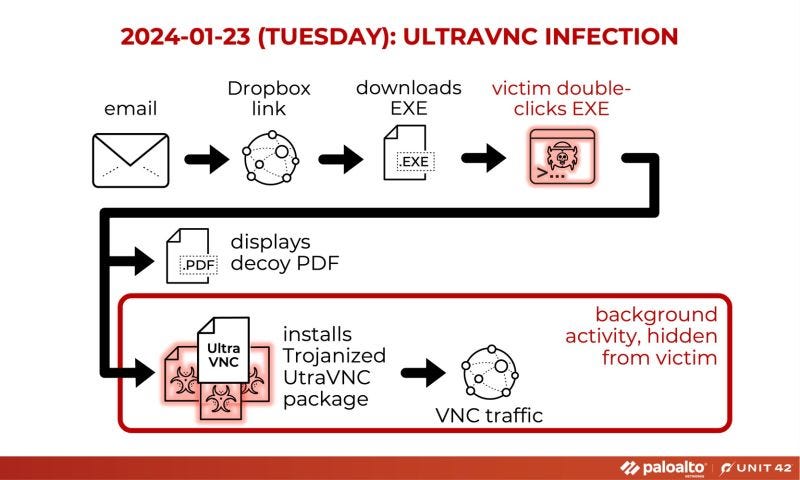
Image Credit: https://www.linkedin.com/posts/unit42_ultravnc-timelythreatintel-indicatorsofcompromise-activity-7156060867678150657-ktbL/
Does this sound kind of familiar?
If we look at the visual for the infection chain, we’ll see a malicious executable downloaded from Dropbox — just like we identified in Questions 2 & 3. Then we see a decoy PDF file, which lines up with Question 4. This context gives us insight into the attack flow and reinforces how each artifact we uncovered fits into a broader narrative.
I strongly encourage you to check out the Palo Alto post, explore the research, and see what other conclusions you might draw compared to the challenge. It’s a great way to validate your analysis and expand your understanding of how threat intelligence connects to hands-on investigations.
Conclusion:
That wraps up our investigation of the Unit42 challenge! We’ve walked through each step of the infection chain: from identifying the initial malicious executable downloaded from Dropbox, to uncovering timestomping activity, DNS queries, and IP connections — all using nothing more than Sysmon logs and a bit of threat intelligence.
A big thank you to Hack The Box for another high-quality and fun Sherlock — it’s been a blast going through this track.
I chose this week’s challenge as a great example of how Sysmon bolsters forensic capabilities by collecting and contextualizing meaningful endpoint logs. With these logs, we were able to breeze through analysis, focusing on targeted events to tell a compelling story. Whether it’s filtering for specific event IDs, pivoting to external threat intel platforms like VirusTotal, or recognizing subtle evasion techniques like timestomping, every artifact adds a piece to the puzzle. Awesome stuff!
Thanks for your support and partnering on this investigation. If you found this walkthrough helpful, don’t forget to give it a clap! Your feedback really is invaluable, and it pumps me up to support your security journey. Remember, Cybersecurity is a team sport and we’re in this together!
Until next week’s challenge — stay curious and be safe out there!

Tools & References:
Challenge Link: https://app.hackthebox.com/sherlocks/632
Flare-VM: https://github.com/mandiant/flare-vm
Microsoft — Sysmon: https://learn.microsoft.com/en-us/sysinternals/downloads/sysmon
Microsoft — Sysinternals: https://learn.microsoft.com/en-us/sysinternals/
VirusTotal — Preventivo24.02.14.exe.exe: https://www.virustotal.com/gui/file/0cb44c4f8273750fa40497fca81e850f73927e70b13c8f80cdcfee9d1478e6f3
MITRE ATT&CK — Indicator Removal: Timestomp (T1070.006): https://attack.mitre.org/techniques/T1070/006/
LinkedIn — Palo Alto Networks Unit 42: https://www.linkedin.com/posts/unit42_ultravnc-timelythreatintel-indicatorsofcompromise-activity-7156060867678150657-ktbL/