TryHackMe — REvil Corp Challenge Walkthrough
Incident Response Engagement using FireEye Redline

Image Credit: https://tryhackme.com/r/room/revilcorp
Introduction:
Hello — Thanks for joining me for this weekly walkthrough!
This week I am going to continue exploring the FireEye Redline tool by investigating the REvil Corp incident response challenge room over on TryHackMe.
In the spirit of learning, I will not be revealing the flags in this walkthrough but this is a FREE room so anyone can test their skills with Redline and perform the investigation along with me and find the answer on their own.
This challenge builds on my previous TryHackMe Redline walkthrough so I encourage you to start there first if you are just jumping in.
TryHackMe — Redline Endpoint Investigation Challenge Walkthrough
As always, this write-up will serve as a learning notebook for me and a TryHackMe challenge walkthrough for anyone else who stumbles upon this post. Thanks for reading along, hope it helps!
Challenge Link: https://tryhackme.com/r/room/revilcorp
Challenge Scenario:
Scenario: One of the employees at Lockman Group gave an IT department the call; the user is frustrated and mentioned that all of his files are renamed to a weird file extension that he has never seen before. After looking at the user’s workstation, the IT guy already knew what was going on and transferred the case to the Incident Response team for further investigation.
You are the incident responder. Let’s see if you can solve this challenge using the infamous Redline tool. Happy Hunting, my friend!
Question 1: What is the compromised employee’s full name?
Fortunately, the analysis session has already been created for this challenge, so we simply need to open the investigation (.mans) file in Redline. Once it (finally) opens, we have quite a few options to explore in our Analysis Data menu.
To kick this off, let’s take a look at the Users tab to hunt for the usernames on the system and find out who the victim is.
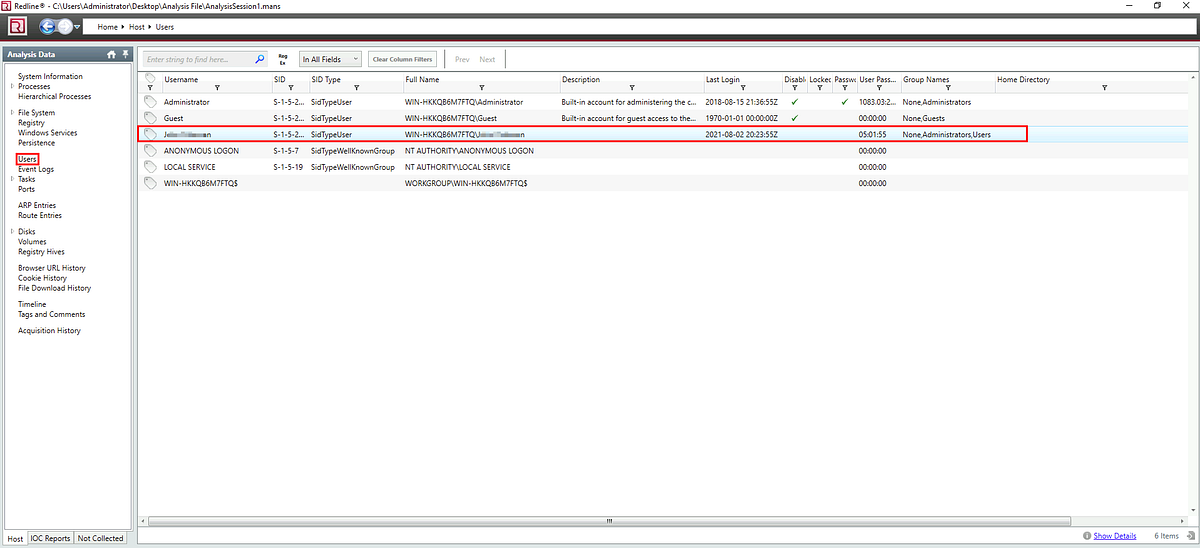
Users Analysis Data
Since the Administrator and Guest accounts are disabled, it looks like we only have one option. Let’s confirm our findings and keep going with the investigation.

Question 2: What is the operating system of the compromised host?
Okay, now that we know who the victim is let’s take a high-level view of the victim’s machine to better understand the environment. At the very top of the Analysis Data menu is the System Information tab. This tab is a great starting point for us and contains information about the Machine, Operating System, and User.
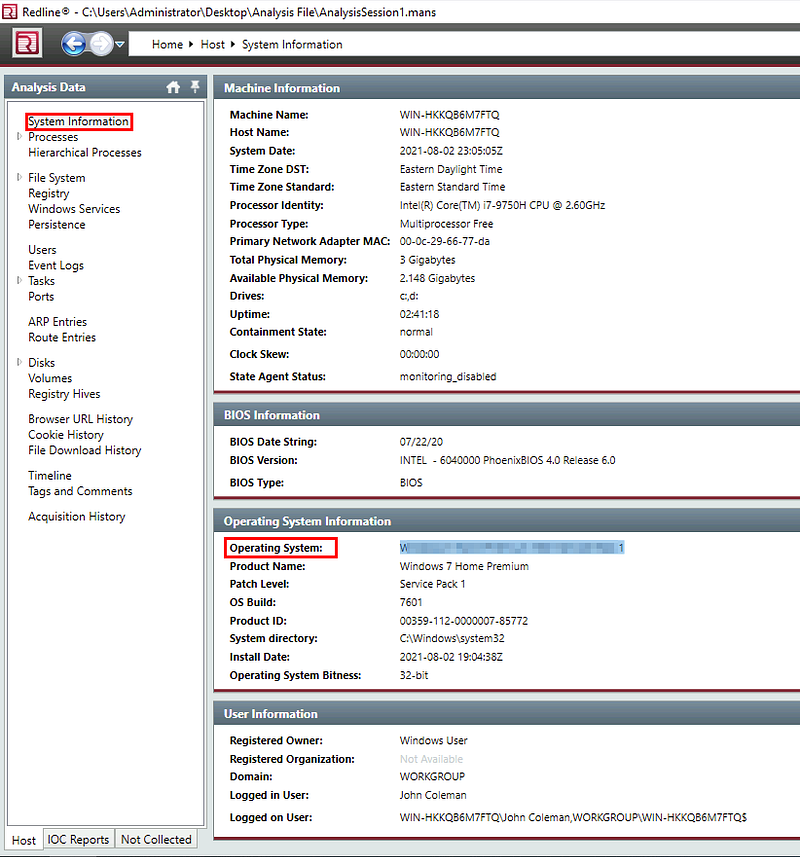

Questions 3 & 4:
What is the name of the malicious executable that the user opened?
What is the full URL that the user visited to download the malicious binary? (include the binary as well)
Okay now we need to determine how the malicious executable was dropped onto the system. Since Question 4 is asking about a download URL, let’s start with something obvious and check the File Download History tab to see what we can find.
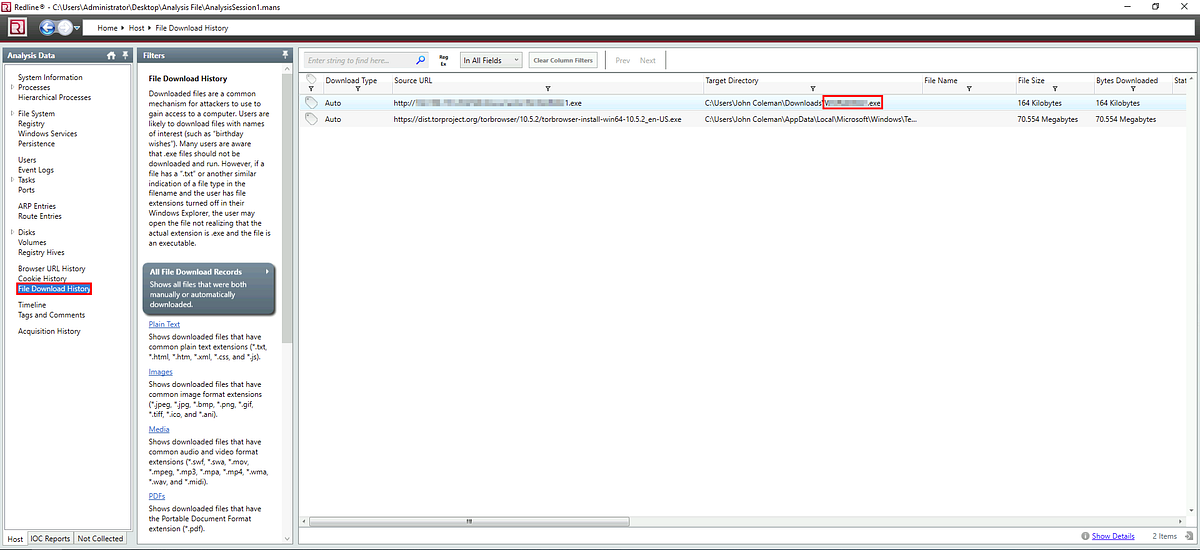
The File Download History shows u_s_ two artifacts, but one of the downloads has a source URL containing an IP address — that’s a bit suspicious and requires some additional investigation.
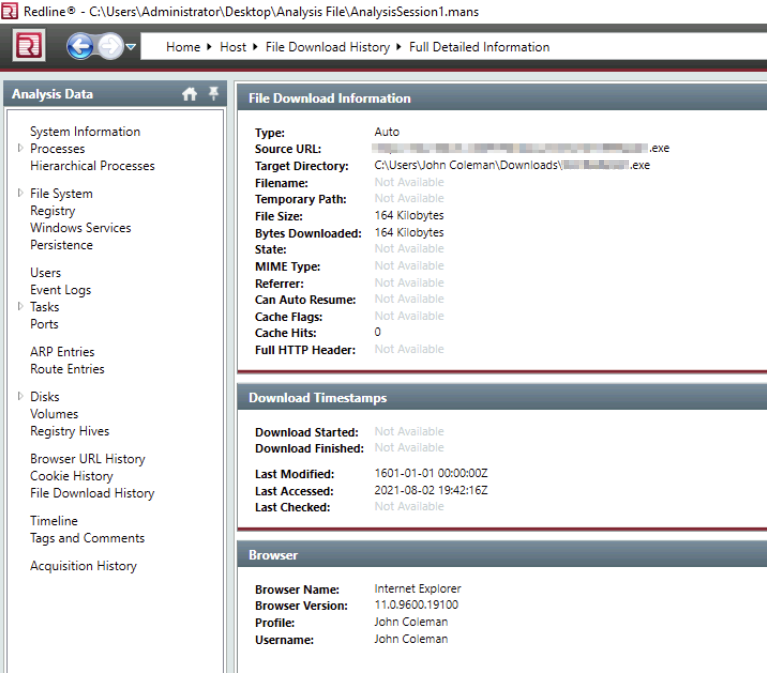
The artifacts we discovered so far should be sufficient to answer Questions 3 & 4 but it is still unclear how or why the victim acquired this executable.
At this point in the analysis, we can start to speculate what might have happened:
-Maybe the download URL was sent to the victim with a Spearphishing Link? (MITRE ATT&CK T1566.002)
-Could the user have been searching for the legitimate application on the web and fell victim to a Malvertising link? (MITRE ATT&CK T1583.008)
-Or maybe there was a Supply Chain Compromise, and the executable was infected and distributed from the legitimate site hosting the application? (MITRE ATT&CK T1195.002)
As we go through the investigation, answering these types of questions will be important. In the real world, finding the root cause can help us form a strategy to tighten up our preventative controls and prepare us to fully eradicate the threat!


Questions 5 & 6:
What is the MD5 hash of the binary?
What is the size of the binary in kilobytes?
Now, since we have the download path from the File Download History, let’s actually navigate to this location using the File System tab. We will select the Downloads folder, locate the file, and double-click it to drill-down and get more detailed information.
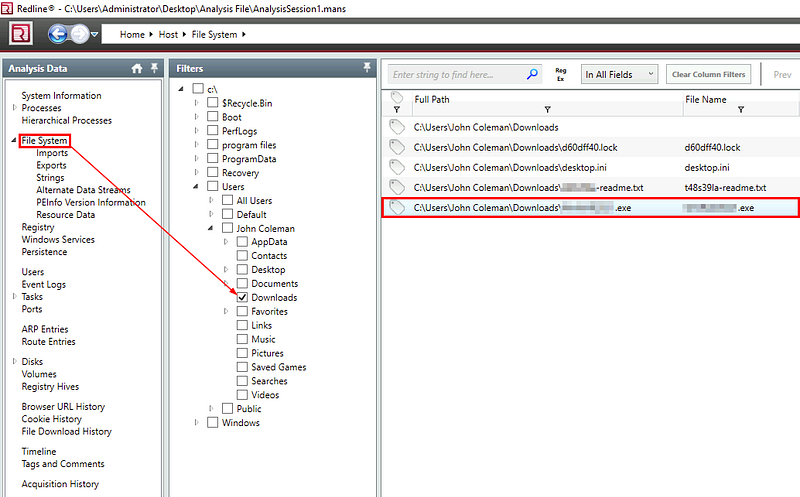
This will give us the specific information we are looking for to answer Questions 5 & 6, including the file size and file hashes.
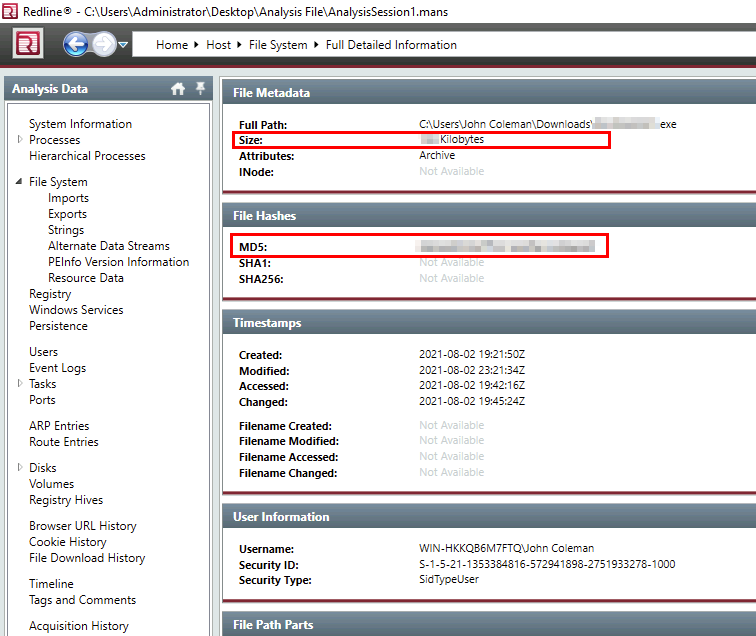
Full Detailed Information of the Malicious Binary
Okay! Now that we have the file hash, let’s take our analysis a step further and drop the hash into VirusTotal to see if we can get any hits and gather some additional intelligence on this binary:
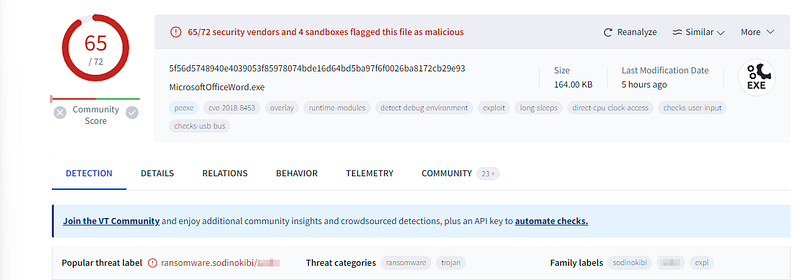
VirusTotal shows a lot of detection on this binary and includes some threat labeling that will help us to hunt for specific indicators of compromise. Keep this page open for reference later since we will use it to help answer Question 9!

Questions 7 & 8:
What is the extension to which the user’s files got renamed?
What is the number of files that got renamed and changed to that extension?
Okay, let’s stick with the File System tab. Since we know the user account and that the victim complained that his files “are renamed to a weird file extension that he has never seen before” we can take a look at a location with high visibility and that is often used for storage — the Desktop.
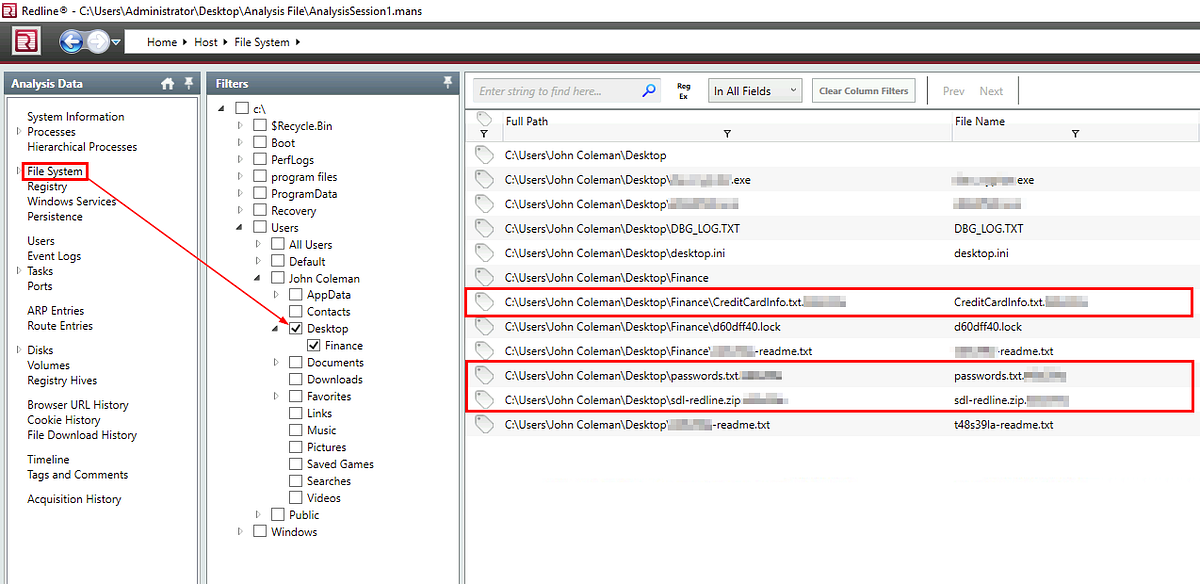
Right away we can see what the victim reported, several files with an unusual extension. Let’s try to assess the impact and determine how many files were appended with this extension.
To do this, we are going to utilize the Timeline feature which records all of the file events so that we can see what has been created, accessed, modified, and changed. The question is asking about files that are renamed AND changed, so within the Timeline lets select modified and changed under Files. After that we will press the filter button on the Summary column and input the weird extension from Question 7 to search for files with this extension.
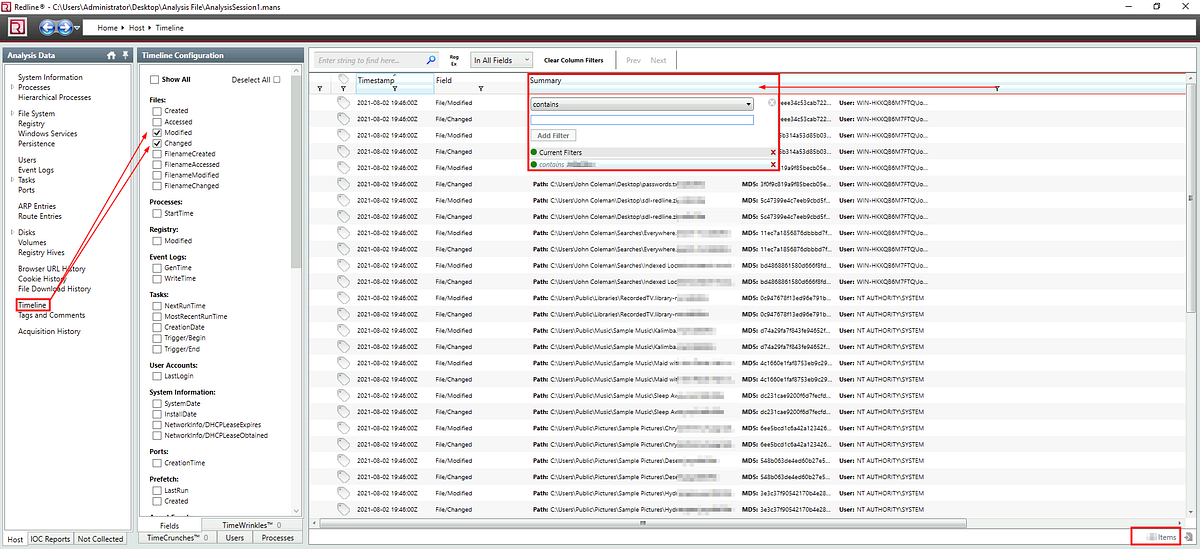
Now let’s check our results. At the bottom right of the screen we will have an item count, this should be the answer we are looking for!
Question 9: What is the full path to the wallpaper that got changed by an attacker, including the image name?
To tackle this problem, let’s pull back and recall some of the indicators we have already discovered. Remember back in Question 6 that we found some information about the threat family of the malicious executable from VirusTotal? Let’s use that information and do some research. This will save us time instead of manually sifting through the entire Timeline.
Let’s head over to Google and see what we can find by searching for the threat family label that we found on VirusTotal. While there is quite a bit of information on this malware, I stumbled across one article that had some interesting information that will help us answer Question 9 (and confirms one of our theories from Question 4).
REvil/Sodinokibi Ransomware _The REvil (also known as Sodinokibi) ransomware was used by the financially motivated GOLD SOUTHFIELD threat group…_www.secureworks.com
The article states that the malware sets a wallpaper and:
saves the finished image to the host’s %Temp% directory using a random filename consisting of lowercase letters and numbers between 3 and 13 characters in length appended with the “.bmp” extension (e.g., C:\Users_
_\AppData\Local\Temp\cd2sxy.bmp).
Now that we have some idea of what indicator we might be hunting for, let’s jump back into Redline and adjust our filter in the Timeline.
We will add a filter to the Summary column and specify the Temp directory for the user that we are investigating. Once we have the filter in place, we can search for the .bmp file extension in the search box.
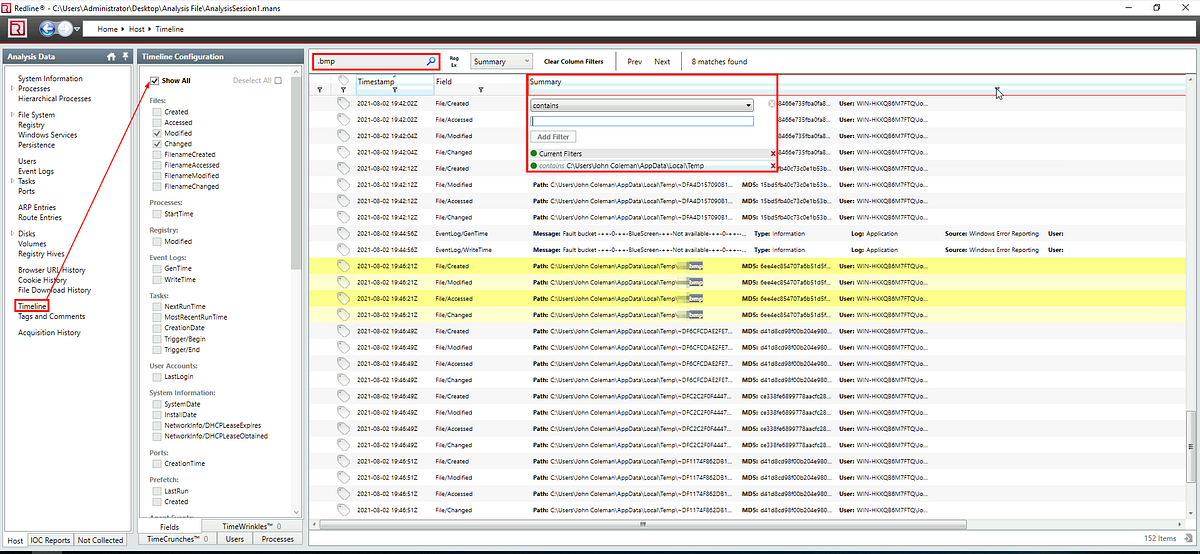
Great! With the help of some threat intelligence, we found the answer!

Question 10: The attacker left a note for the user on the Desktop; provide the name of the note with the extension.
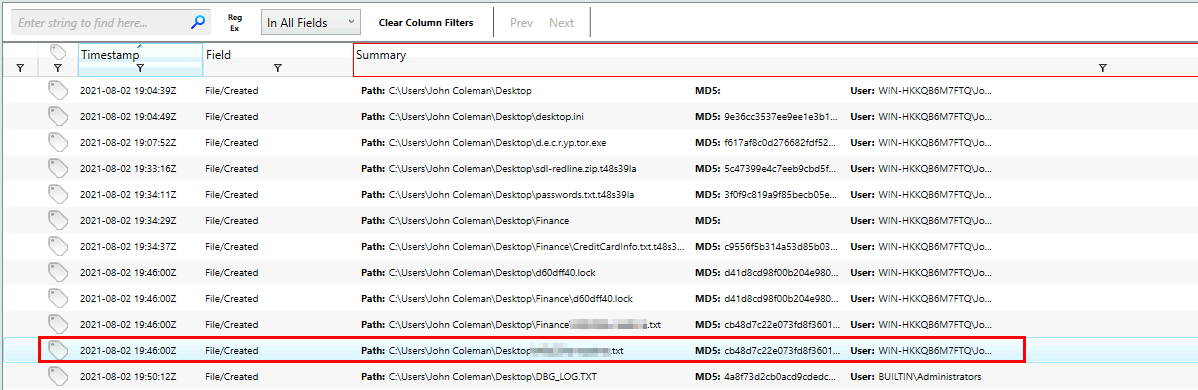
Now let’s go searching for the ransom note. While we could navigate back to the Desktop from the File System tab, why don’t we just keep using the Timeline with some adjustments?
Let’s change the Timeline Configuration to show Created files and then filter the summary column for the victim’s Desktop path:
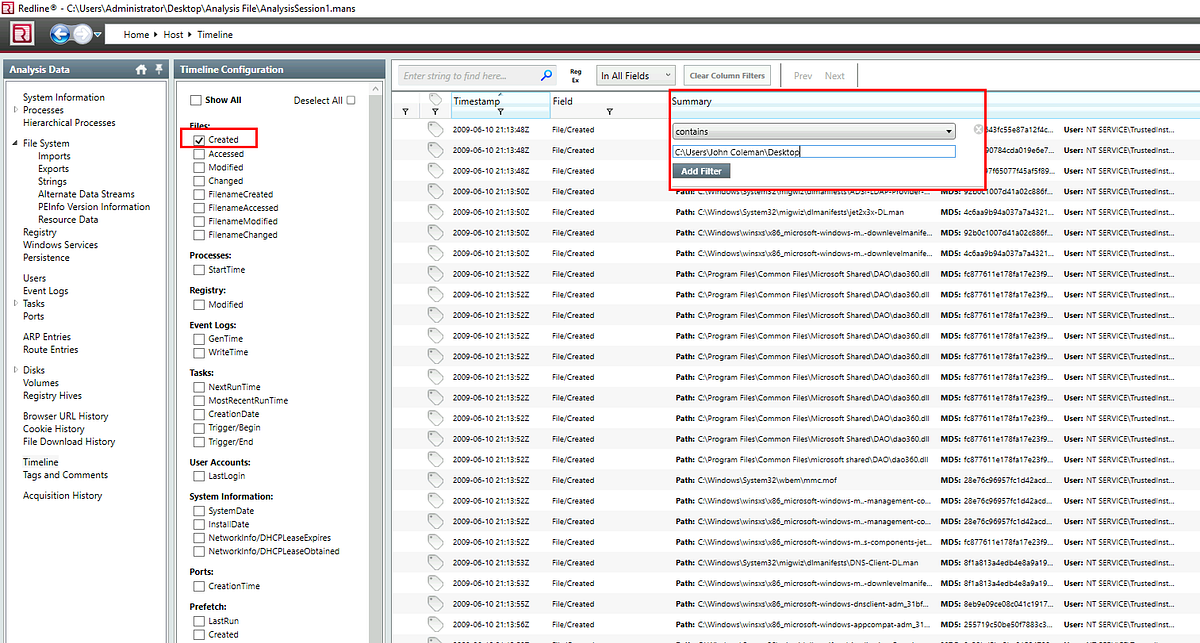
Once we do that, we will see a readme file — I think that’s what we are looking for…

Question 11: The attacker created a folder “Links for United States” under C:\Users\John Coleman\Favorites\ and left a file there. Provide the name of the file.
We have all the information we need from Question 11 itself to continue searching within the Timeline. Let’s go ahead and add the file path from the question including the folder name.
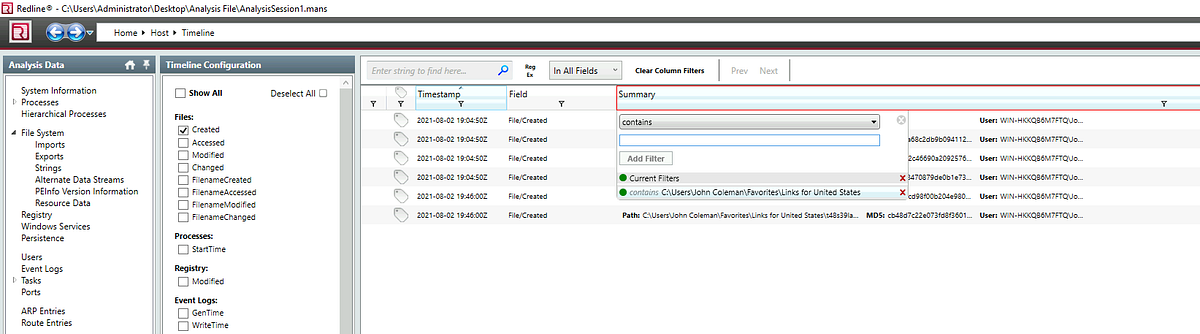
Once add the information to the filter, the output leaves us with just a few choices. One file sticks out as it is not an English language word like we have seen on the rest of this system:
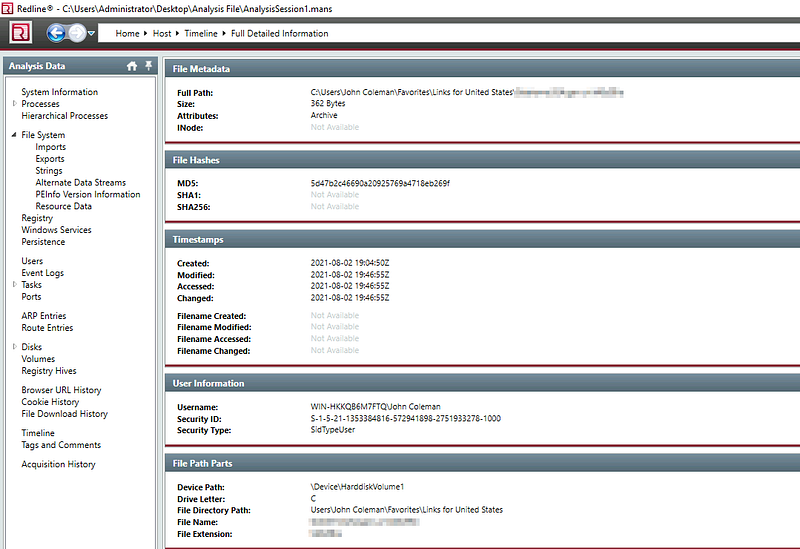
Let’s confirm our suspicion and check our findings.

Question 12: There is a hidden file that was created on the user’s Desktop that has 0 bytes. Provide the name of the hidden file.
For Question 12, we’ll pivot back to the File System tab and filter only John’s Desktop again.
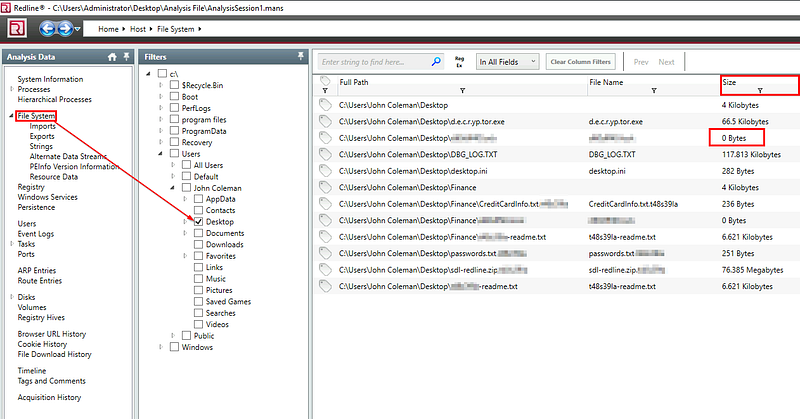
If we look at the Size column, we can easily spot the hidden file we are looking for.

Question 13: The user downloaded a decryptor hoping to decrypt all the files, but he failed. Provide the MD5 hash of the decryptor file.
Awesome, since we are already filtering the Desktop from the File System tab, you may have also already noticed a conspicuous decryptor executable?
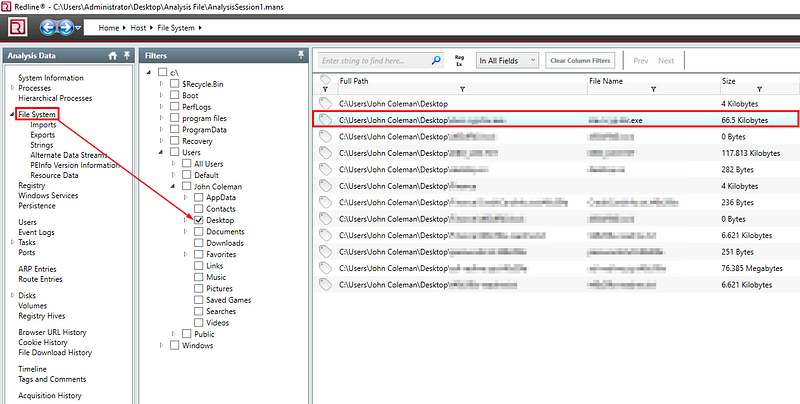
Let’s double-click the file to get the full detailed information, including the file hashes.
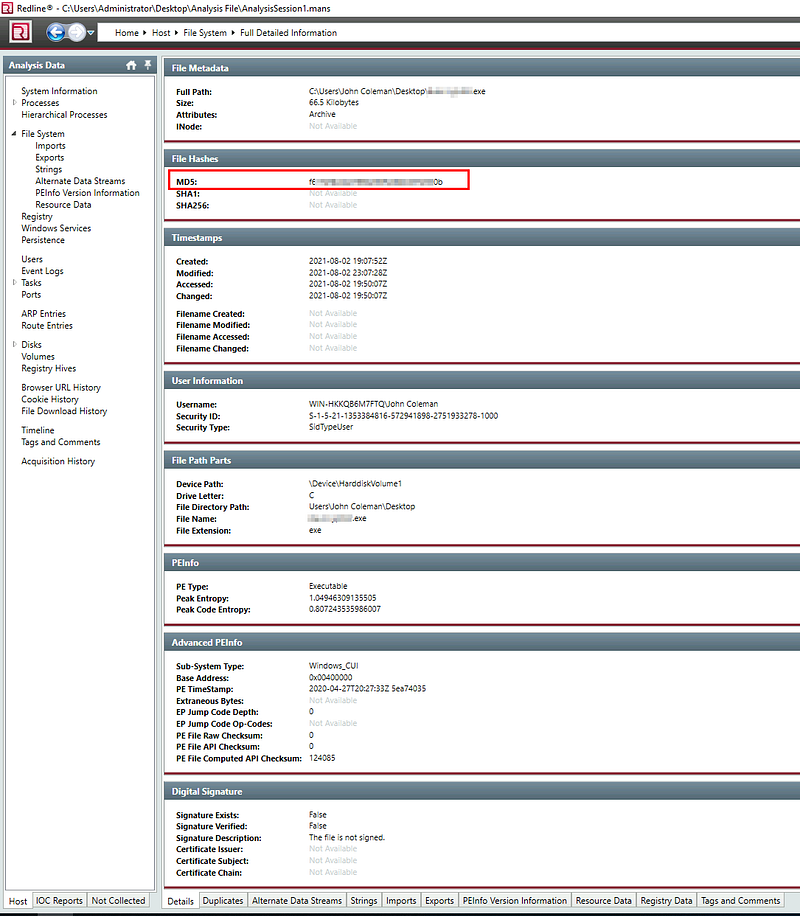
Let’s copy the MD5 Hash and submit the answer!

Question 14: In the ransomware note, the attacker provided a URL that is accessible through the normal browser in order to decrypt one of the encrypted files for free. The user attempted to visit it. Provide the full URL path.
I don’t see a straightforward way to extract an artifact from the Redline file to simply read the URL from the ransom note, so let’s get creative and utilize the Browser URL History tab and sift through the logs.
Since we are looking for a website used for decryption let’s try entering the keyword decrypt into the search box and see what we find?
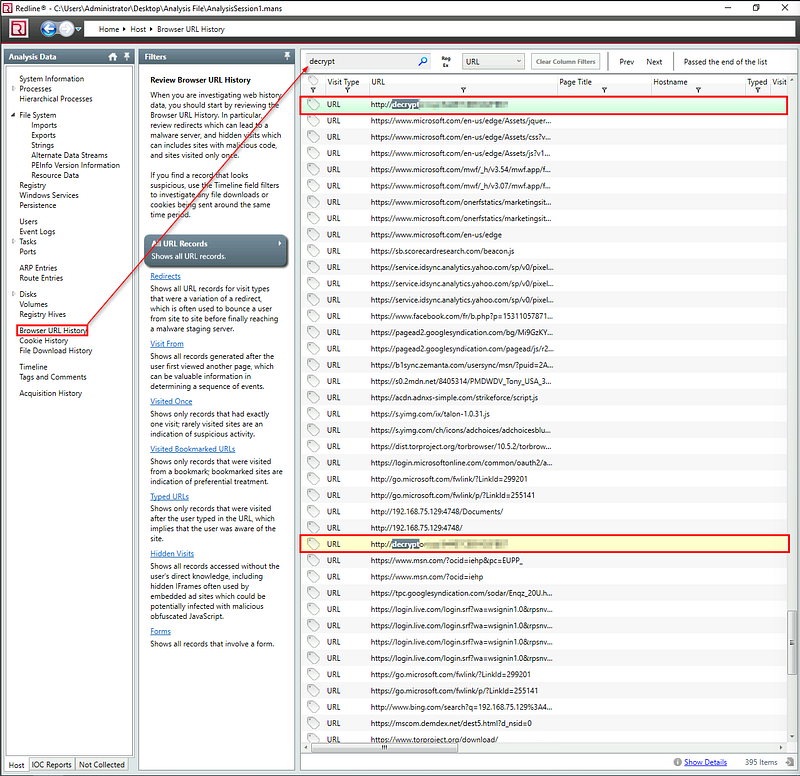
Okay, it looks like we found a URL in the list with our search! While it isn’t always this easy to correlate a URL with the other malicious activity, we’ll take this one as a win and move on to the final question.

Question 15: What are some three names associated with the malware which infected this host? (enter the names in alphabetical order)
With the indicators discovered from our investigation so far, we can be pretty confident that we know which ransomware affected the victim. But, the VirusTotal intelligence from Question 6 and the Secureworks report from Question 9 only give us two names for this malware. So, we will need to collect more intelligence. For this, let’s turn to the MITRE ATT&CK knowledge base and see what additional information is available for this ransomware — we’ll input one of the names that we know already:
REvil _REvil is a ransomware family that has been linked to the GOLD SOUTHFIELD group and operated as ransomware-as-a-service…_attack.mitre.org
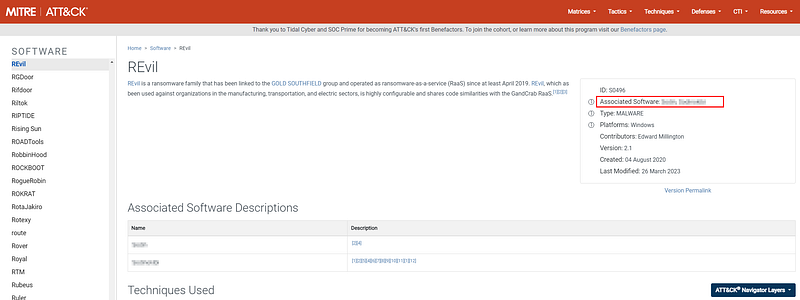
There we go, we have some associated software descriptions that should help us answer the last question and wrap up this investigation!

Conclusion:
Whew! We set to solve this ransomware incident using Redline and I think we now have enough information to start the eradication and recovery phase for John! Great job!
Thank you to TryHackMe for hosting another engaging challenge and building out such a huge catalog of free rooms for the community. This room was an excellent challenge to reinforce the concepts from the Redline room and provides enough hands-on time to understand it’s value in the DFIR process. It never hurts to have some more experience with a new tool to keep in your kit, after all!
Thank you so much for reading along. I hope that you had as much fun as I did and learned something new, too. Until next week — stay curious!
Tools & References:
FireEye Redline: https://fireeye.market/apps/211364
TryHackMe REvil Corp Room: https://tryhackme.com/r/room/revilcorp
MITRE ATT&CK — Spearphishing Link: https://attack.mitre.org/techniques/T1566/002/
MITRE ATT&CK — Malvertising: https://attack.mitre.org/techniques/T1583/008/
MITRE ATT&CK — Supply Chain Compromise: https://attack.mitre.org/techniques/T1195/002/
VirusTotal: https://www.virustotal.com/
Secureworks: https://www.secureworks.com/research/revil-sodinokibi-ransomware
MITRE ATT&CK — REvil: https://attack.mitre.org/software/S0496/