TryHackMe: Monday Monitor Challenge Room Walkthrough
Wazuh SIEM Forensics: Investigating Persistence, Credential Dumping, and Exfiltration with Atomic Red Team.

Image Credit: https://tryhackme.com/room/mondaymonitor
Introduction:
Welcome to my weekly walkthrough! If you’ve stumbled across this blog while looking for a detailed guide to the Monday Monitor blue team challenge from TryHackMe, you’re in the right place. This room is all about the investigative side of cyber defense, blending endpoint logging, analyzing SIEM events, with a sprinkle of adversary emulation to keep things interesting.
In this challenge, we’re stepping into the role of a cyber sleuth brought in to help Swiftspend Finance level up their security program. Several controlled tests were executed across the environment, and it’s our job to work through the evidence, validate detections, and piece together the full attack chain. Fortunately, we’re given access to their Wazuh SIEM dashboard that’s ingesting Sysmon data from the endpoint. That gives us a rich dataset of process activity, command lines, network connections, and behavioral signals to work with.
We’ll be using Wazuh’s security events module, saved searches, field filtering, and a bit of intuition to uncover everything from initial access to credential dumping and exfiltration. Along the way, tools like CyberChef help us decode suspicious payloads, and references to MITRE ATT&CK anchor our analysis in real‑world tactics, techniques, and procedures.
I’ll walk through each step clearly, and by the end you’ll have a solid sense of how to approach similar detection‑driven investigations using Wazuh. Sounds like fun, right? Let’s go!
And, hey, if you find this walkthrough helpful — whether it levels up your skills, gets you over a stumbling block, or just serves as a handy reference — please consider following me to get more content like this.
Thanks for reading and going on this investigation with me!
Challenge Scenario:
Swiftspend Finance, the coolest fintech company in town, is on a mission to level up its cyber security game to keep those digital adversaries at bay and ensure their customers stay safe and sound.
Led by the tech-savvy Senior Security Engineer John Sterling, Swiftspend’s latest project is about beefing up their endpoint monitoring using Wazuh and Sysmon. They’ve been running some tests to see how well their cyber guardians can sniff out trouble. And guess what? You’re the cyber sleuth they’ve called in to crack the code!
The tests were run on Apr 29, 2024, between 12:00:00 and 20:00:00. As you dive into the logs, you’ll look for any suspicious process shenanigans or weird network connections, you name it! Your mission? Unravel the mysteries within the logs and dish out some epic insights to fine-tune Swiftspend’s defences.
Question 1: Initial access was established using a downloaded file. What is the file name saved on the host?
For this room, we’re all about Wazuh, the open source security information event management (SIEM) platform. Swiftspend Finance recently paired Sysmon on the endpoint with Wazuh for centralized security monitoring. Let’s get into these logs and see what we can find.
To get started, launch the provided virtual machine and connect to the Wazuh dashboard in your web browser using the URL from the challenge. Once you’re logged in, navigate to the Security events module by selecting its icon on the dashboard.
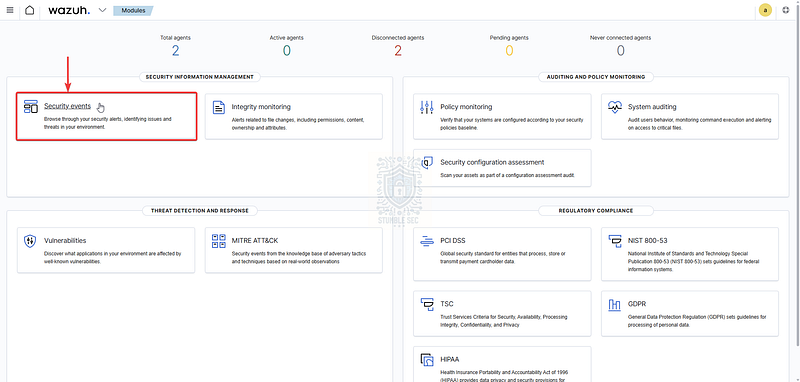
Wazuh: Navigating to the Security events
Next, load the saved query Monday_Monitor to pull up the relevant logs for this challenge.
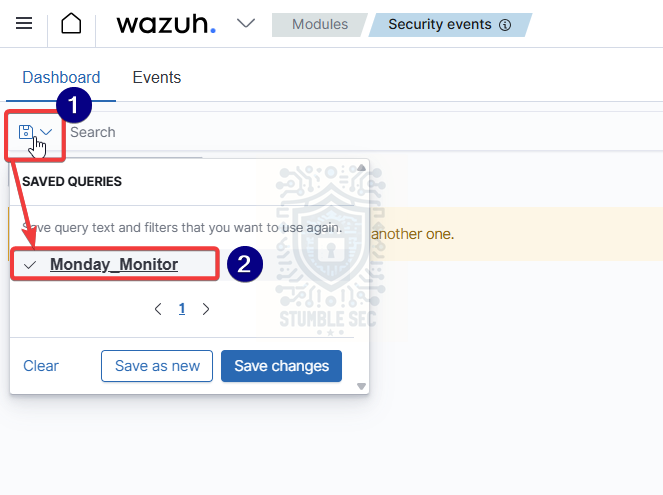
Wazuh: Loading the Monday_Monitor saved query
Once the query loads, we need to set the correct time window for when the security engineering team ran the tests. According to the challenge scenario:
The tests were run on Apr 29, 2024, between 12:00:00 and 20:00:00.
After clicking the Show dates button, set the time range options to Absolute and select the correct start and end timestamps.
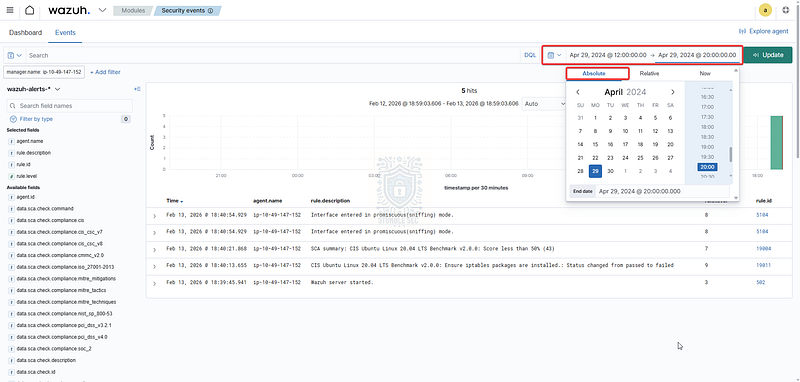
Wazuh: Setting the date/time
With the groundwork complete, we can finally start digging into data that falls within the scope of the test.
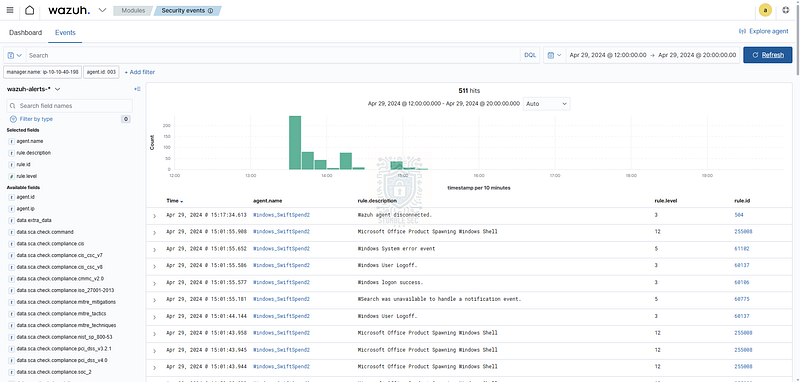
Wazuh: Setup completed
To answer Question 1, we need to identify the downloaded file used for initial access. Since this is a controlled red team test conducted by Swiftspend’s Security Engineering team, and not a typical scenario where a user accidentally downloads and executing a malicious file, our first move is to explore the built‑in detection rules.
Click the + Add Filter button beneath the search bar. For filtering, set the field to rule.description with the operator is. In the value dropdown, look through what detection rules triggered during the test. Here, the Microsoft Office Product Spawning PowerShell rule stands out as a likely indicator that a malicious document might have established the initial access.
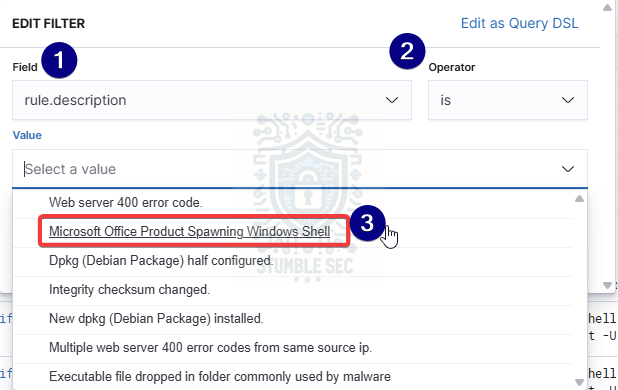
Wazuh: Filtering Microsoft Office Product Spawning Windows shell rule.descriptions
Before we dig further, let’s make the results easier to read. From the available fields on the left, add data.win.eventdata.commandLine to the selected fields. This lets us view process command lines without expanding individual records. With this in place, we can focus on events where Office spawned PowerShell and quickly see what each command executed.
Now we’ve got the right query, the right timing, the correct rule filter, and the process command line displayed. The last step is to identify download activity that reveals the file name. To do that, search for HTTP in the search box.
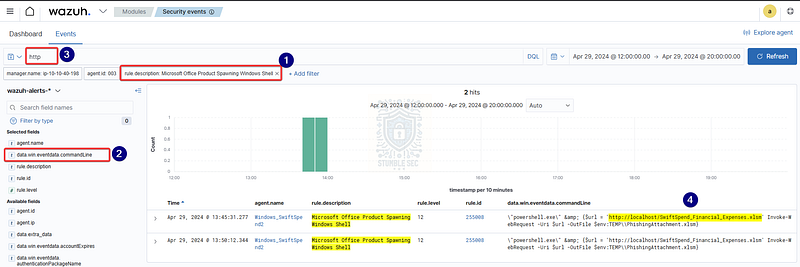
Wazuh: Searching for HTTP events to identify the downloaded file used for initial access
Perfect. This narrows the results down to two hits showing that powershell.exe downloaded SwiftSpend_Financial_Expenses.xlsm.

Questions 2 & 3:
What is the full command run to create a scheduled task?
What time is the scheduled task meant to run?
Our next tasks are to identify scheduled task creation and determine when that task is scheduled to run. This is important because creating a scheduled task is a common persistence technique, and spotting these entries in Wazuh gives us a strong signal that the test is attempting to plant something on the host. Let’s get to work!
First, Clear the rule.description filter we added in Question 1. To keep things simple, use the search field to look for schtasks.exe, the command‑line tool used to “create, delete, query, change, run, and end scheduled tasks on a local or remote computer”.
This search returns four results, and in the command line we can clearly see that schtasks.exe is being used to create a new scheduled task. Copying that full line gives us the answer to Question 2:
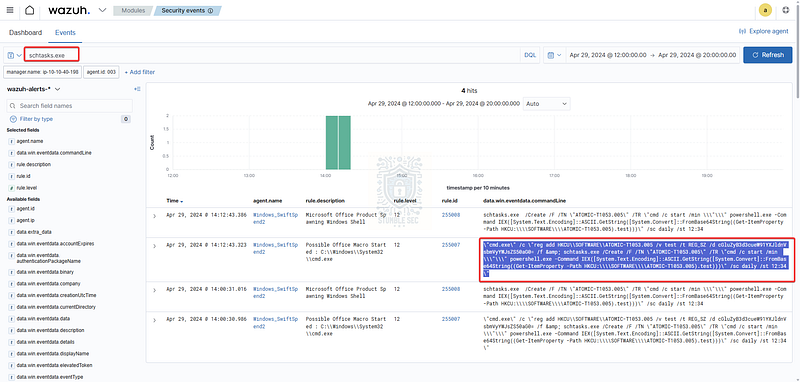
Wazuh: Identifying schtasks.exe activity
"cmd.exe" /c "reg add HKCU\SOFTWARE\ATOMIC-T1053.005 /v test /t REG_SZ /d cGluZyB3d3cueW91YXJldnVsbmVyYWJsZS50aG0= /f & schtasks.exe /Create /F /TN "ATOMIC-T1053.005" /TR "cmd /c start /min \"\" powershell.exe -Command IEX([System.Text.Encoding]::ASCII.GetString([System.Convert]::FromBase64String((Get-ItemProperty -Path HKCU:\\SOFTWARE\\ATOMIC-T1053.005).test)))" /sc daily /st 12:34"
And conveniently nestled within this same command is the answer to Question 3. The /st argument specifies the scheduled time, and here it’s set to: 12:34.
This command line also hints at the tooling behind the test: Atomic Red Team. We can see the test path ATOMIC-T1053.005, which maps to the MITRE ATT&CK technique T1053.005 Scheduled Task/Job: Scheduled Task. Atomic tests like this are often used to validate detections, which fits perfectly with Swiftspend’s testing scenario.

Question 4: What was encoded?
Next up, we need to figure out the contents of the encoded string we saw in the previous command. In addition to creating a scheduled task, the command also adds a registry value named test under the key HKCU\SOFTWARE\ATOMIC-T1053.005. That value is stored as a REG_SZ string:
cGluZyB3d3cueW91YXJldnVsbmVyYWJsZS50aG0=
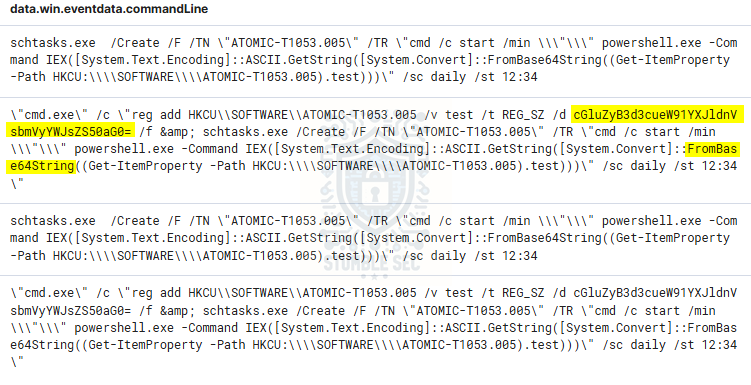
Wazuh: Identifying a Base64 encoded string in the command line
Later in the command, we see PowerShell calling FromBase64String, which tells us the value stored in the registry is Base64 encoded. So now we have the encoded string and the method used to decode it. All we need to do is decode the Base64 manually to uncover the actual payload.
One easy option is to copy the encoded string and paste it into CyberChef, the popular web‑based data manipulation tool. Once the string is in the input field, apply the From Base64 operation, and let CyberChef do its thing.
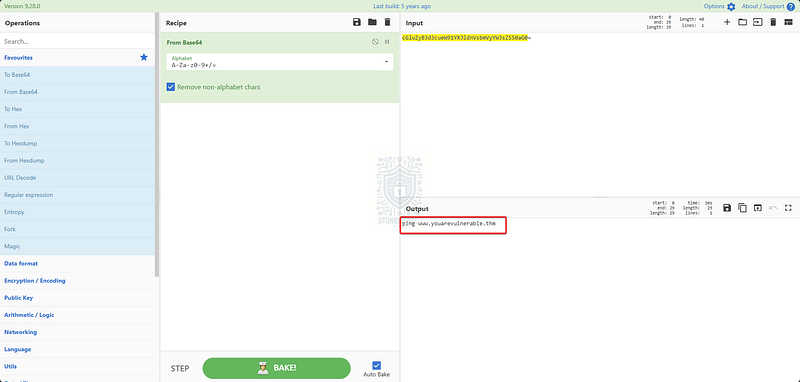
CyberChef: Decoding the Base64 encoded string
Voila! The decoded value reveals a simple ping command pointed at an external website, likely used as a heartbeat to test whether the host has outbound network connectivity: A nice find tucked away in the registry.

Question 5: What password was set for the new user account?
Moving right along, we’re now looking for evidence of a user account being created or modified, specifically, the password that was set for that account. No problem!
From the earlier questions, we already know the Atomic Red Team tests are relying on PowerShell to execute their activities. Let’s follow that thread and switch our filter from schtasks.exe to powershell.exe.
With this filter applied, we get a higher‑level view of all commands executed by PowerShell in the data.win.eventdata.commandLine field. While this is valuable context, we don’t need everything just yet. We only need the entry where a user account’s password is set.
Scroll through the results and you’ll stumble across a line showing PowerShell spawning the classic [net user](https://learn.microsoft.com/en-us/windows-server/administration/windows-commands/net-user) command to modify Windows user accounts.
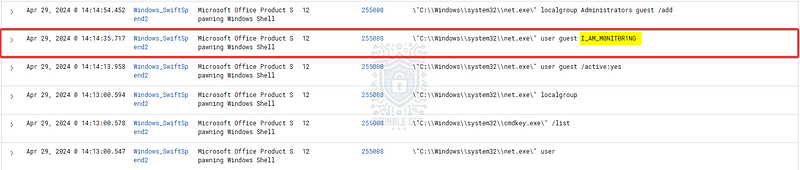
Wazuh: Identifying modification of the guest account
In this case, we see the guest account being updated, and its password is set to: I_AM_M0NIT0R1NG

Question 6: What is the name of the .exe that was used to dump credentials?
To answer Question 6, we need to identify the executable used to dump credentials on the device. With the powershell.exe filter still applied from the last question, you might’ve noticed several suspicious entries mixed in with the command output. A couple of minutes after the modification of the guest account, we stumble across something especially interesting: a command that references an output file named lsass.dmp.
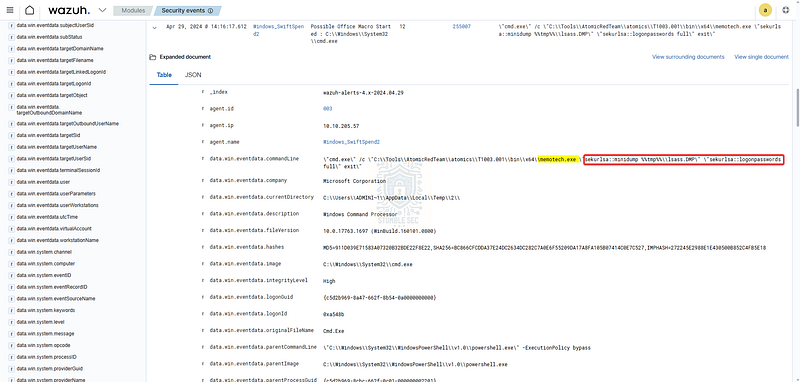
Wazuh: Identifying OS Credential Dumping activity
Before we dive into the executable itself, let’s review why LSASS is such a high‑value target. According to Microsoft Learn, LSASS, or the Local Security Authority Subsystem Service:
Stores credentials in memory on behalf of users with active Windows sessions. The stored credentials let users seamlessly access network resources, such as file shares, Exchange Server mailboxes, and SharePoint sites, without reentering their credentials for each remote service.
LSASS can store credentials in multiple forms, including:
Reversibly encrypted plaintext.
Kerberos tickets (ticket-granting tickets (TGTs), service tickets).
NT hash.
LAN Manager (LM) hash.
Reexamining the command in the logs, we see that the Atomic Red Team test executed an executable named: memotech.exe
This binary is responsible for generating the lsass.dmp file. And if the command line hasn’t already given it away, memotech.exe looks a whole lot like a disguised version of Mimikatz, an infamous credential dumping tool frequently used in both red team simulations and real‑world attacks.

Question 7: Data was exfiltrated from the host. What was the flag that was part of the data?
Our final challenge is to identify the command used for data exfiltration and locate the classic TryHackMe flag hidden inside the exfiltrated content. We’ll keep the powershell.exe filter applied from the previous questions so we can stay focused on the Atomic Red Team activity.
Scrolling through the remaining entries in the testing data, we’re looking for a command that clearly suggests data exfiltration. We stumble into it as a newer result in the logs. The main giveaway (aside from the flag itself) is the structure of the command. It includes a URL for Pastebin, a commonly abused text‑sharing site attackers use to store exfiltrated data (MITRE ATT&CK T1567.003.)
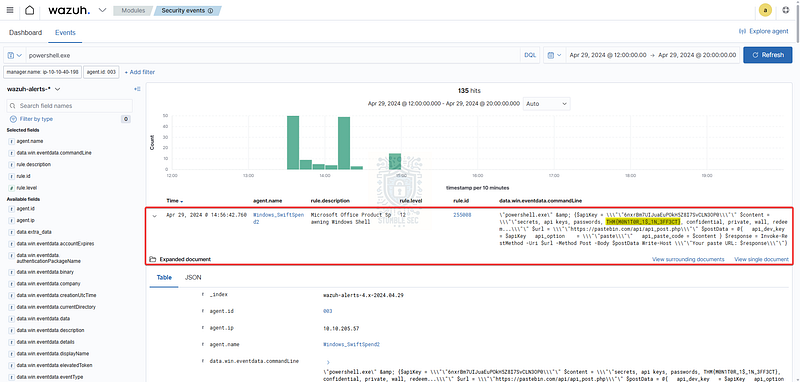
Wazuh: The content of the data exfiltration command
Reading through the full command, we find the outbound request that sends content directly to Pastebin. Embedded inside that transmitted data is the TryHackMe flag we’re looking for.
With that, we’ve wrapped up our investigation into the security engineering team’s Atomic Red Team tests. Nice work crossing the finish line!

Conclusion:
How fun was that! A big thank you to TryHackMe for another awesome challenge.
This walkthrough was a great example of how endpoint visibility can make or break an investigation. By combining Wazuh and Sysmon, we were able to trace an entire attack simulation chain from initial access to persistence, credential dumping, and data exfiltration. It highlighted endpoint monitoring and visibility is such a critical part of any defensive strategy.
As we moved through each question, we didn’t just follow the attacker’s activity. We also built a deeper understanding of how Wazuh presents data, how filtering and field selection guide analysis, and how small artifacts like encoded registry entries or scheduled task configurations can reveal much bigger things happening behind the scenes. Challenges like this are rewarding because each step builds naturally into the next, and the investigation feels both logical and engaging.
I chose this week’s challenge because even though I’m familiar with other SIEM platforms, I’d never actually used Wazuh. This was a great chance to learn the platform by testing it against an attack simulation and seeing how it handles real adversary techniques. It’s always satisfying when a controlled test lines up neatly with real‑world tradecraft, and Atomic Red Team makes that possible in such a clean and structured way. All in all, it was solid exposure to some new tooling and a good opportunity to get hands‑on time investigating activity inside a new SIEM environment.
Thanks for your support and partnering on this investigation. If you found this walkthrough helpful — please give it a clap and consider following me! Your feedback is invaluable, and it pumps me up to support your security journey. Remember, cybersecurity is a team sport, and we’re in this together!
Until next week’s challenge — stay curious and be safe out there!
Tools & References:
Challenge Link: https://tryhackme.com/room/mondaymonitor
Wazuh: https://wazuh.com/
Microsoft Learn — Schtasks.exe: https://learn.microsoft.com/en-us/windows/win32/taskschd/schtasks
Atomic Red Team GitHub: https://github.com/redcanaryco/atomic-red-team/blob/master/atomics/Indexes/Indexes-Markdown/index.md
CyberChef: https://gchq.github.io/CyberChef/
Microsoft Learn — net user: https://learn.microsoft.com/en-us/windows-server/administration/windows-commands/net-user
MITRE ATT&CK — OS Credential Dumping: LSASS Memory (T1003.001): https://attack.mitre.org/techniques/T1003/001/
MITRE ATT&CK — Mimikatz (S0002): https://attack.mitre.org/software/S0002/
MITRE ATT&CK — Exfiltration Over Web Service: Exfiltration to Text Storage Sites (T1567.003): https://attack.mitre.org/techniques/T1567/003/