LetsDefend — Windows Registry Challenge Walkthrough
A Windows Registry forensic investigation using Eric Zimmerman’s Registry Explorer, ShellBags Explorer, AppCompatCacheParser, and AmcacheParser.

https://app.letsdefend.io/challenge/windows-registry
Introduction:
Welcome to my weekly walkthrough! If you’ve stumbled across this blog searching for a comprehensive guide to the Windows Registry challenge from LetsDefend, you’re in the right place. This week, we’re diving deep into investigating the Windows Registry.
Challenge Scenario:
As a cybersecurity analyst, you’ve been given an image containing all the registry hives from one of our employee’s machines. Your task is to thoroughly examine the provided artifacts and respond to a series of questions based on your analysis.
In this scenario, we’re wearing our cybersecurity analyst hat, and are handed an image with a registry dump of all of the hives from a Windows device. Our objective is to sift through the artifacts and find the information requested to move forward through our investigation.
What’s in our tool kit for this investigation? We’re going to leverage several tools from Eric Zimmerman’s forensic suite to parse and explore the various registry hives, including: Registry Explorer, ShellBags Explorer, AppCompatCacheParser, and AmcacheParser.
But that’s not all! To provide detailed explanations and enrich our investigation, we’ll refer to detailed write-ups from the Magnet Forensics blog to gain comprehensive insights into the forensic process and how the registry works. This challenge is a great primer to the world of registry forensics! Sounds like fun, right? Let’s go!
And if you find this walkthrough helpful — whether it levels-up your skills, gets you over a stumbling block, or serves as a handy reference — please give it a clap and consider following me for more content like this.
Thanks for reading and going on this investigation with me!
Question 1: How many users were added?
To kick off our investigation, let’s review the available tools and artifacts to orient ourselves with the analysis environment and determine how we want to approach the challenge.
First, extract the archive file RegistryImage.7z from the ChallengeFile directory. Then, let’s take a look at the challenge artifacts. Since this is a registry challenge, we’ll start with the contents of the ChallengeFile\C\Windows\System32\config directory, which is the directory where the registry files are stored. Inside, we’ll find that the folder contains a dump of the system-wide Windows Registry Hives (SYSTEM, SAM, SOFTWARE, SECURITY, etc.) which we’ll need to analyze to tackle the investigation.
Each of these hives contain different keys pertaining to various aspects of the device. Don’t worry, we’ll go into these in more detail later.
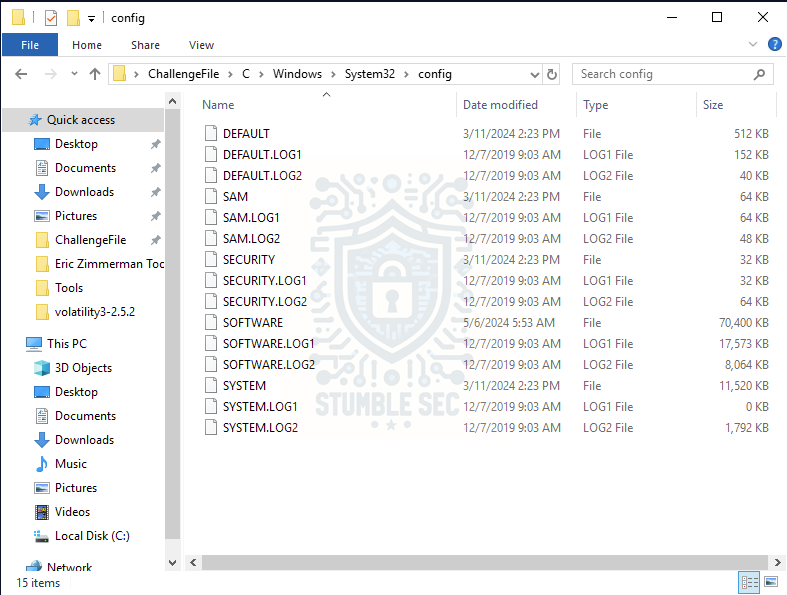
The Registry Hive Artifacts
Next, let’s check out the contents of the Tools folder within the analysis environment. Inside, we’ll see that we have access to a number of tools, several that are used to parse and view registry hives.
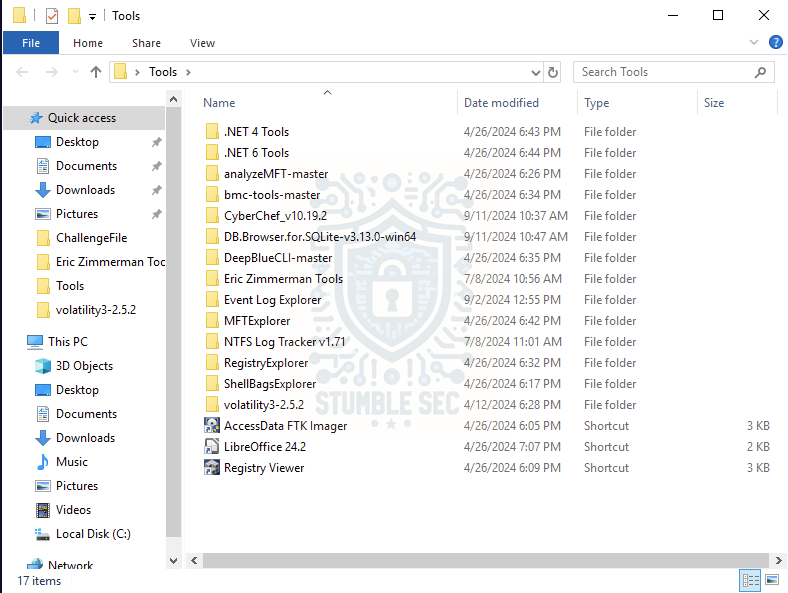
The Tools Folder Contents
For the first part of this investigation, we’ll be leveraging Registry Explorer. This GUI-based tool is part of Eric Zimmerman’s tool suite and is a " # “Registry viewer with searching, multi-hive support, plugins, and more.“To uncover the number of users on the system and answer Question 1, we’ll need to load the Security Account Manager (SAM) Hive which contains user information like username, group membership, and login information. To load this hive, perform the following steps:
- Open the Registry Explorer folder and launch the application.
- Press
File > Load Hive. - Select the SAM hive from the
ChallengeFile\C\Windows\System32\configdirectory.
Once we load the SAM hive with Registry Explorer, we can use the available " # "
Users (User accounts)” bookmark to identify the users on the system.
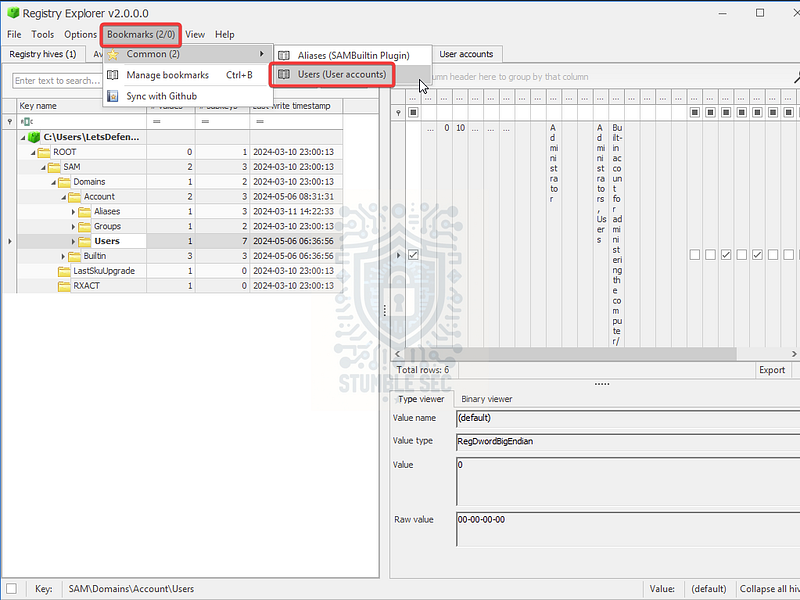
Registry Explorer: Selecting the Users Bookmark
We’ll find there are four built-in users, and two additional users added to the system. This is easier to see if you expand the User Name column.
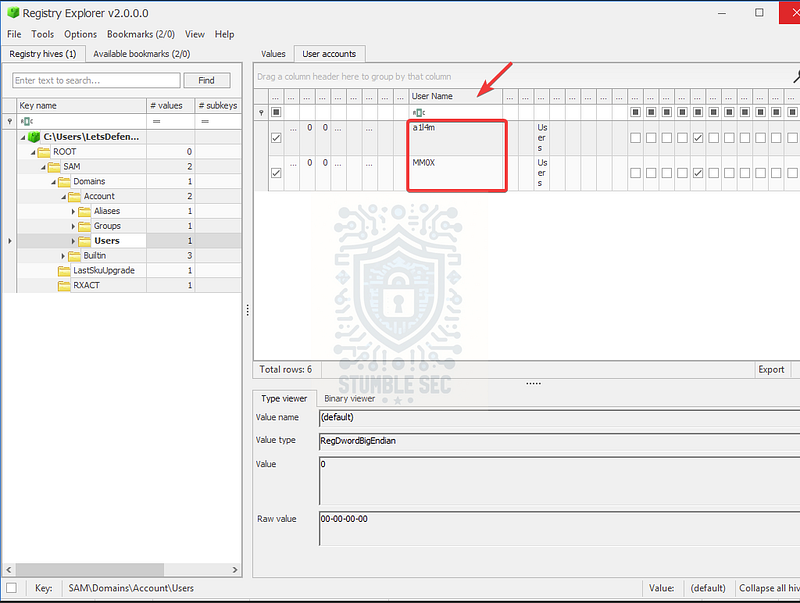
Registry Explorer: Identifying the Added User Accounts

Question 2: What is the build number of the user’s operating system?
To answer Question 2, we’ll need to discover the " # "
BuildNumber” of the operating system of the machine the dump was captured from. Since this isn’t user account-related, we’ll need to load another registry artifact — the SOFTWARE hive which contains the information, settings, and preferences for software installed on the system, including the operating system.
Once we load the SOFTWARE hive into Registry Explorer, we’ll receive the following " # "
dirty hive" error message referencing the transaction logs:
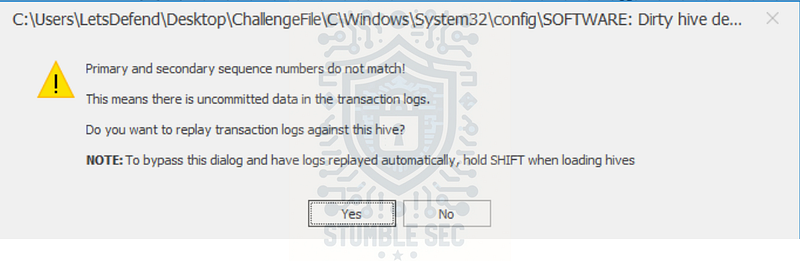
Registry Explorer: Dirty hive warning
To avoid this error, we can cancel the dialogue and reload the hive, this time holding down SHIFT when pressing Open. This will prevent us from needing to manually select the transaction log files and saving a " # "
clean" hive for separate analysis.
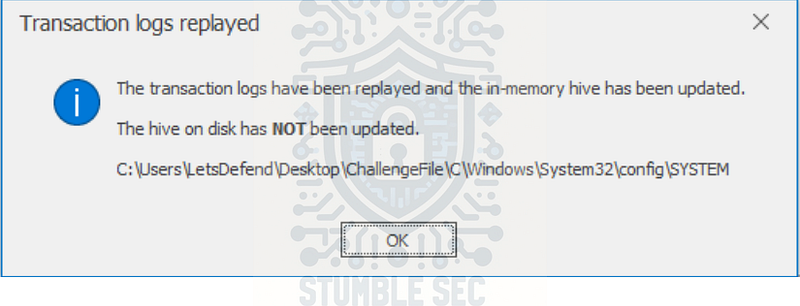
Registry Explorer: Transaction log replay confirmation
Now that the SOFTWARE hive is loaded, let’s browse it using the available common bookmark, " # "
CurrentVersion (Windows version information (Windows NT key))" .
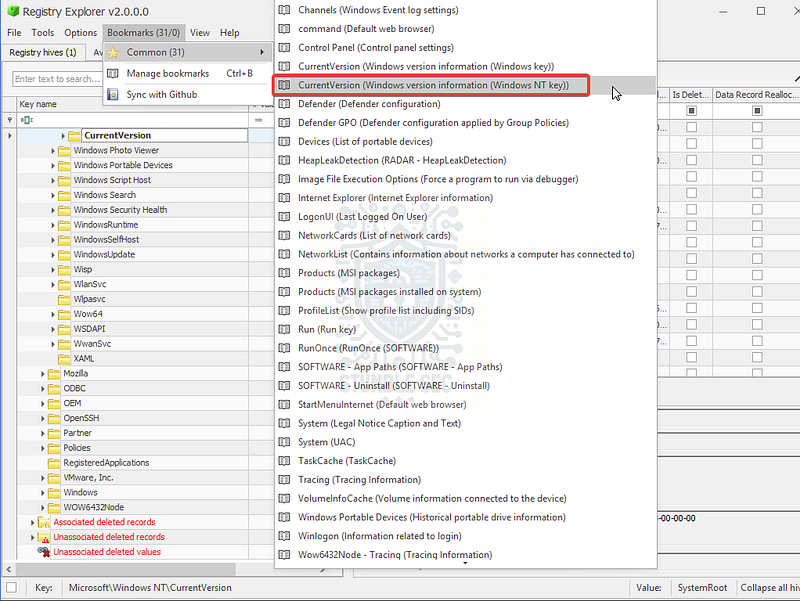
Registry Explorer: Selecting the CurrentVersion bookmark
This will take us to the CurrentVersion key where we can identify the OS build number in the CurrentBuild value and successfully answer Question 2.
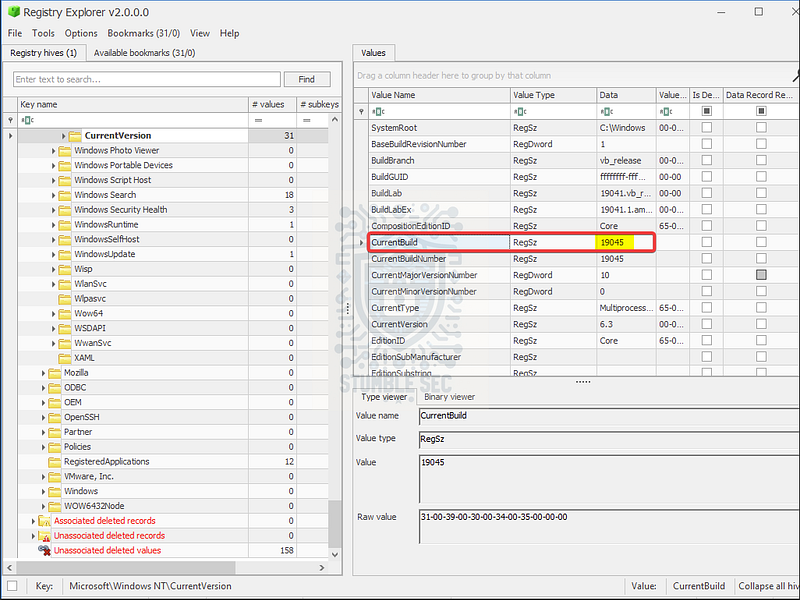
Registry Explorer: Identifying the build number of the OS

Question 3: What was the IP address of the machine you are investigating right now?
For the next task, we’ll need to identify the IP address of the machine we’re investigating. We can locate this information by loading a third registry hive, the SYSTEM hive. The SYSTEM hive contains the system’s configuration settings including the network interfaces.
Follow the same process that we used in Question 2 to bypass the dirty hive error message. We can then use the " # "
**Interfaces (DHCPNetworkHints, NetworkSettings Plugins)" ** bookmark to identify the relevant network configuration information including the assigned IP address.
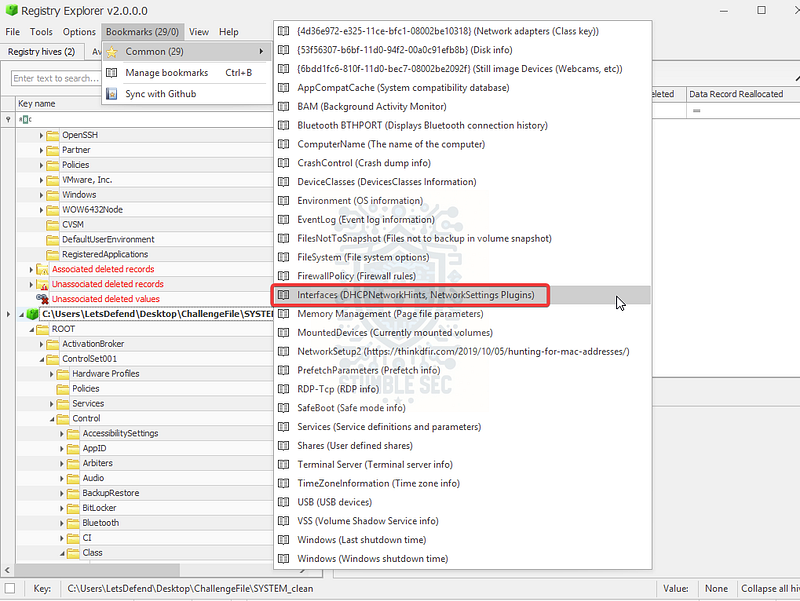
Registry Explorer: Selecting the Interfaces bookmark
The value we’re looking for to answer Question 3 is the DHCPIP Address value.
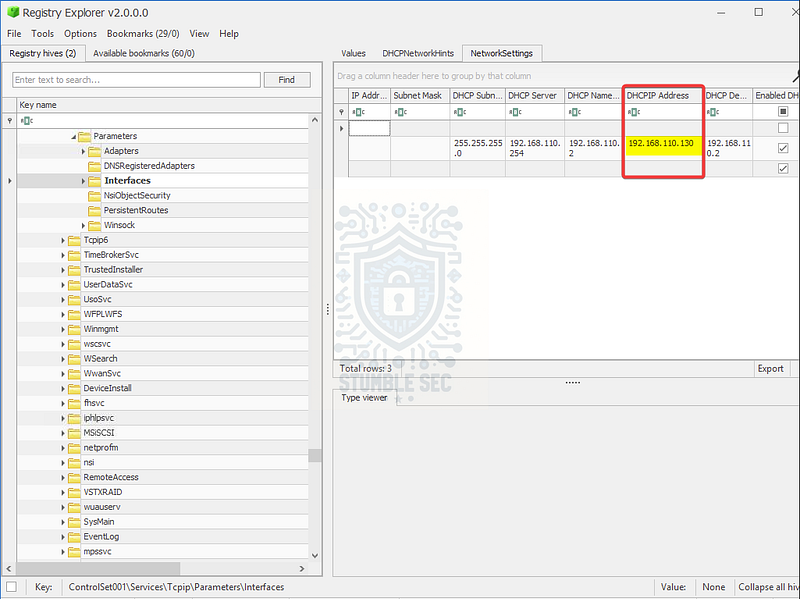
Registry Explorer: Identifying the Machine’s IP Address

Question 4: We suspect that the user may have some video games on their work PC. What is the name of the game?
Based on what we’ve learned so far, it seems logical that checking the Software\Microsoft\Windows\CurrentVersion\Uninstall key would be the best place to identify installed applications. But what if a game isn’t actually installed or the directory has been deleted? Can we find any evidence that it existed on the system with only a registry hive?
To determine if the user had any games installed on the work device we’re investigating, we’ll need to take a different approach searching for evidence. Let’s check the Question 4 hint for some guidance:

First, let’s start with some background on what Shellbags are and what the UsrClass hive is. For a deeper insight, we’ll lean on the extremely thorough explanation from Magnet Forensics:
Shellbags are a set of registry keys that store information about the view settings and preferences of folders as they are viewed in Windows Explorer.
Windows creates a number of additional artifacts when storing these properties in the registry, giving the investigator great insight into the folder, browsing history of a suspect, as well as details for any folder that might no longer exist on a system (due to deletion, or being located on a removable device).
So, putting all this together for our purposes, we may be able to find evidence of a folder containing a game by exploring the shellbags stored within the UsrClass.dat hive.
To do this, we can leverage another of Eric Zimmerman’s tools, ShellBags Explorer. This utility is a " # “GUI for browsing shellbags data. Handles locked files"and is already available in the Tools folder — very handy!
Go ahead and launch the utility, then press " # "
File” and select " # "
Load offline hive"
. Select the UsrClass.dat hive from the following directory: C\Users\Administrator\AppData\Local\Microsoft\Windows\UsrClass.dat
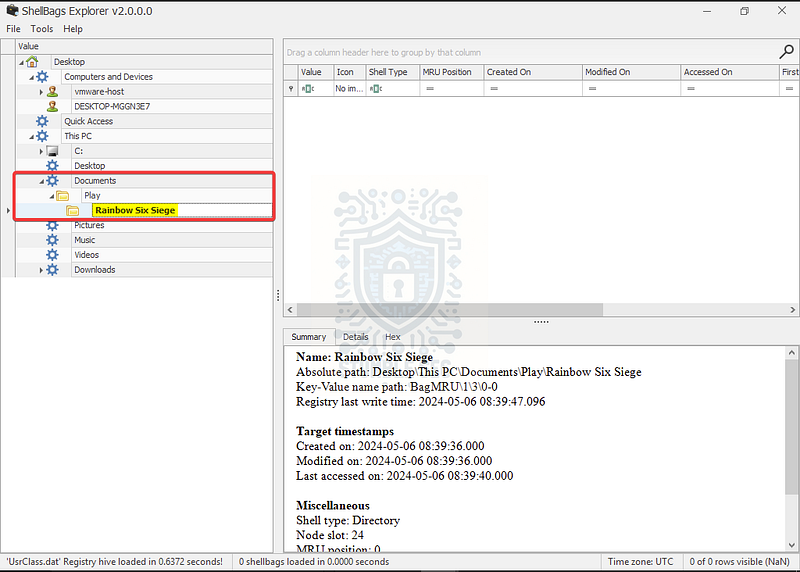
ShellBags Explorer: Identifying the video game
After exploring the available artifacts with ShellBags Explorer, we’ll stumble upon the folder Rainbow Six Siege, a popular online game, and the answer to Question 4.

Question 5: There was a file that got executed from the Downloads directory. What is the modification time of the said file?
Continuing forward, our next task is to discover the modification time of a file executed from within the Downloads directory. To do this, we’re going to analyze the Application Compatibility Cache (AppCompatCache), part of the SYSTEM registry hive.
But first, some context. In a Windows-based system, the AppCompatCache is used to track compatibility with older apps in newer versions of Windows. At first glance, this doesn’t seem that interesting but, from a forensic perspective, it contains some valuable information. For example, we’ll refer to another post from Magnet Forensics to explain the AppCompatCache further_:_
ShimCache, also known as the Application Compatibility Cache, is a feature in Windows designed to maintain compatibility for applications running on newer operating systems. It tracks the execution of applications, whether they were executed recently or in the past. ShimCache is part of the AppCompat framework, which Windows uses to ensure compatibility with older applications.
Okay! Now we’re getting somewhere. To retrieve this information, we’ll pivot to another of Eric Zimmerman’s tools, AppCompatCacheParser, to parse the SYSTEM registry hive and interpret the execution time of the file from the AppCompatCache. This tool is available in the analysis environment under this directory: C:\Users\LetsDefend\Desktop\Tools\Eric Zimmerman Tools\AppCompatCacheParser.exe
For example, we can execute the tool from the Windows Command Prompt with the following command to generate a CSV file for us to analyze:
“C:\Users\LetsDefend\Desktop\Tools\Eric Zimmerman Tools\AppCompatCacheParser.exe” -f “C:\Users\LetsDefend\Desktop\ChallengeFile\C\Windows\System32\config\SYSTEM” –csv “C:\Users\LetsDefend\Desktop”
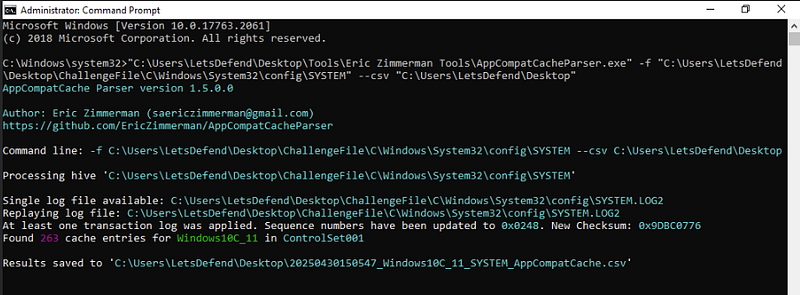
Running AppCompatCacheParser.exe from Command Prompt
Once the CSV file is generated, we’ll open it with yet another Eric Zimmerman tool, Timeline Explorer. This tool is a CSV viewer with robust filtering and sorting capabilities. For our purposes, we can use it to filter the Path column for the keyword " # "
Downloads," since this is the directory we want to focus on, to find that there is only one result.
We’ll need to check the column to the left, Last Modified Time UTC, to identify the answer to Question 5!
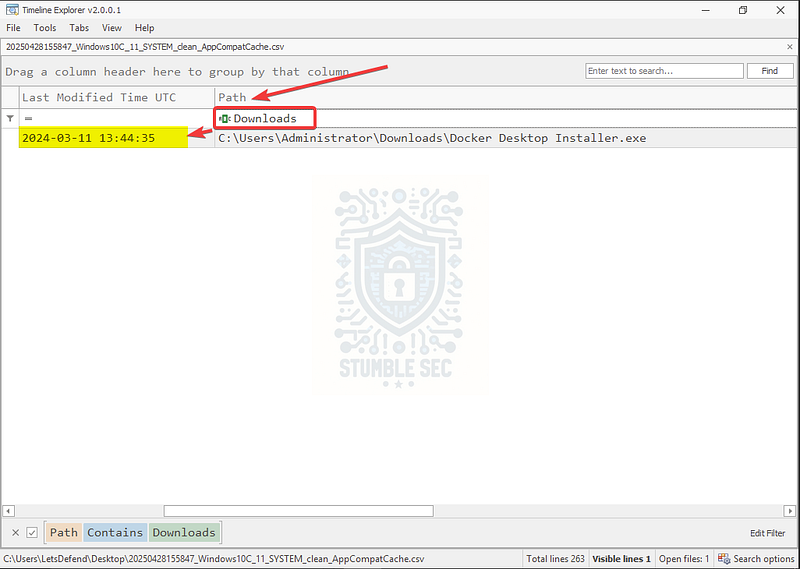
Timeline Explorer: Filtering the Download Path

Question 6: We believe that the user may have installed some malicious files on their work PC. What is the SHA1 hash of the malicious file?
Next up, we need to identify the SHA1 file hash of a malicious file installed on the PC. The first step here is to determine which file is malicious. To do this, we’re going to check the AmCache hive to gain an understanding of the files that have been executed on the system.
If you read the entire reference article from Magnet Forensics in the previous question, you may have seen a reference to this hive already. If not, here is an overview of the forensic significance of the AmCache hive from their blog:
AmCache is one of the most significant and detailed artifacts available to forensic investigators on modern Windows systems. Introduced in Windows 8, AmCache provides a wealth of information about executables and DLLs that interact with the system, recording key metadata which helps investigators piece together a forensic timeline of program activity. Unlike ShimCache, which captures metadata at shutdown, AmCache provides live data and tracks when files were first executed, making it a more reliable indicator of execution.
Perfect! This sounds like exactly the right place to be searching. In our analysis environment, we can locate the AmCache hive in the following directory: C:\Windows\AppCompat\Programs\Amcache.hve
How do we parse this, you might be asking? At this point in the investigation, it will come as no surprise that we are going to leverage another Eric Zimmerman tool. This time we’ll use AmcacheParser using a similar syntax to the previous question. For reference, I’ll leave an example below to output the results to CSV:
“C:\Users\LetsDefend\Desktop\Tools\Eric Zimmerman Tools\AmcacheParser.exe” -f “C:\Users\LetsDefend\Desktop\ChallengeFile\C\Windows\AppCompat\Programs\Amcache.hve” –csv “C:\Users\LetsDefend\Desktop”
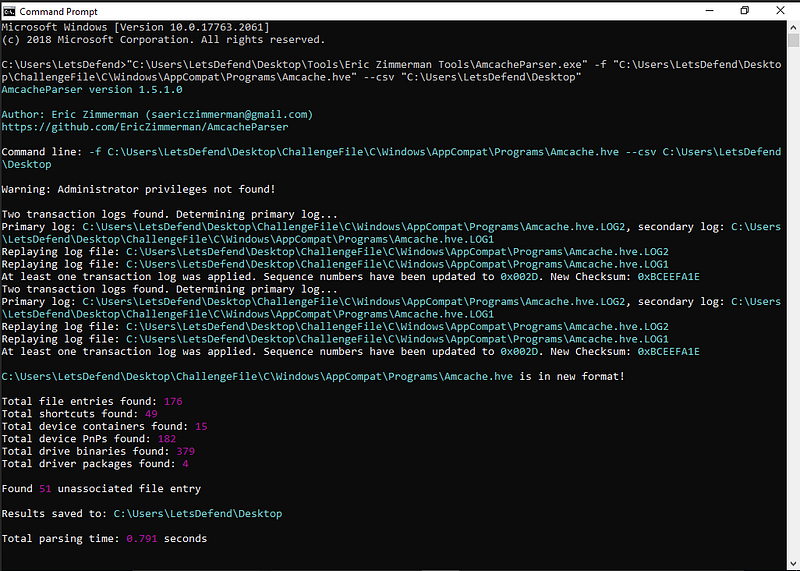
Running AmcacheParser.exe from Command Prompt
A difference between the output of AmCacheParser versus AppCompatCacheParser is that there are several files created. For the purposes of our investigation, we need to focus on the unassociated file entries CSV file, DATE_Amcache_UnassociatedFileEntries.csv.
Open the file in Timeline Explorer and find the Full Path column. Sift through the displayed executable paths, looking for anything that sticks out as strange. You may have also noticed this file when we were exploring the shellbags back in Question 4…
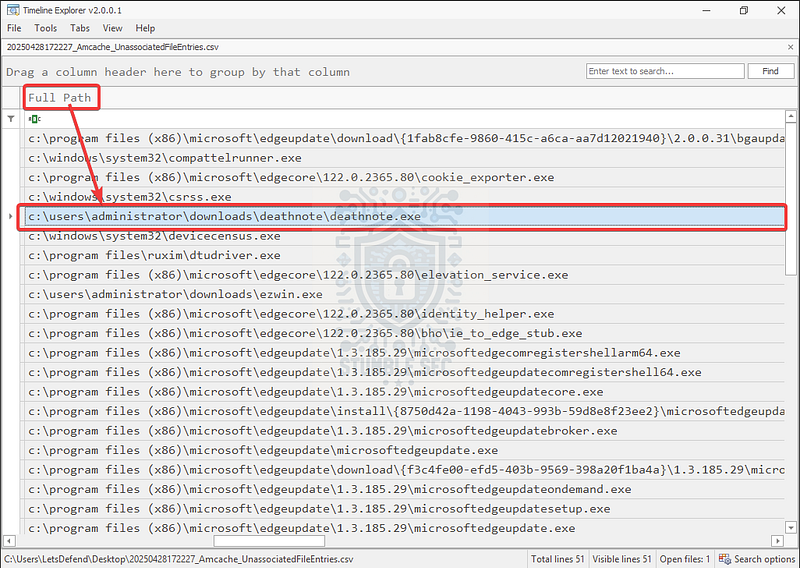
Timeline Explorer: Identifying the Malicious File Path
This executable looks a little suspicious, doesn’t it? Let’s collect the SHA1 file hash from the column to the left, SHA1, and check if we’ve identified the correct file.
f7910c5a92168453106e4343032d1c5ca239ce16

Question 7: What is the malware family name of the previous file?
Now that we’ve identified a potentially malicious file and acquired its SHA1 hash, let’s pivot out to VirusTotal to gather some additional intelligence, and check if this file hash has been observed before.
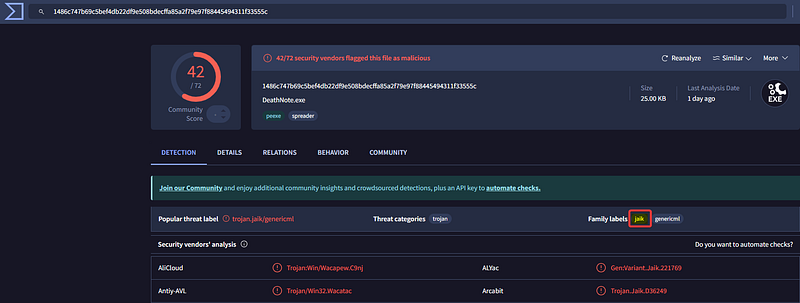
VirusTotal: https://www.virustotal.com/gui/file/1486c747b69c5bef4db22df9e508bdecffa85a2f79e97f88445494311f33555c
After submitting the hash, we can determine that the file is indeed malicious based on the number of antivirus hits. We can also refer to the " # "
family labels" tag to determine the malware family name to answer Question 7.

Question 8: The user opened a file on 2024€“05€“06 06:39:09 on their work PC. What is the name of that file?
To identify the file opened on the specified date/time, we’ll need to jump back to Registry Explorer and load the NTUSER.DAT artifact. This hive can be located at: C\Users\LetsDefend\Desktop\ChallengeFile\C\Users\Administrator TUSER.DAT
Again, we’ll open this hive by selecting the NTUSER.DAT file and holding SHIFT when opening it to replay the transaction logs. Once the hive is loaded, we’ll use the " # "
RecentDocs (Recently opened files by extension)" bookmark to view the RecentDocs key which tracks recent file and folder activity.
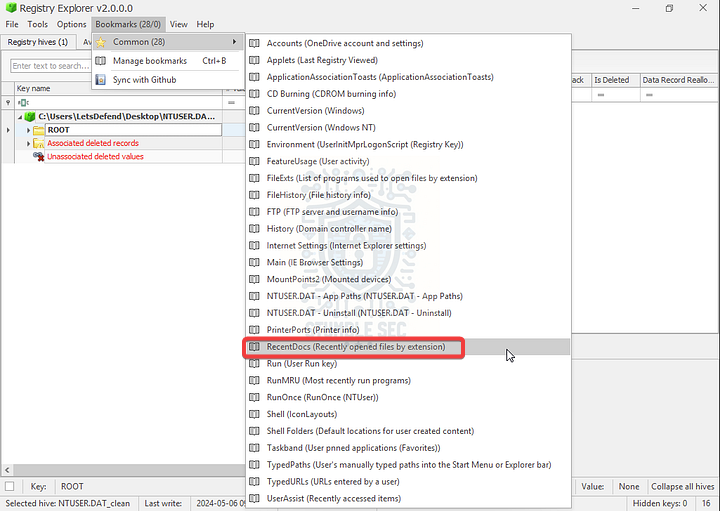
Registry Explorer: Selecting the RecentDocs bookmark
Sort the results by the Opened On column and match the date from the question.
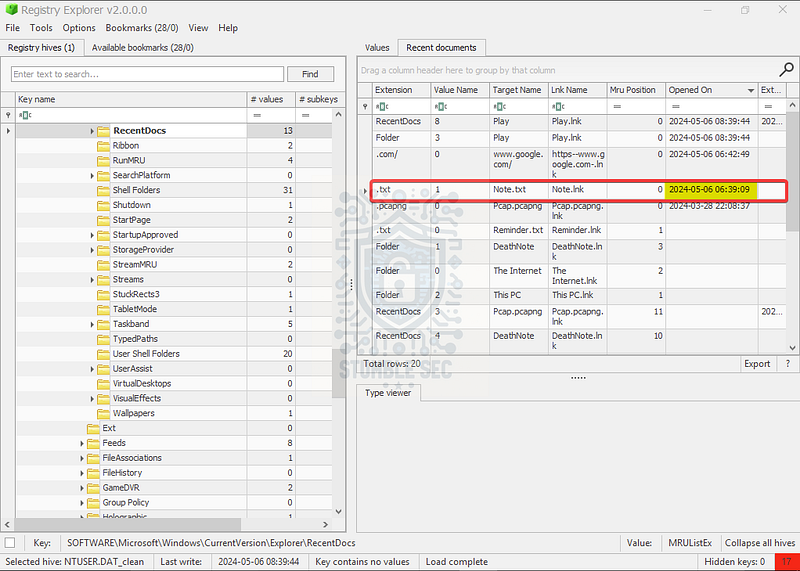
Registry Explorer: Identifying the file for the specific date/time
Using the RecentDocs key, we can determine that the file Note.txt is the file of interest to answer Question 8.

Question 9: The user opened MSPaint on their work PC. Can you determine the exact time it happened?
To answer Question 9, we now need to determine the exact time a user on the system opened MSPaint. To accomplish this, we’ll continue using the available bookmarks to search against the NTUSER.DAT hive, this time selecting the " # "
RunMRU (Most recently run programs)" bookmark.
According to Magnet Forensics, the Most Recently Used (MRU) artifacts " # “are a variety of artifacts tracked by modern Windows operating systems that provide crucial details regarding the user’s interaction with files, folders, and programs that may have been executed using the Windows Run utility.“So, by browsing this key we may be able to identify where the user launched Microsoft Paint using the run utility.
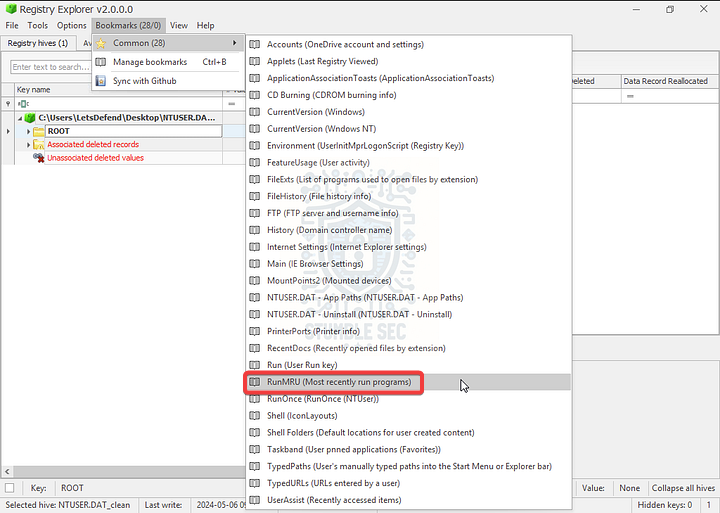
Registry Explorer: Selecting the RunMRU bookmark
Once the key has loaded, we’ll locate the mspaint executable and find the timestamp we’re searching for in the Opened On column.
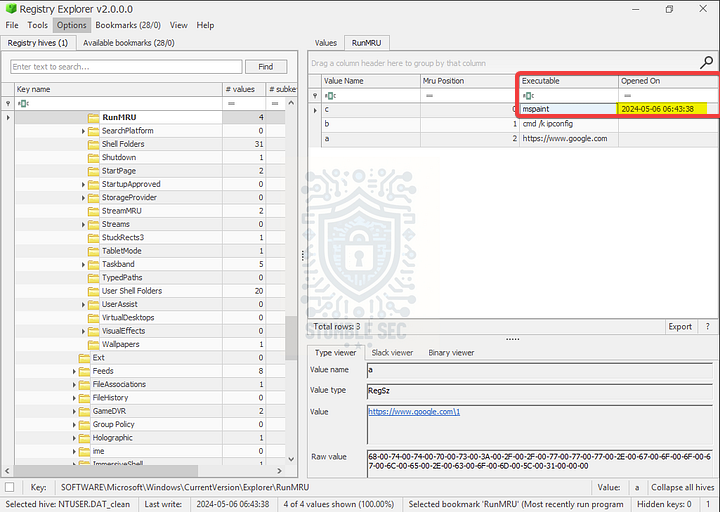
Registry Explorer: Identifying the " # "
Opened On” date/time for MSPaint

Question 10: Can you find out how long the user had MSPaint open?
Okay, we’ve made it to the last question! Now that we’ve identified when MSPaint was opened, we’ll now need to continue analyzing the NTUSER.DAT hive to determine how long the application was open. For this task, we’ll use the " # "
UserAssist (Recently accessed items)” bookmark to analyze the artifacts.
For the last time, let’s reference Magnet Forensics to learn more about these artifacts:
UserAssist is a feature in Windows that tracks the usage of executable files and applications launched by the user. It stores this information in the Windows Registry, which can be accessed by forensic analysts to reconstruct a timeline of application usage and user activity.
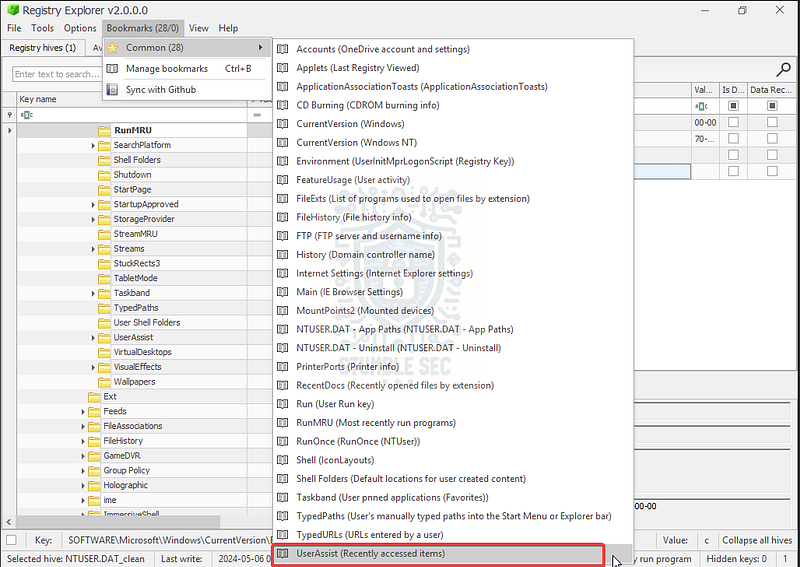
Registry Explorer: Selecting the UserAssist bookmark
After selecting the bookmark, we’ll see quite a few entries. To narrow it down, we can type " # “paint"into the Program Name field to filter the results. After that, we can see the total time the application was open in the Focus Time column.
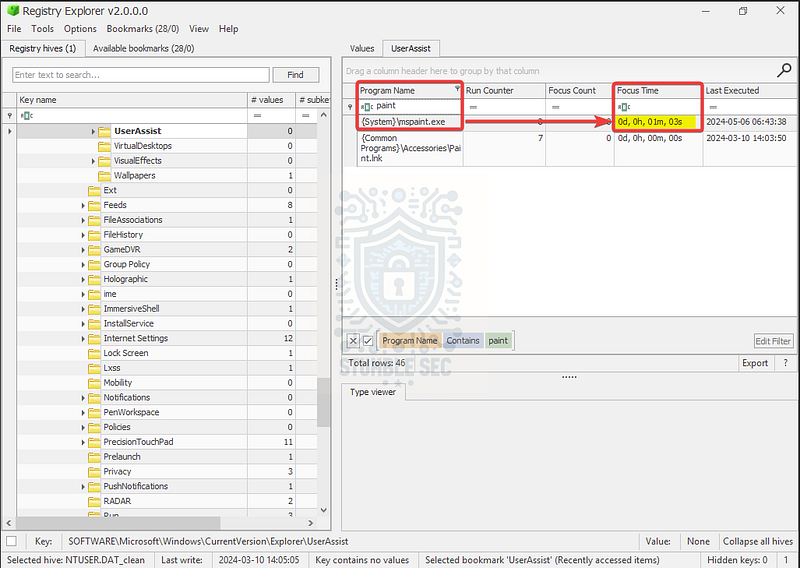
Registry Explorer: Identifying the " # "
Focus Time” for MSPaint
Now let’s submit the answer and wrap up our investigation!

Conclusion:
There we have it! By leveraging Eric Zimmerman’s tools to analyze the Windows Registry image, including the SAM, SOFTWARE, SYSTEM, UsrClass, AmCache, and NTUSER hives, we’ve successfully navigated this investigation. Throughout this challenge, we’ve identified device details, application information, and even found evidence of malware on the device, all while gaining a deep understanding of several forensic artifacts within the registry. Now that we have scoped the attack and completed our objectives, let’s close out this walkthrough of the Windows Registry!
A big thank you to LetsDefend, for another awesome and engaging lab, and a shout out to Magnet Forensics for their fantastic blog, which was crucial in helping contextualize this investigation and providing deep insights into the registry forensics process. I hope that the links are a value add for your own investigations in the real world. I chose another registry challenge this week to keep pushing myself to learn more about the registry artifacts. This challenge was an excellent next step as it required a variety of tools and research to find the correct information, which better equips me for real-world engagements — awesome stuff!
Thanks for your support and partnering on this investigation. If you found this walkthrough helpful, don’t forget to give it a clap! Your feedback really is invaluable, and it pumps me up to support your security journey. Remember, Cybersecurity is a team sport and we’re in this together!
Until next week’s challenge — stay curious and be safe out there!
Tools & References:
Challenge Link: https://app.letsdefend.io/challenge/windows-registry
Eric Zimmerman’s Tools - (Registry Explorer, ShellBags Explorer, AppCompatCacheParser, &AmcacheParser): https://ericzimmerman.github.io/#!index.md
Magnet Forensics Blog: https://www.magnetforensics.com/resource-center/blogs/
Microsoft Learn — Registry Hives: https://learn.microsoft.com/en-us/windows/win32/sysinfo/registry-hives
Magnet Forensics " # “Forensic Analysis of Windows Shellbags”: https://www.magnetforensics.com/blog/forensic-analysis-of-windows-shellbags/
**Wikipedia — " # "
Tom Clancy’s Rainbow Six Siege" :** https://en.wikipedia.org/wiki/Tom_Clancy%27s_Rainbow_Six_Siege
Magnet Forensics " # “ShimCache vs AmCache: Key Windows Forensic Artifacts”: https://www.magnetforensics.com/blog/shimcache-vs-amcache-key-windows-forensic-artifacts/
VirusTotal: https://www.virustotal.com/
VirusTotal — Sample: https://www.virustotal.com/gui/file/1486c747b69c5bef4db22df9e508bdecffa85a2f79e97f88445494311f33555c
Magnet Forensics " # “What is MRU (Most Recently Used)?”: https://www.magnetforensics.com/blog/what-is-mru-most-recently-used/
Magnet Forensics " # “Forensic analysis of the Windows UserAssist artifact”: https://www.magnetforensics.com/blog/artifact-profile-userassist/