LetsDefend — VoIP Challenge Walkthrough
Investigating a Social Engineering VoIP Call Using Wireshark

Image Credit: https://app.letsdefend.io/challenge/voip
Introduction:
Welcome to my weekly walkthrough! If you’ve stumbled across this blog searching for a comprehensive guide to the VoIP challenge from LetsDefend, you’re in the right place. This week, we’re going to dissect Voice Over IP (VoIP) traffic with everyone’s favorite packet analysis tool -Wireshark!
Challenge Scenario:
Your close friend James recently received a suspicious phone call from someone claiming to be his bank. The caller asked for sensitive information, making James uneasy. Suspecting a potential Vishing (Voice Phishing) attack, you decide to investigate by capturing and analyzing the VoIP traffic.
Our objective this week is to investigate a network packet capture file containing the contents of a social engineering call received by our friend James to determine the scope of the attack, including the attacker’s phone number and what information James divulged. Sounds like fun, right? Let’s get to it!
And if you find this walkthrough helpful — whether it levels-up your skills, gets you over a stumbling block, or serves as a handy reference — please give it a clap and consider following me for more content like this.
Thanks for reading and going on this investigation with me!
Question 1: How many RTP packets were in the traffic?
We’ll kick off our investigation by first extracting the archive file, Bank Incident.7z, from within the ChallengeFile directory. Then, double-click Traffic.pcapng to open it with Wireshark, which we’ll use analyze the packet capture data.
Once the packet capture is open, we’ll focus on determining the number of RTP packets within the capture to answer Question 1. Before searching for the answer, let’s take a beat to understand what RTP is from the Wireshark Wiki:
RTP, the real-time transport protocol. RTP provides end-to-end network transport functions suitable for applications transmitting real-time data, such as audio, video or simulation data, over multicast or unicast network services.
In the context of our investigation, the RTP packets carry the data content of the VoIP call so determining the total number of packets provides an overview of the call which we’ll use later in the investigation.
To figure out the total number of RTP packets, we’ll adjust the display filter by entering rtp into the search field.
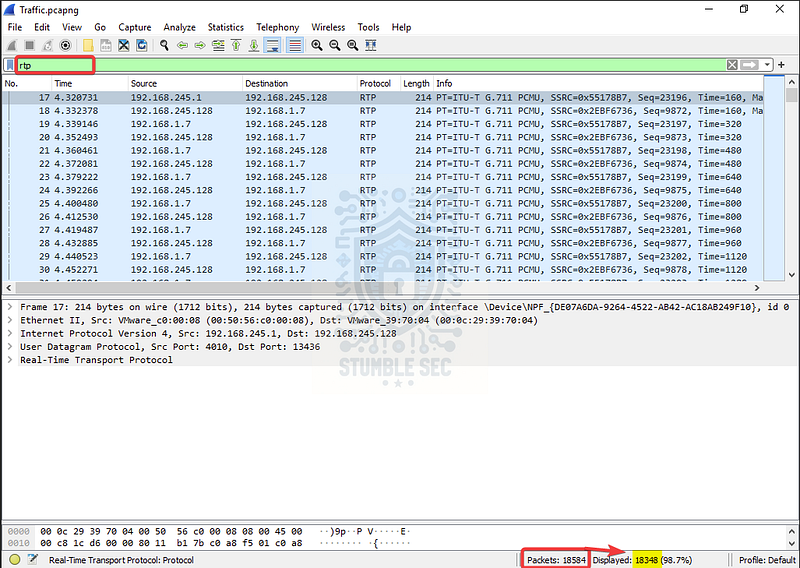
Wireshark: Identifying the number of captured RTP packets
At the bottom of the window, we’ll see the total number of packets and a Displayed value representing the filtered results. This is the value we need to answer Question 1.

Question 2: When did the fake call with James start?
Our next task is to determine when the vishing call started. While we already learned how to filter the RTP contents in the previous question, we’ll need to pivot and adjust our filter for a separate protocol this time — the Session Initiation Protocol (SIP).
Because the SIP protocol handles the management functions of VoIP calls including the creation, modification, and termination of the session, and establishing the RTP stream, we can analyze the captured SIP packets to determine the start time of the call.
Turning back to our Wireshark window, let’s enter sip into the search field this time. The first displayed packet („–5) is the one we want to focus on. There’s just a slight problem: the value in the time column doesn’t match the answer format, does it?
No problem! We just need to make an adjustment to the Time Display Format, which we can change by pressing View > Time Display Format > Date and Time of Day.
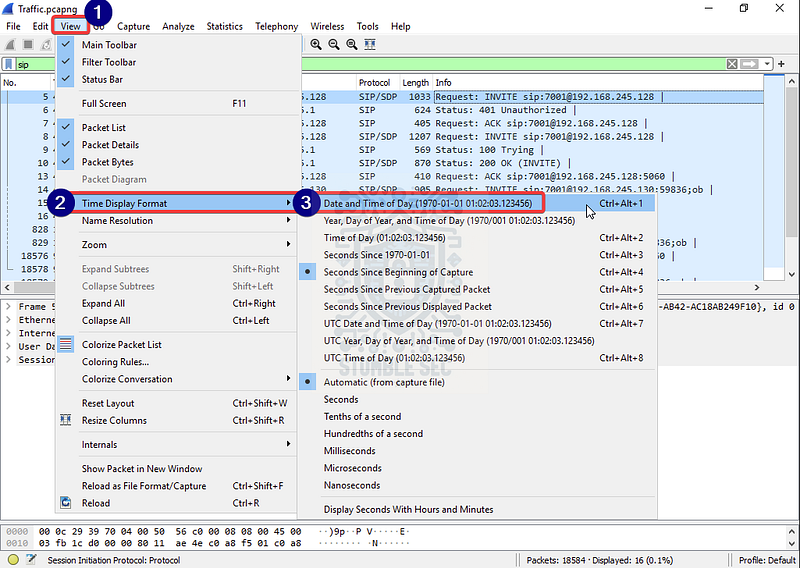
Wireshark: Modifying Time Display Format
After we change the display format, we’ll be able to see the time value in a more readable way that matches the required answer format.
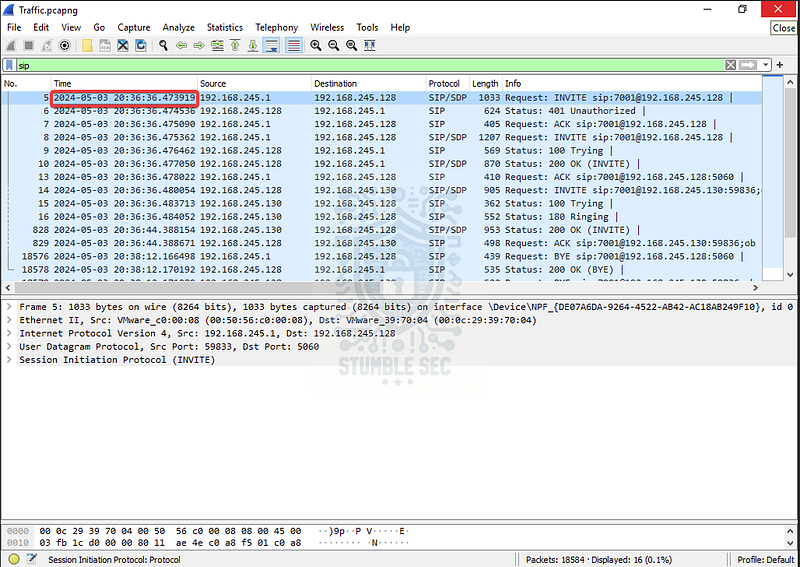
Wireshark: Identifying SIP call initiate time

Question 3: What is the Jame’s phone number?
To answer Question 3, we need to dive into the SIP traffic to determine James’ phone number. We’ll explore two ways to approach this below.
The first method is to follow the SIP stream by right clicking the first packet in the stream, „–5, that we identified in the last question, then selecting Follow > SIP Call.
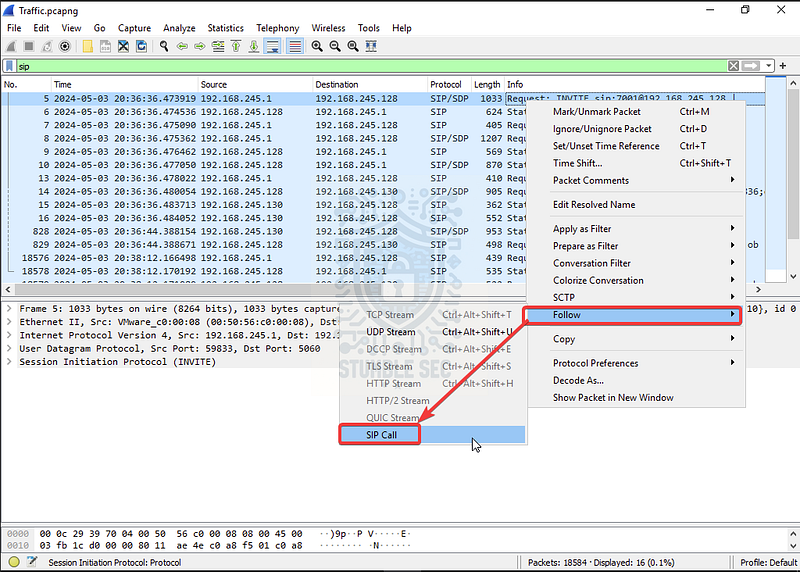
Wireshark: Displaying SIP stream
This opens the SIP stream window where we can manually examine the assembled stream and identify the To: field which represents James as the recipient of the VoIP call by number and IP address.
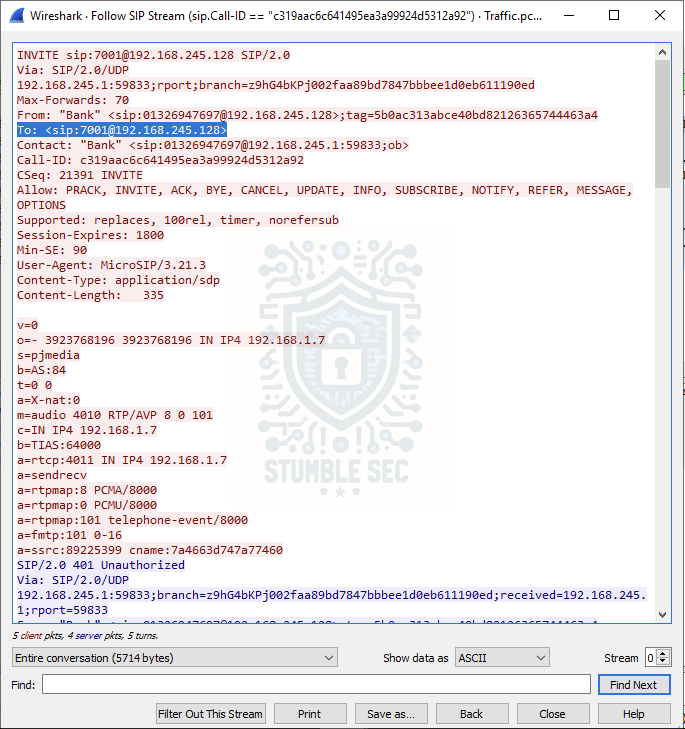
Wireshark: SIP stream contents
Another easier method to approach this is to leverage the Telephony tools in Wireshark. To do this, click the Telephony tab at the top of the Wireshark window, then select VoIP Calls.

Wireshark: VoIP calls window
Using this method provides us with an easy-to-read overview of the call including James’ phone number within the To column. We’ll continue to use this data to answer the next couple of questions, so keep it handy.

Question 4: How long was the call with the bank?
We’re able to answer Question 4 by examining the VoIP Calls interface and checking the Duration column.

Wireshark: Identifying the VoIP call duration

Question 5: What is the phone number of the bank that James received a call from?
Using the same process as above, check the From column to determine the phone number of the “bank.”

Wireshark: Identifying the VoIP caller

Questions 6 & 7:
What is the name of the bank calling?
What is James’s Social Number?
Now that we’ve analyzed the VoIP traffic at the packet level, we’re going to pivot and actually listen to the assembled audio of the call from the VoIP Call window—how cool is that?
But first, in order to leverage Wireshark’s RTP Player to listen to the audio content of the call, we’ll need to connect to the LetsDefend virtual machine over the Remote Desktop Protocol (RDP) rather than using the browser-based interface so that audio can be passed through to our speakers.
So, how do we do this? According to the LetsDefend Help Center, there is an option to manually connect with your RDP client by selecting the flag icon at the top of the LetsDefend challenge page to view the IP address of your VM and the credentials to access it.
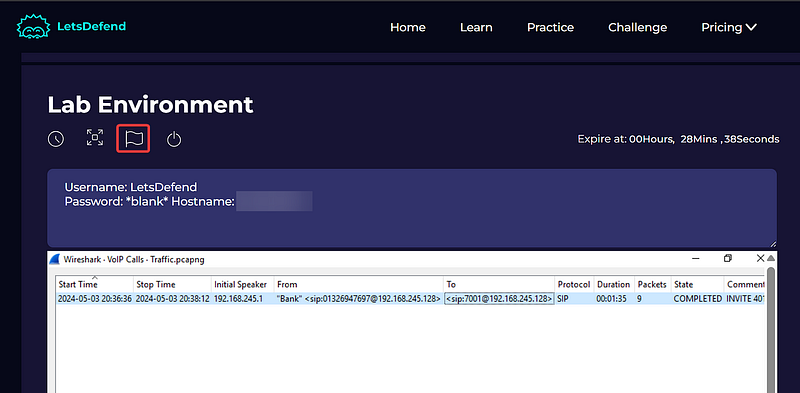
LetsDefend: Locating RDP connection info
Once you’ve connected to the LetsDefend environment via RDP, clear the Wireshark filters and access the Telephony > VoIP Calls window again to display the full VoIP call contents. Press the Play Streams button to access the RTP Player.
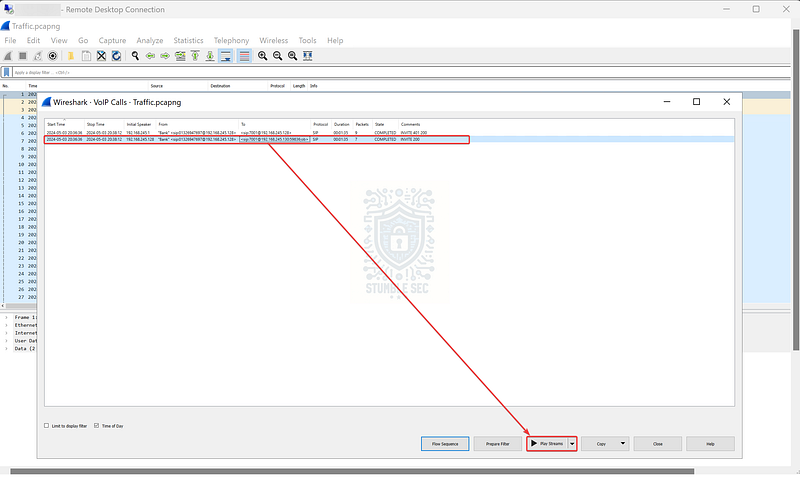
Wireshark: Location of play sound option in VoIP window
Now that we’re finally on the RTP Player, the last step is pressing the play button to listen to the call to discover the purported name of the bank and to hear James divulge his social security number.
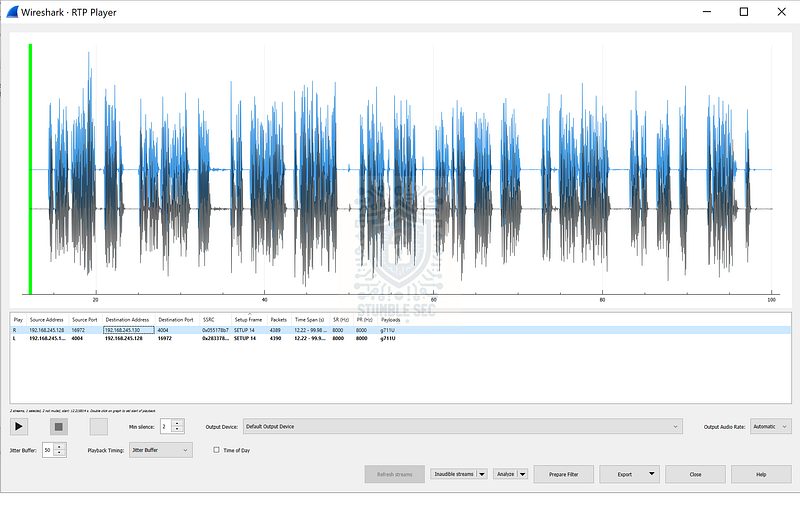
Wireshark: The RTP Player
Now that we’ve identified these two items from the RTP player, let’s submit our answers and close out this investigation!


Conclusion:
We’ve made it to the end! By leveraging Wireshark to examine the data of the vishing call, we’ve successfully determined the number of RTP packets that carried the content of the call, when the attack occurred, the attacker’s SIP phone number, which bank they were impersonating, and what data was compromised. Now that we have a full understanding of the attack, we can report back to James and help get him back on his feet. What great friends we are!
A big thank you to LetsDefend, for another cool and interesting challenge! I selected this one because I was completely unaware that Wireshark had VoIP call analysis functions built-in, and I’ve used a separate tool for VoIP analysis in the real world. By going hands-on and being challenged to test different scenarios with familiar tools, I’ve been able to consolidate my toolkit and gain a better understanding of how I can utilize applications like Wireshark more efficiently — awesome! I hope you learned something new, too!
Thanks for your support and partnering on this investigation. If you found this walkthrough helpful, don’t forget to give it a clap! Your feedback really is invaluable, and it pumps me up to support your security journey. Remember, Cybersecurity is a team sport and we’re in this together!
Until next week’s challenge — stay curious and be safe out there!

Tools & References:
Challenge Link: https://app.letsdefend.io/challenge/voip
Wireshark: https://www.wireshark.org/
Wireshark Wiki — RTP: https://wiki.wireshark.org/RTP
Wireshark Wiki — SIP: https://wiki.wireshark.org/SIP
Wireshark Docs — Playing VoIP Calls: https://www.wireshark.org/docs/wsug_html_chunked/ChTelPlayingCalls.html
LetsDefend Help Center: https://help.letsdefend.io/en/articles/8729133-can-t-access-to-the-labs