Blue Team Labs Online | Log Analysis — Compromised WordPress | Challenge Walkthrough
A Log Analysis Challenge Using http Logs Viewer

Image Credit: https://blueteamlabs.online/home/challenge/log-analysis-compromised-wordpress-ce000f5b59
Introduction:
Welcome to my weekly walkthrough! If you’ve stumbled across this blog while looking for a detailed guide to the Log Analysis — Compromised WordPress blue team challenge from Blue Team Labs Online, you’re in the right place.
Challenge Scenario:
One of our WordPress sites has been compromised but we’re currently unsure how. The primary hypothesis is that an installed plugin was vulnerable to a remote code execution vulnerability which gave an attacker access to the underlying operating system of the server.
For this challenge, we’re putting on our incident response hats. We’ll dig into the provided access.log file, analyze suspicious requests, and piece together how the attacker gained access.
We’ll be using http Logs Viewer (formerly Apache Logs Viewer) for log analysis and complementing that with research into CVEs and attacker TTPs. By the end of this walkthrough, you’ll have a clear understanding of how to approach similar investigations in the wild. An even cooler part? While this investigation focuses on a WordPress site compromise, the log analysis skills you’ll practice here apply to other web servers as well — making this a great primer for web server log analysis, too. Sound good? Let’s dive in!
And if you find this walkthrough helpful — whether it levels-up your skills, gets you over a stumbling block, or just gives you a clearer view of the blue team side of incident response — please give it a clap and consider following me for more content like this.
Thanks for reading and going on this investigation with me!
Setup the Analysis Environment & Extract the Challenge File:
Safety first! It’s always important when working with lab/challenge files from BTLO (or any educational lab/challenge/range) to keep yourself protected by performing these tasks in a dedicated, isolated virtual machine environment. I’m using FLARE-VM for this challenge which is “a collection of software installations scripts for Windows systems that allows you to easily setup and maintain a reverse engineering environment on a virtual machine (VM).”
To keep this write-up focused I’m going to skip the step-by-step setup of FLARE-VM but _i_f you’d like to set up your own environment, please follow the directions provided directly by FLARE-VM on GitHub.
GitHub — mandiant/flare-vm: A collection of software installations scripts for Windows systems that… _A collection of software installations scripts for Windows systems that allows you to easily setup and maintain a…_github.com
Once you have a safe virtual environment created, updated, isolated, and snapshotted, we can extract the challenge file and start the investigation!
Question 1: Identify the URI of the admin login panel that the attacker gained access to (include the token)
Let’s kick off our investigation by extracting the challenge file from the ZIP we downloaded from BTLO using the password provided in the challenge window. After extraction, we’re left with a single file: access.log. This is the file we’ll analyze to determine how the WordPress site was compromised.
An important thing to note here is that the access.log is generated by the backend web server software, like Apache, and not by WordPress directly. Why does this matter? Because it informs what tool we use for analysis and reminds us that these log analysis skills apply far beyond WordPress investigations.
With that in mind, while any text viewer works, a great tool for examining access.log is http Logs Viewer (formerly Apache Logs Viewer), which “is a free and powerful tool which lets you monitor, view and analyze Apache/IIS/nginx logs with more ease.” Sounds like it fits the bill!
Once you’ve downloaded and installed it, open the tool and load access.log by selecting File > Add Access Log. In the options pop-up window, change the file format to Combined View so we don’t lose any data.
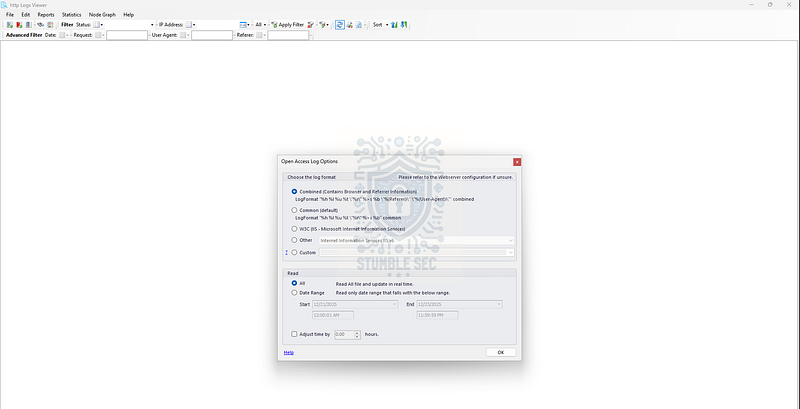
http Logs Viewer: Loading the access.log file
Now that the logs are open, our first task is to identify the admin login panel URL accessed by the attacker. A good starting point is to get an overview of unique IPs in the log. To do this, click the button next to the IP Address filter and select Unique IPs.
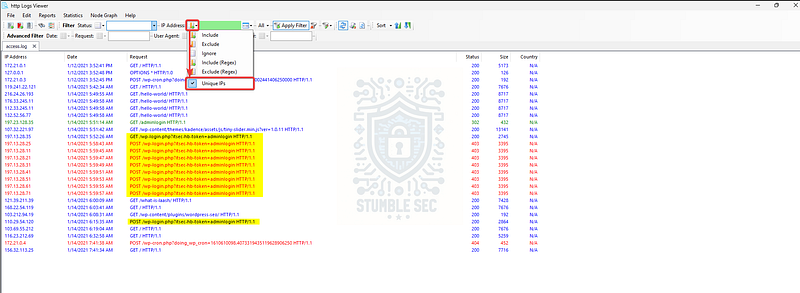
http Logs Viewer: Stumbling upon the weird query in the Unique IP view
You’ll see several unique IP addresses, but something stands out: a suspicious POST request from various IPs with what appears to be an admin-level token. This token is likely passed as a query parameter (e.g., ?itsec-hb-token=adminlogin) or embedded in the request body, which attackers often exploit for session hijacking or privilege escalation. Copy the URL, then search for this request string using Ctrl+F. This should take you straight to the first result.
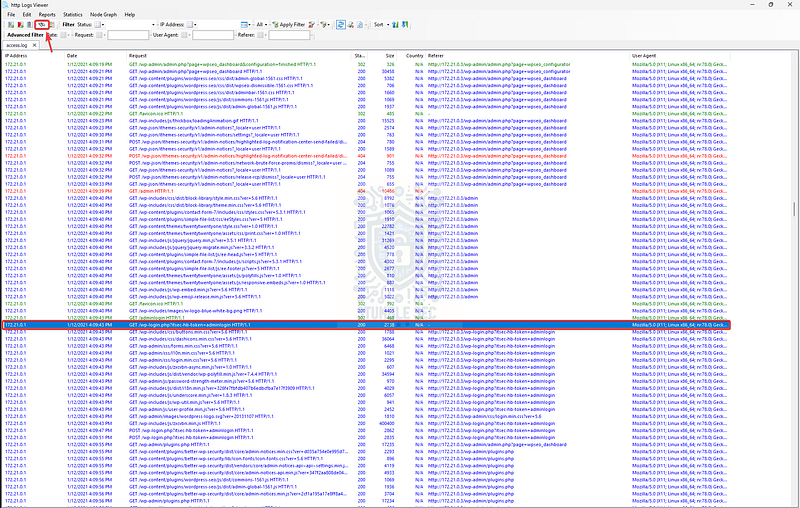
http Logs Viewer: Finding the first instance of the adminlogin token
Since this is a login URL, contains an admin token, and shows successful requests (HTTP 200 status), it strongly suggests this is the admin panel the attacker accessed.

Question 2: Can you find two tools the attacker used?
For this task, we need to identify the two tools used by the attacker. To do this, we’ll switch our focus to the User Agent column. While http Logs Viewer can generate a pie chart of all user agents, it’s not helpful here because we’re looking for something more unique than standard browser strings.
That’s OK though, we can do this manually by sorting the User Agent column in descending order to look for any suspicious entries captured in the log.
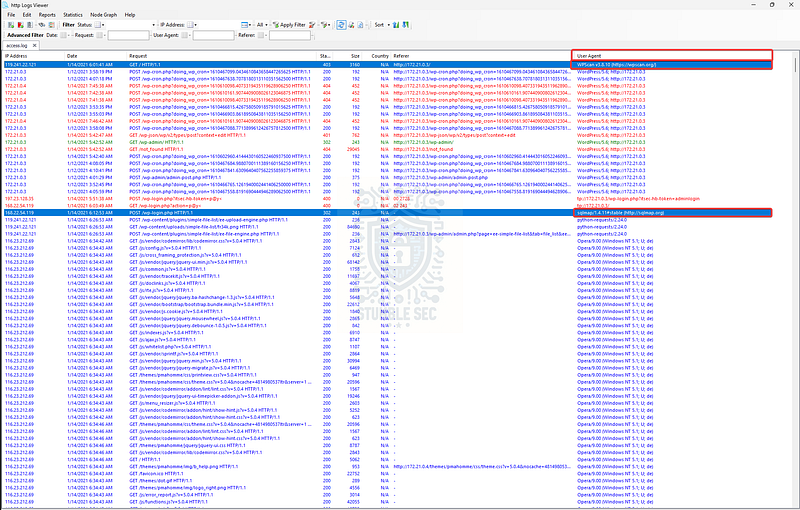
http Logs Viewer: Identifying the attacker’s tooling through User Agent headers
While there are a few oddities, two stand out: WPScan and sqlmap. WPScan is a WordPress vulnerability scanner, and sqlmap is a penetration testing tool used to detect and exploit SQL injection vulnerabilities. These tools often handily identify themselves in the User-Agent header (e.g., WPScan v3.8.10 or sqlmap/1.4.11), which is why sorting by User Agent works so well.
This is a potent combination that would help the attacker identify weaknesses in the WordPress server and then exploit them.
For further reading, here are the official sites for these tools:
Homepage _WPScan is an enterprise vulnerability database for WordPress. Be the first to know about vulnerabilities affecting your…_wpscan.com
sqlmap: automatic SQL injection and database takeover tool _sqlmap is an open source penetration testing tool that automates the process of detecting and exploiting SQL injection…_sqlmap.org

Question 3: The attacker tried to exploit a vulnerability in ‘Contact Form 7’. What CVE was the plugin vulnerable to? (Do some research!)
To answer Question 3, we already know the attacker targeted the Contact Form 7 plugin, which gives us a jump start on research.
First, let’s confirm evidence of this plugin in the logs. Use the find function(Ctrl+F) in http Logs Viewer and search for requests containing the string contact-form-7.
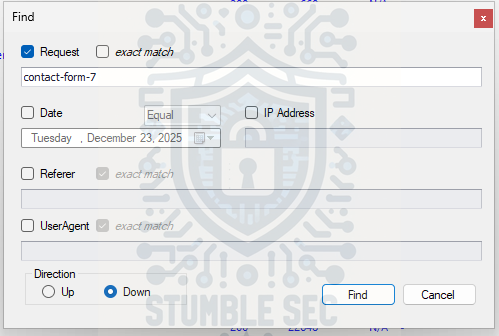
http Logs Viewer: Searching the logs for the vulnerable plugin
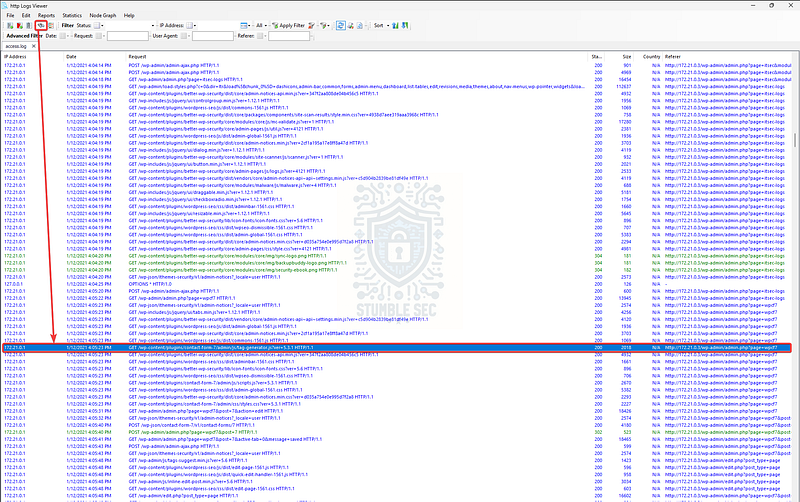
http Logs Viewer: Identifying the version number of the vulnerable plugin
With this search, we can confirm the presence of Contact Form 7 in the logs, and more importantly, we can see a version number in the query parameter—this is the key.
Now we pivot to research mode! Use your favorite search engine to look for vulnerabilities in Contact Form 7 version 5.3.1 which quickly leads us to CVE-2020-35489, an arbitrary file upload vulnerability. For example, using CVEdetails, we learn:
The contact-form-7 (aka Contact Form 7) plugin before 5.3.2 for WordPress allows Unrestricted File Upload and remote code execution because a filename may contain special characters.
This means attackers could upload malicious files by exploiting improper filename sanitization, leading to remote code execution.

Question 4: What plugin was exploited to get access?
To answer Question 4, we need to identify a second vulnerable plugin. Here’s what we know about the attacker so far:
- They attempted to abuse CVE-2020–35489 in
Contact Form 7. - CVE-2020–35489 “allows Unrestricted File Upload and remote code execution because a filename may contain special characters.”
In other words, the attacker may favor techniques that abuse file uploads. This means we should adjust our search scope in http Logs Viewer to focus on HTTP POST requests, specifically targeting upload endpoints. We can do this by applying the Request Methods filter and setting it to POST.

http Logs Viewer: Filter HTTP POST requests
Once the filter is applied, the log becomes much more manageable. It’s easier to spot successful POST requests to both Contact Form 7 and a second plugin: Simple-File-List, with a suspicious-looking .php file in the upload path.
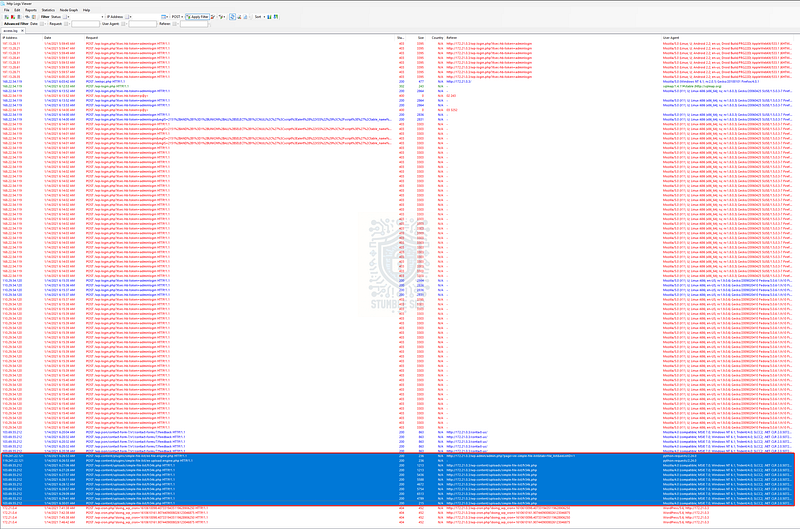
http Logs Viewer: Identifying a second plugin
It seems like we’re on the right track, but we don’t yet have explicit evidence of the version of Simple-File-List to confirm if it’s vulnerable to remote file upload exploitation, right? So, let’s work backwards and research any vulnerability in this plugin that fits that criteria.
With a little searching, we’ll stumble across CVE-2020–36847. According to the National Vulnerability Database:
NVD _The Simple-File-List Plugin for WordPress is vulnerable to Remote Code Execution in versions up to, and including…_nvd.nist.gov
The Simple-File-List Plugin for WordPress is vulnerable to Remote Code Execution in versions up to, and including, 4.2.2 via the rename function which can be used to rename uploaded PHP code with a png extension to use a php extension. This allows unauthenticated attackers to execute code on the server.
This aligns perfectly with the attacker’s known TTPs. Without any other evidence, let’s make an educated gamble and check if version 4.2.2 was the plugin exploited by the attacker.

Question 5: What is the name of the PHP web shell file?
Now that we’ve confirmed Simple-File-List version 4.2.2 was exploited to gain access, this explains the suspicious-looking .php file we called out in Question 4.
While we don’t have any further evidence of the file’s capabilities, the question tells us it’s a web shell. That means the attacker likely uploaded a malicious PHP script to maintain access and execute commands on the server. The log entry showing the upload path should reveal the exact filename — this is what we’re after.

http Logs Viewer: Identifying the attacker’s web shell

Question 6: What was the HTTP response code provided when the web shell was accessed for the final time?
For the eagle-eyed readers out there, you may have noticed in the screenshot from the previous question the HTTP response code in the Status column — most were 200 (successful), but one wasn’t.
http Logs Viewer: Identifying the attacker’s web shell
An easy way to confirm this is to use http Logs Viewer’s find function and search for the name of the web shell we identified in Question 5 — fr34k.php.
This narrows the log to entries containing that filename and makes it much easier to spot the final request. The last entry shows a 404 status, meaning the file was no longer accessible. Great job! Now let’s wrap up this investigation.

Conclusion:
Logs Analyzed! How fun was that? A big thank you to Blue Team Labs Online for another awesome challenge.
This challenge was a fantastic deep dive into web server log analysis and plugin vulnerabilities. It gave us a realistic look at how attackers chain weaknesses (like unrestricted file uploads and remote code execution) into full compromise of a WordPress site.
I picked this challenge because it’s a great way to sharpen incident response skills while practicing techniques that apply far beyond WordPress. From filtering HTTP methods to spotting suspicious user agents, and researching CVEs, every question built on the last, making the investigation feel logical and rewarding. As an added bonus, these log analysis skills are transferable to other web servers, so this was a solid primer for broader forensic work. Awesome stuff!
Thanks for your support and partnering on this investigation. If you found this walkthrough helpful — please give it a clap and consider following me! Your feedback is invaluable, and it pumps me up to support your security journey. Remember, cybersecurity is a team sport, and we’re in this together!
Until next week’s challenge — stay curious and be safe out there!

Tools & References:
Challenge Link: https://blueteamlabs.online/home/challenge/log-analysis-compromised-wordpress-ce000f5b59
Flare-VM: https://github.com/mandiant/flare-vm
http Logs Viewer (formerly Apache Logs Viewer): https://www.apacheviewer.com/
sqlmap: https://sqlmap.org/
WPScan: https://wpscan.com/
CVEdetails — CVE-2020–35489: https://www.cvedetails.com/cve/CVE-2020-35489/
National Vulnerability Database (NVD) — CVE-2020–36847: https://nvd.nist.gov/vuln/detail/CVE-2020-36847