
Introduction:
Welcome to my weekly walkthrough! If you’ve stumbled across this blog while looking for a detailed guide to the Reaper blue team challenge from HackTheBox, you’re in the right place.
This is the fourth challenge in the Detecting Active Directory Attacks track and it wastes no time dropping us into a classic blue team scenario. If you’re a completionist, or just want to follow along in order, check out my walkthrough of Noxious.
For this challenge, we’re stepping back into the role of a security analyst responding to a SIEM alert. The alert indicates a mismatch between a source workstation name and its associated IP address, suggesting that something strange is afoot inside the Active Directory environment. Our task is to analyze both a packet capture and Windows Security Event Logs, correlate the available evidence, and determine what really happened.
For the investigation, we’ll spend time in both Wireshark and Event Log Explorer. We’ll use packet analysis to associate hostnames with IP addresses, examine NTLM authentication activity, and identify SMB share access. Then, we’ll pivot into the Windows Security Logs to correlate Event ID 4624 logon events, identify the source of the suspicious authentication activity, and build out a timeline of the attack.
I’ll walk through each step of the investigation, explain the reasoning behind the analysis, and show how individual data points from the network capture and event logs come together to tell the full story. By the end, you’ll have a better understanding of how to investigate suspicious logon activity, correlate network and host-based evidence, and validate findings using multiple forensic data sources.
Sounds like fun, right? Let’s go!
And hey, if you find this walkthrough helpful, whether it helps you level up your network forensics skills, gets you over a stumbling block, or just serves as a useful reference, consider following me for more weekly deep dives.
Thanks for reading and going on this investigation with me!
This write-up is for educational purposes only. All intellectual property related to the challenge belongs to the respective owners HackTheBox.
Challenge Scenario:
Our SIEM alerted us to a suspicious logon event which needs to be looked at immediately . The alert details were that the IP Address and the Source Workstation name were a mismatch .You are provided a network capture and event logs from the surrounding time around the incident timeframe. Corelate the given evidence and report back to your SOC Manager.
Setup the Analysis Environment & Extract the Challenge File:
Safety first! It’s always important when working with lab/challenge files from [HackTheBox] (or any educational lab/challenge/range), to keep yourself protected by performing these tasks in a dedicated, isolated virtual machine environment. As this is a Windows-based challenge, I’m using FLARE-VM for this challenge which is “a collection of software installations scripts for Windows systems that allows you to easily setup and maintain a reverse engineering environment on a virtual machine (VM).”
To keep this write-up focused I’m going to skip the step-by-step setup of FLARE-VM but if you’d like to set up your own environment, please follow the directions provided directly by FLARE-VM on GitHub.
https://github.com/mandiant/flare-vm
Once you have a safe virtual environment created, updated, isolated, and snapshotted, we can extract the challenge file and start the investigation!
Question 1: What is the IP Address for Forela-Wkstn001?
Let’s extract the challenge files and get right to work. This time, we’re left with two artifacts: ntlmrelay.pcapng and security.evtx.
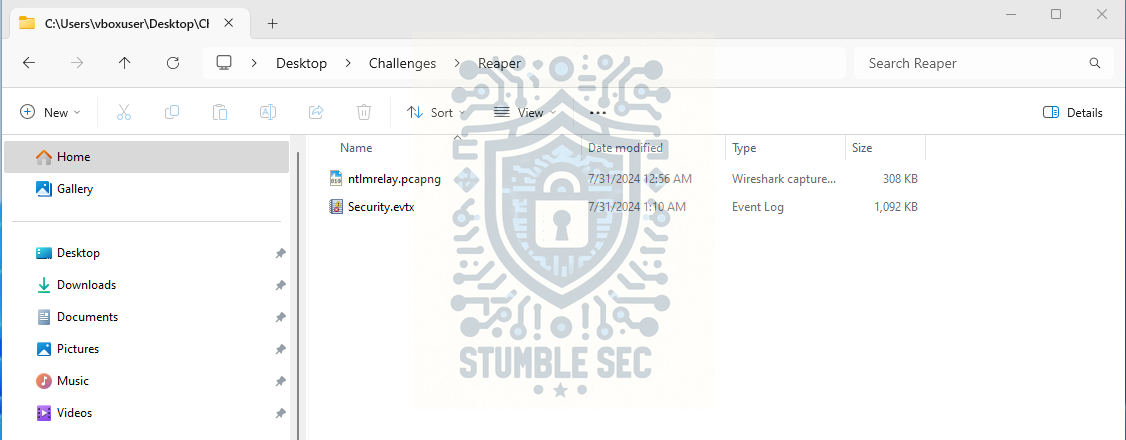 Overview of Challenge Artifacts
This means we’re approaching the challenge from both a network traffic perspective and Windows Security Event Logs.
Our first step is to start associating the various IP addresses with hostnames, beginning with Forela-Wkstn001. For this, we’ll use the ntlmrelay.pcapng artifact.
Open it in Wireshark. To get a fast, high-level view of the resolved hostnames, navigate to Statistics > Endpoints, select the Hosts tab, and then use the Hosts drop-down menu.
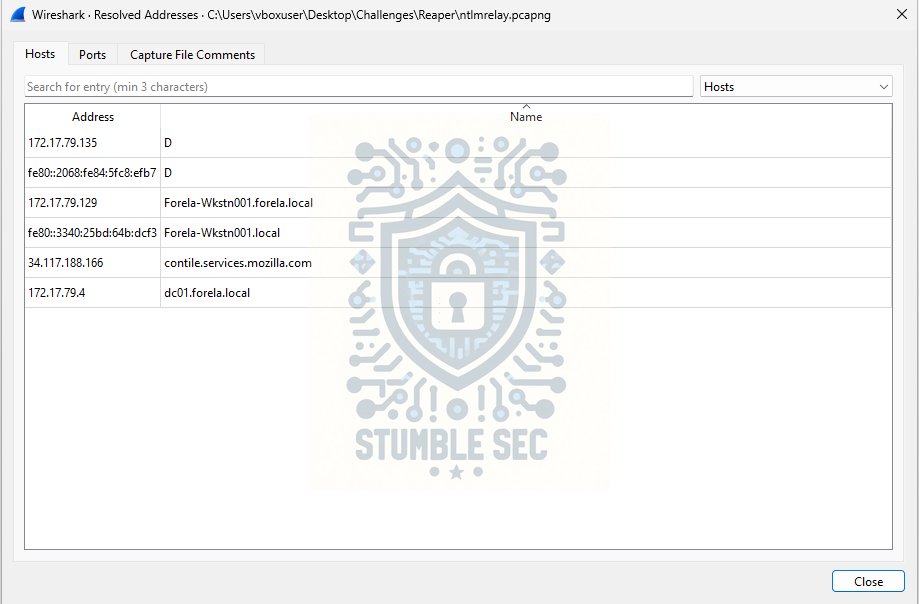
Wireshark: Finding IP address of Forela-Wkstn001
This gives us a quick way to start identifying the various endpoints contained in the packet capture. We can find the IP address associated with Forela-Wkstn001.forela.local, which resolves to 172.17.79.129.

Question 2: What is the IP Address for Forela-Wkstn002?
Next, we need to find the IP address for Forela-Wkstn002. You might have noticed that it’s missing from the endpoint statistics.
If you’ve been tackling these challenges in order, such as the previous Noxious Investigation challenge, you may remember that the resolved addresses don’t always contain the data we’re looking for.
Instead, we need to look at the name resolution protocols used in the environment to identify the association. One of those protocols is NetBIOS Name Service (NBNS), a legacy protocol that’s still commonly observed in modern Windows environments alongside DHCP and DNS. When a Windows system is unable to resolve a host name via DNS, it sends a broadcast request using LLMNR or NBT-NS.
In Wireshark, apply the filter nbns.
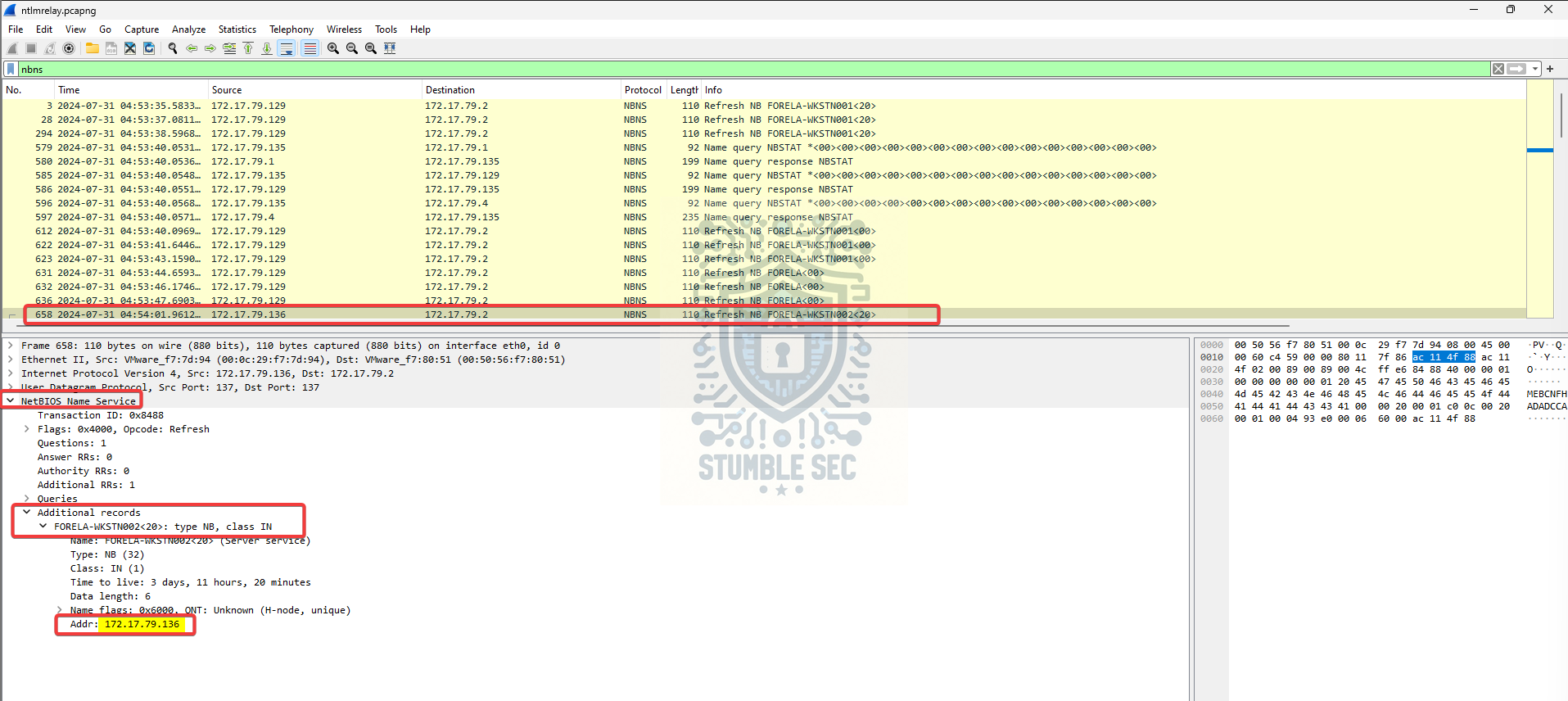 Wireshark: Identifying the IP address for Forela-Wkstn002 using NetBIOS
In the Info column, we can see a reference to FORELA-WKSTN002. Next, expand the packet details and examine the NBNS fields to identify the associated IP address: 172.17.79.136.

Question 3: What is the username of the account whose hash was stolen by attacker?
Now that we’ve identified the two workstations, we have a couple of ways to determine the source of the mismatch and identify the source workstation.
One approach is to look for NTLMSSP authentication activity in Wireshark and then correlate those findings with the security.evtx artifact containing the Windows logon events.
In Wireshark, apply the ntlmssp display filter.
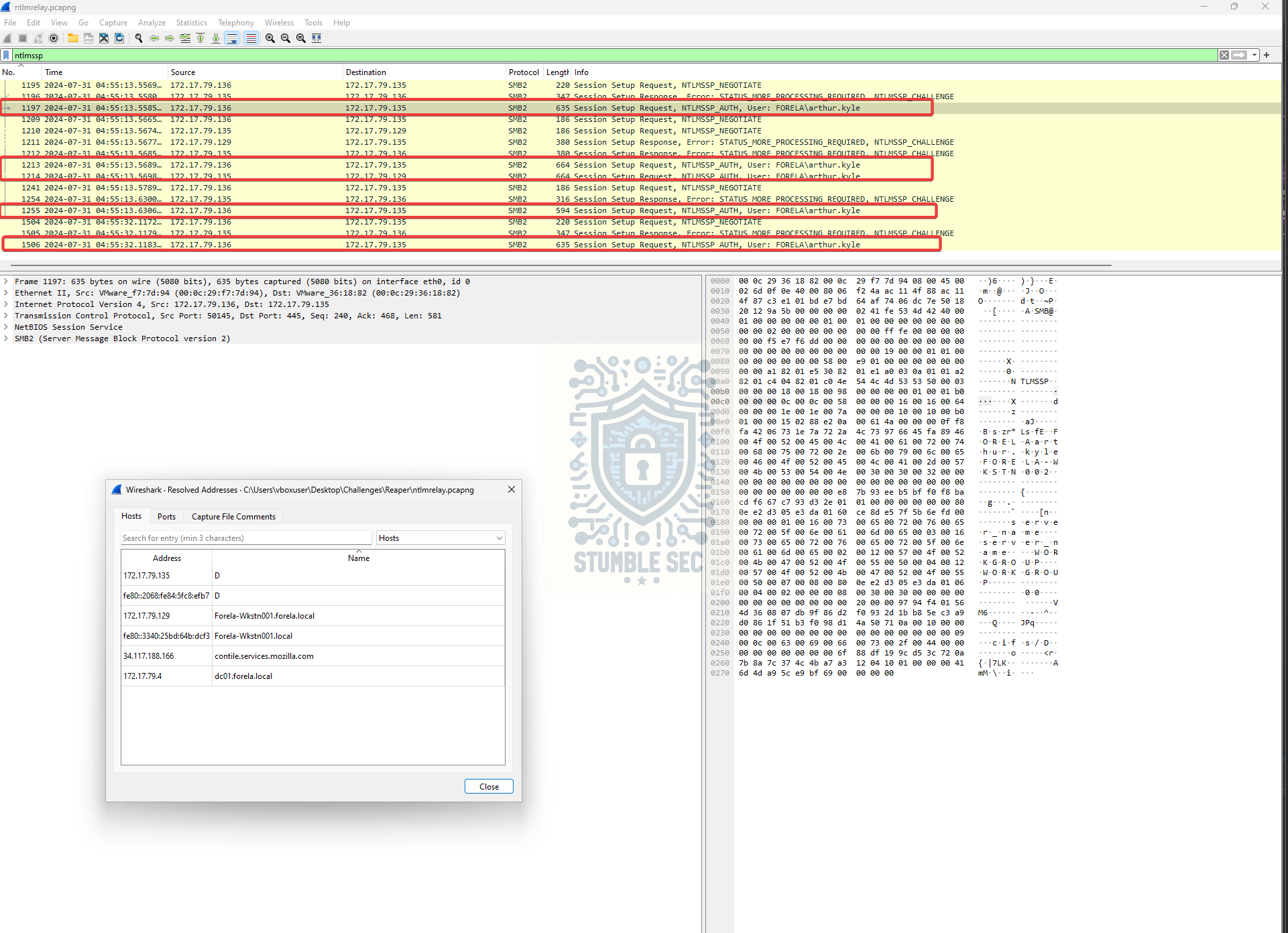 Wireshark: Identifying User Account Information in NTLMSSP Traffic
Without much further analysis, we can immediately see that the user account arthur.kyle is associated with NTLMSSP traffic. We can also observe SMB2 traffic between FORELA-WKSTN002 and an unknown device at 172.17.79.135.
If you remember from Question 1, when we reviewed the resolved hostnames through the Wireshark endpoint statistics, 172.17.79.135 was associated with a workstation named D. This is suspicious because it doesn’t match the organization’s established naming convention.
Also note the UTC timestamp in Wireshark: 2024-07-31 04:55:13 UTC. This is important for correlation with the second artifact.
Next, let’s pivot to the security.evtx artifact. For this analysis, I’ll use Event Log Explorer, although you could perform the same investigation using the native Windows Event Viewer.
Filter for Event ID 4624 (successful logon) and examine the event that occurs roughly three seconds later. Keep in mind that Windows event logs typically record timestamps in the system’s local time zone rather than UTC.
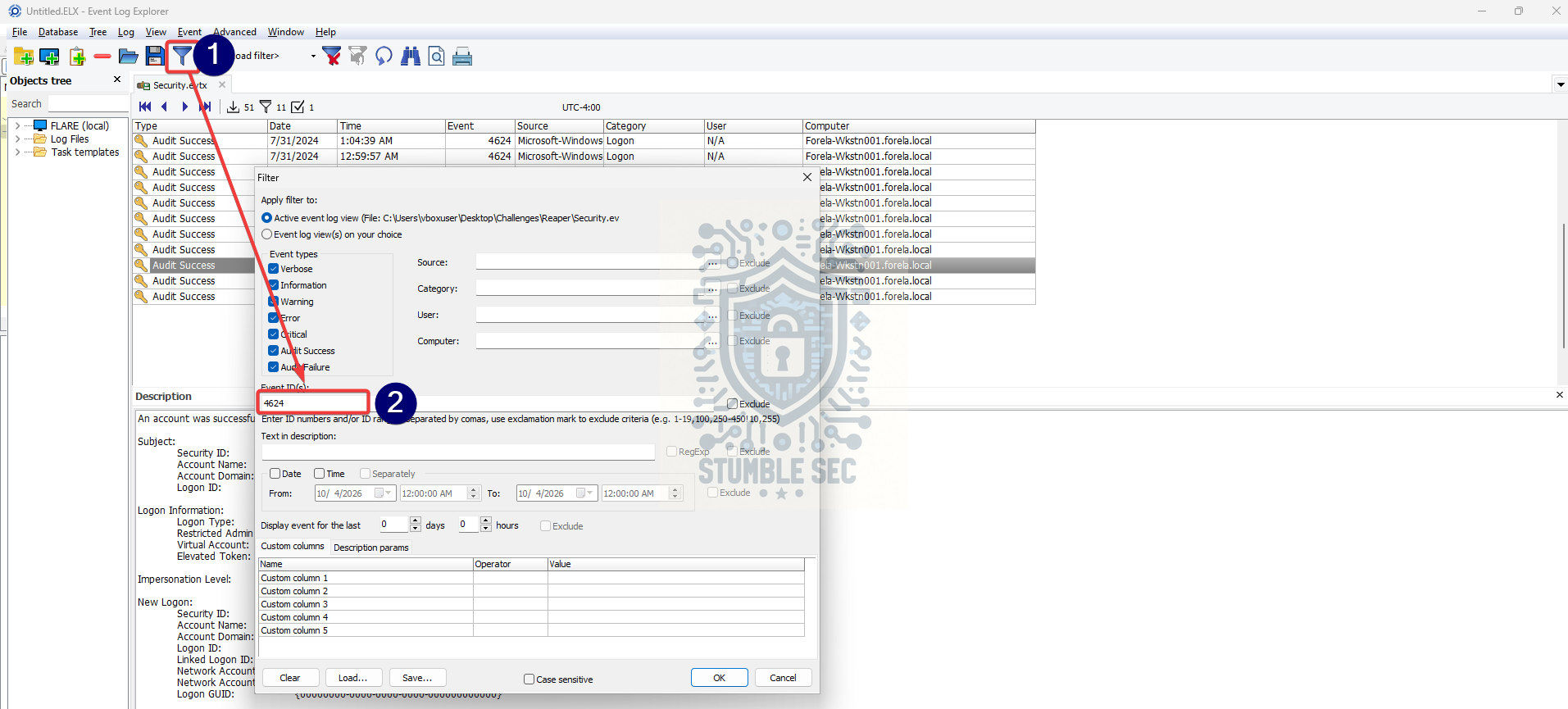 Event Log Explorer: Filtering 4624 Events
We can then correlate the network activity with the Windows logon event and confirm a successful logon using the arthur.kyle account from source address 172.17.79.135.
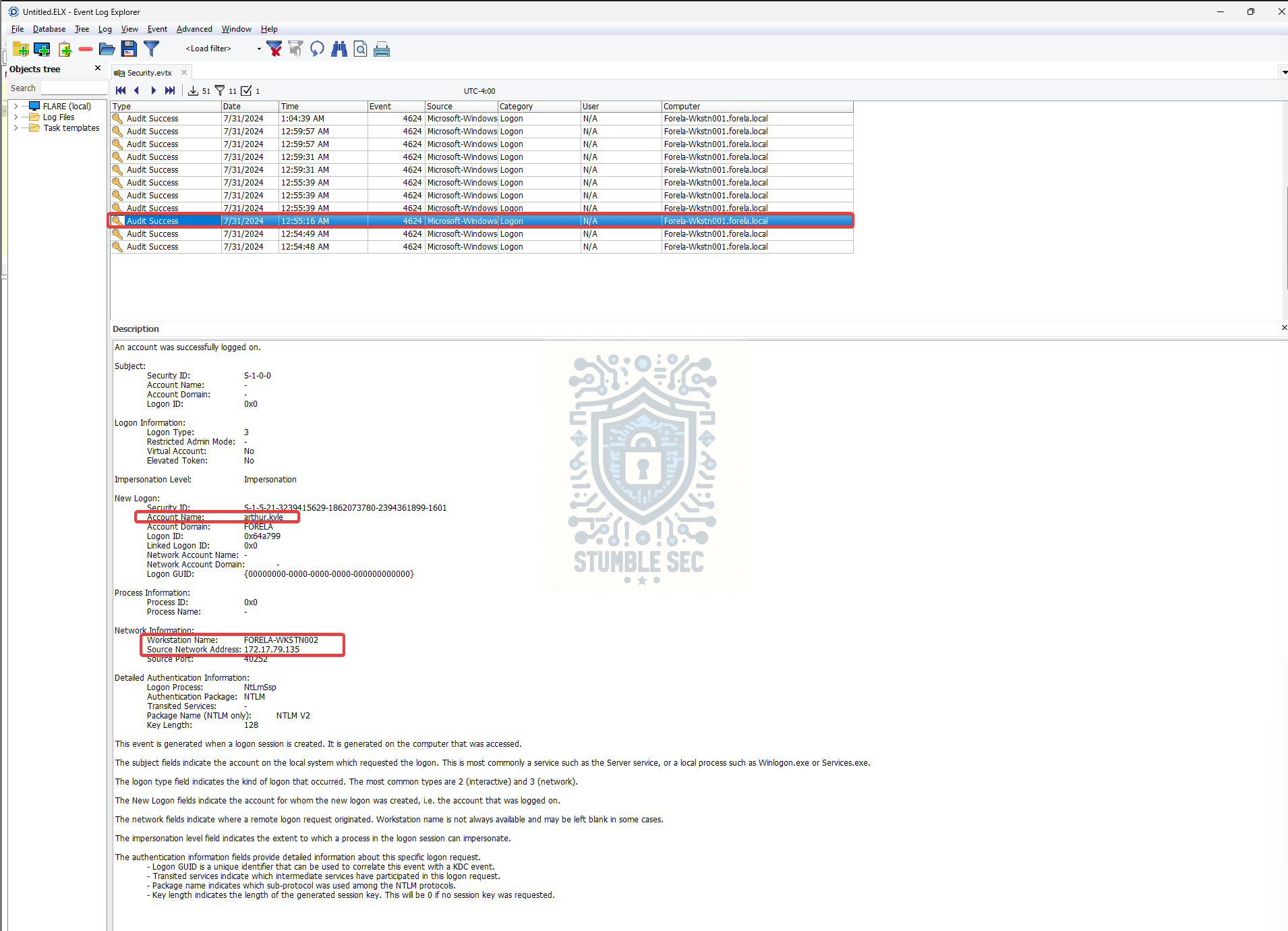 Event Log Explorer: Confirming Mismatch
This is suspicious because we’ve already established that FORELA-WKSTN002 is assigned the IP address 172.17.79.136, not 172.17.79.135.
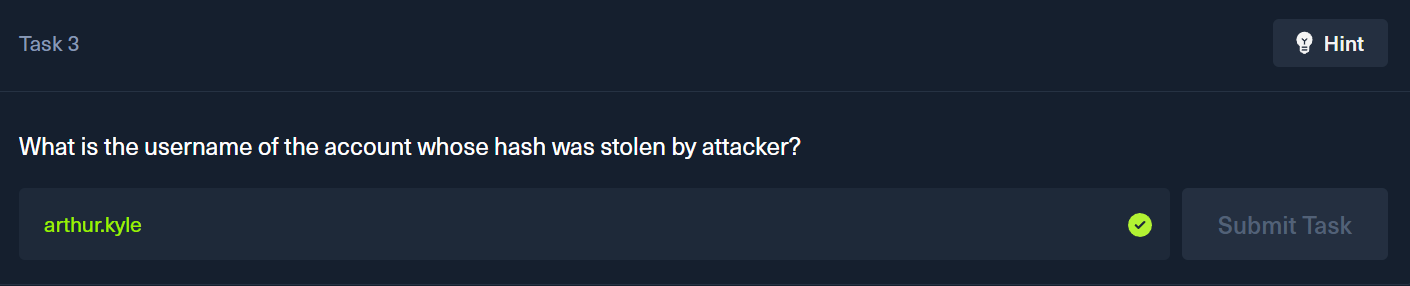
Question 4: What is the IP Address of Unknown Device used by the attacker to intercept credentials?
We’ve already established from our investigation in Question 3 that the unknown device is operating at IP address 172.17.79.135.
The NTLM authentication activity involving arthur.kyle originated from 172.17.79.135, while the legitimate IP address assigned to FORELA-WKSTN002 is 172.17.79.136. This mismatch is what initially triggered the SIEM alert and suggests that 172.17.79.135 is the device involved in intercepting the authentication traffic.

Question 5: What was the fileshare navigated by the victim user account?
We’ve established that the user arthur.kyle is associated with the legitimate workstation FORELA-WKSTN002 at 172.17.79.136.
Let’s try to determine which SMB file share the user accessed to gain some insight into how this attack occurred.
In Wireshark, apply the display filter: smb2 && ip.src == 172.17.79.136
This allows us to focus on SMB traffic originating from the victim workstation and identify SMB tree connect requests.
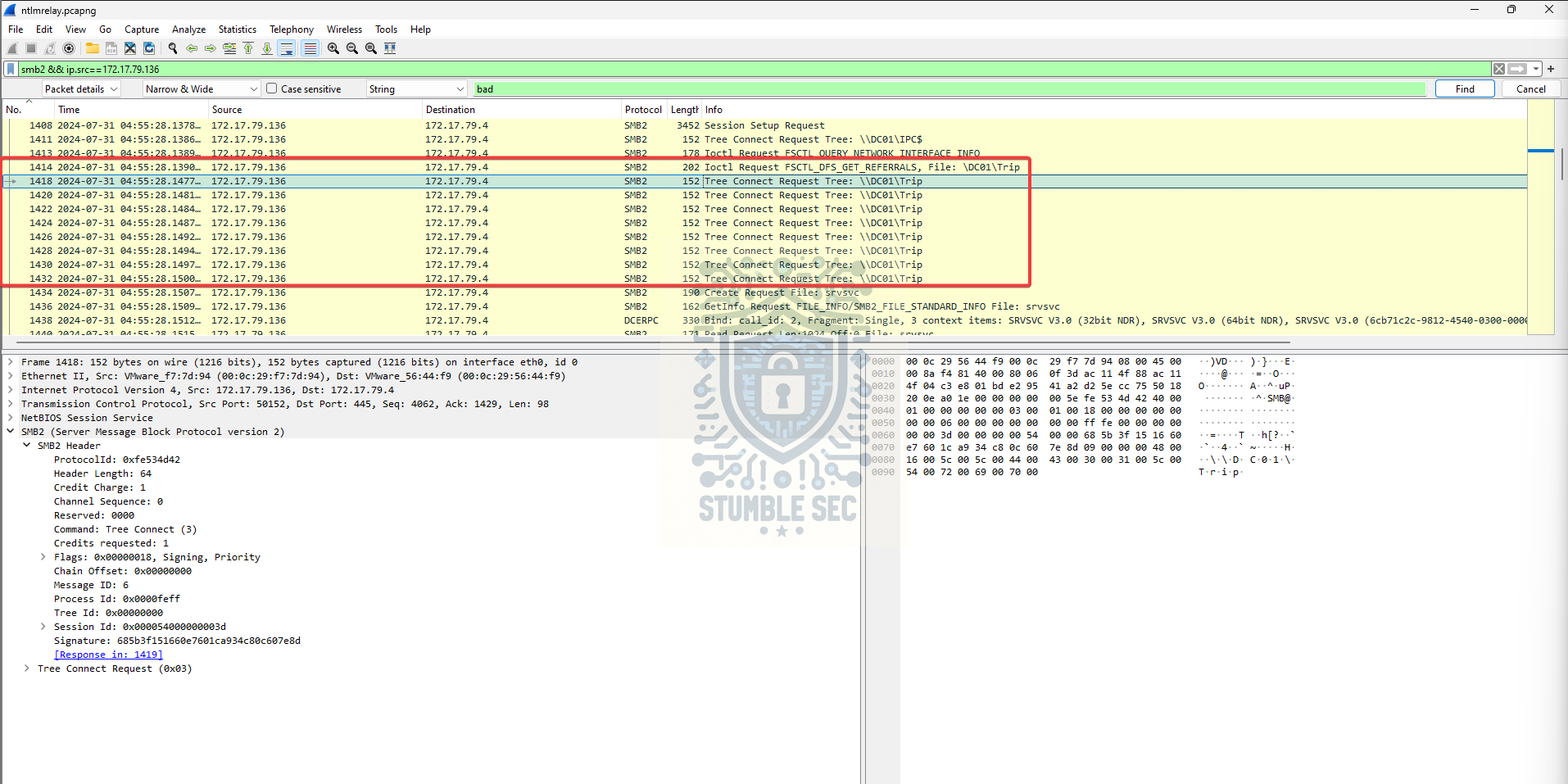 Wireshark: Identifying SMB Traffic to a Domain Controller Share
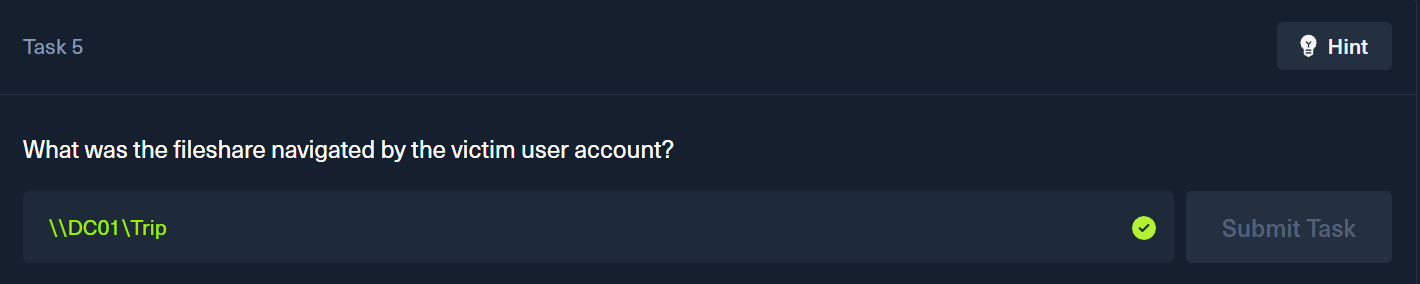
Reviewing the SMB2 Tree Connect requests, we can see the workstation connecting to a file share (\\DC01\Trip) hosted on the domain controller DC01 (172.17.79.4).
This seems to be the share that arthur.kyle attempted to access prior to the suspicious authentication activity observed in the capture.
Questions 6, 7, 8, & 9:
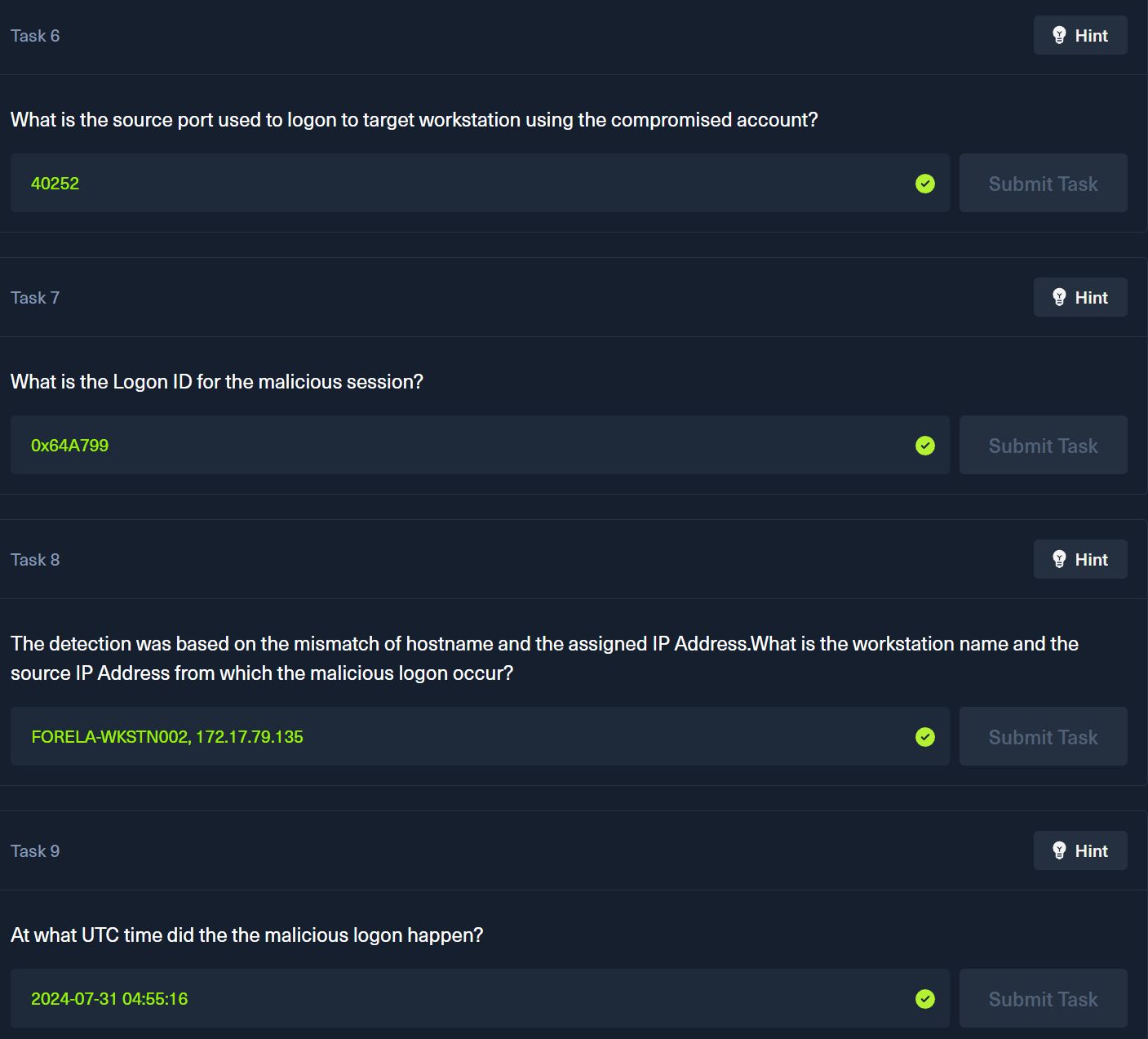
What is the source port used to logon to target workstation using the compromised account?
What is the Logon ID for the malicious session?
The detection was based on the mismatch of hostname and the assigned IP Address.What is the workstation name and the source IP Address from which the malicious logon occur?
At what UTC time did the the malicious logon happen?
Recall that in Question 3 we identified the suspicious Event ID 4624 logon event. This single event contains everything we need to answer these four questions.
Let’s jump back over to Event Log Explorer and examine the event details a bit more closely.
We can find the Logon ID under the New Logon section. The workstation name, source network address, and source port can all be found under Network Information, although these values should already look familiar from our earlier investigation.
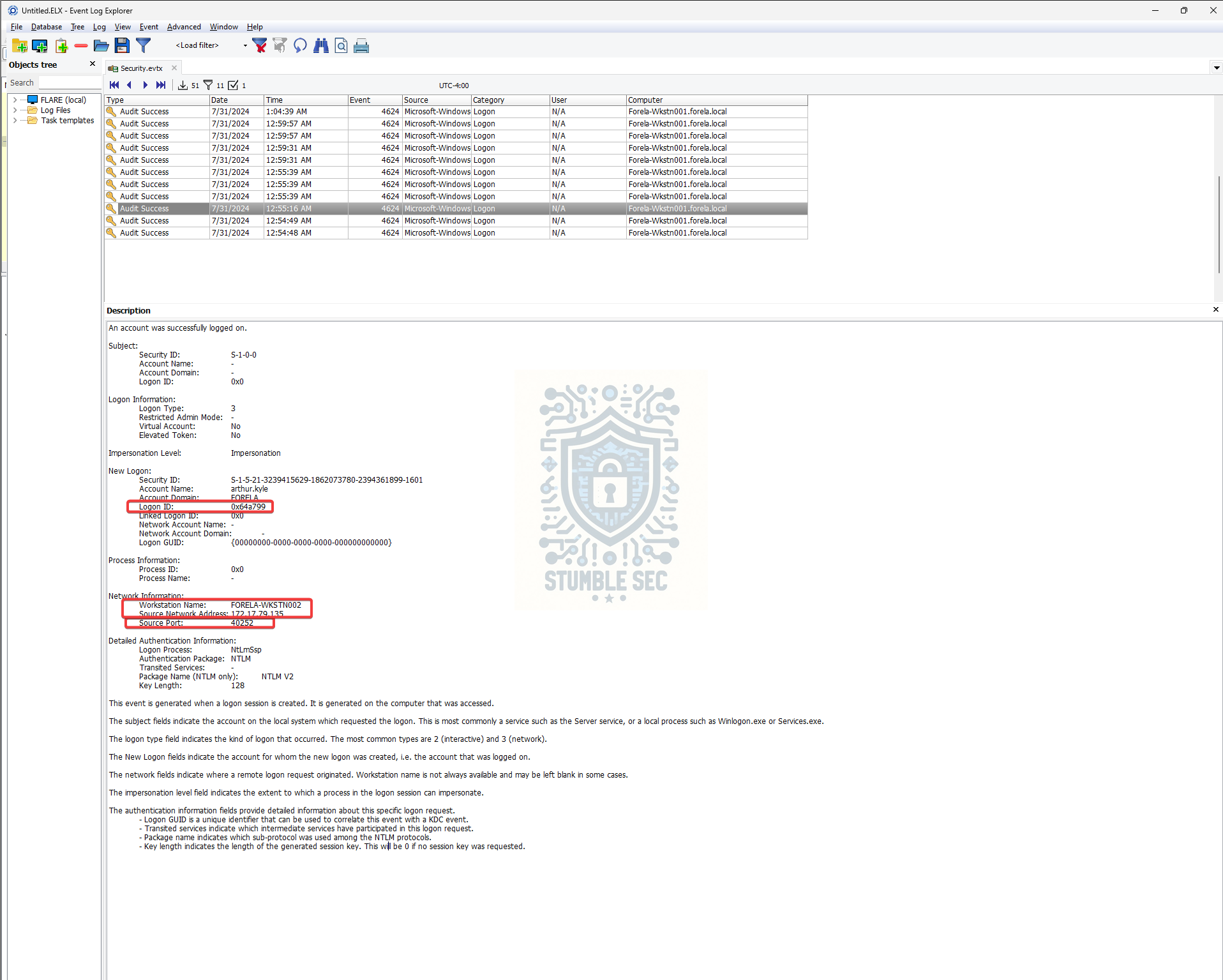 Event Log Explorer: Closer Examination of the Properties Contained in the Logon Event
Remember the callout about UTC vs. local time in Question 4? That applies here too.
To determine the UTC timestamp, a simple approach is to double-click the event, switch to the XML view, and grab the SystemTime value. Alternatively, you can correlate it with Wireshark again, whichever is easier.
Question 10: What is the share Name accessed as part of the authentication process by the malicious tool used by the attacker?
Nice work, we’ve made it to our final task: determining which share was accessed during the authentication process.
For this, we can pivot from the Logon ID we found back in Question 7 and use it to correlate activity across the other events in the security.evtx log.
With the Logon ID copied, modify the filter we have in Event Log Explorer by pasting it into the Text in description column.
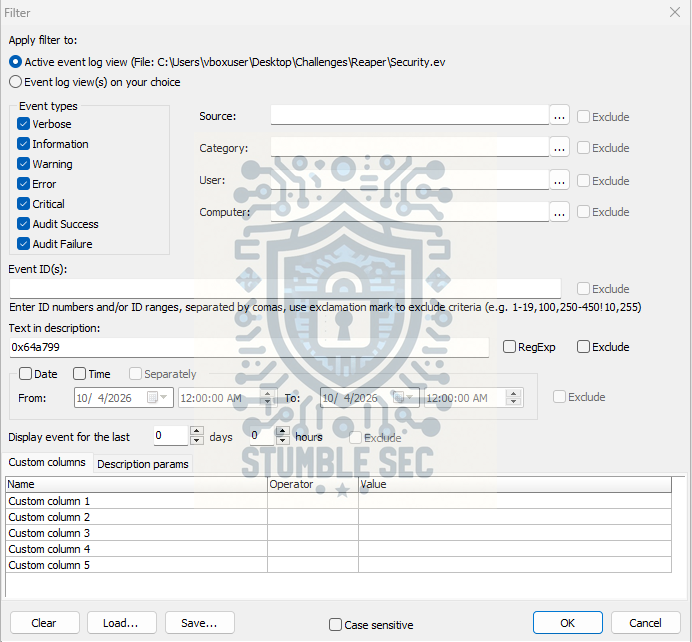 Event Log Explorer: Correlating the Logon ID in the Security Event Logs
After applying the filter, we’ll have two events visible: the original Event ID 4624 logon event and a correlated Event ID 5140 event (A network share object was accessed).
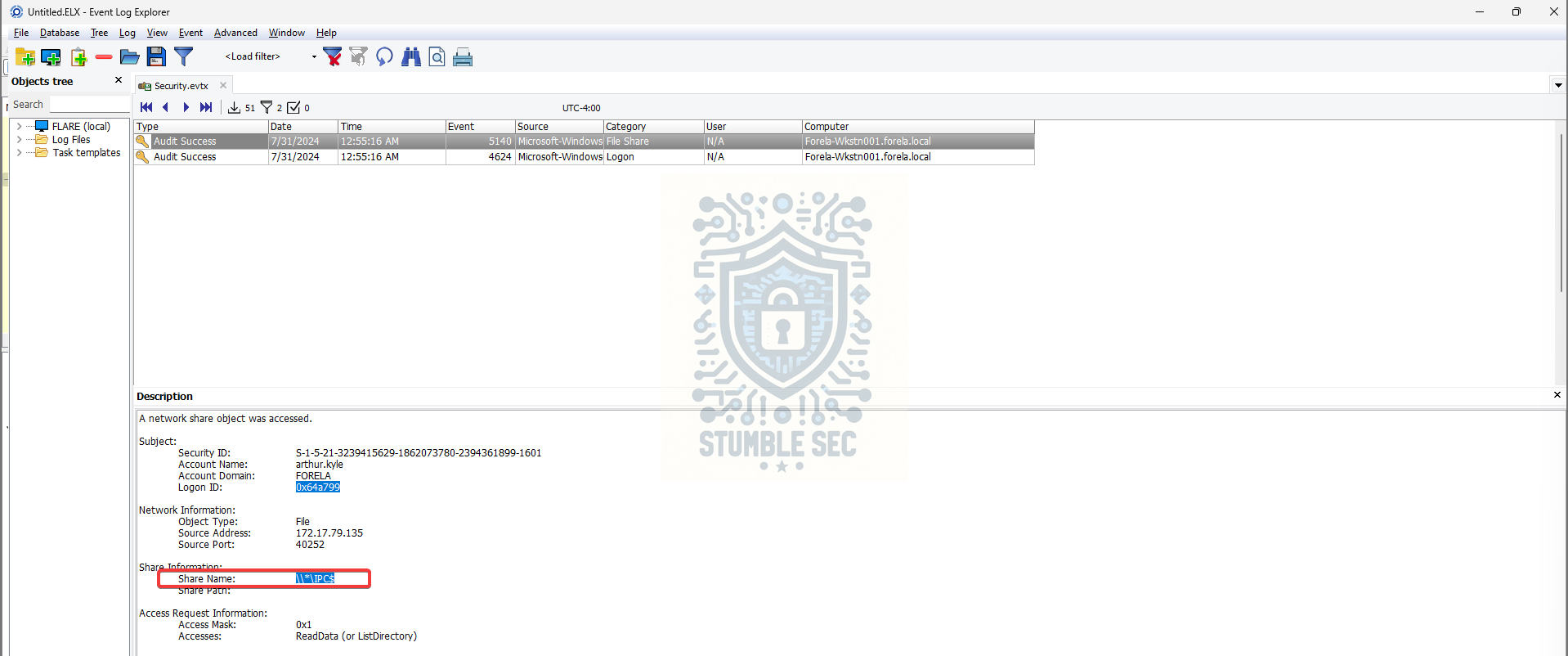 Event Log Explorer: Identifying the Correlated Share Name
Under Share Information > Share Name, we can see the share: \\*\IPC$
For some quick context from Microsoft Learn, the IPC$ share is:
The IPC$ share is also known as a null session connection. By using this session, Windows lets anonymous users perform certain activities, such as enumerating the names of domain accounts and network shares.
In other words, IPC$ is a built-in administrative share commonly used by Windows for inter-process communication and SMB session establishment. Seeing access to this share during authentication activity is expected.
This also correlates with what we observed in Wireshark, where the attacker’s workstation D was communicating over SMB during the relay activity.
Now that we’ve started to scratch the surface of how the attack unfolded, it’s time to wrap up the investigation.

Conclusion:
That’s a wrap on Reaper! How fun was that? A big thank you to HackTheBox for another awesome Sherlock.
In this investigation, we started with a SIEM alert reporting a mismatch between a workstation name and its assigned IP address. From there, we correlated evidence across a packet capture and Windows Security Event Logs to identify the source of the suspicious authentication activity. Along the way, we associated hostnames with IP addresses, examined NTLMSSP authentication traffic, identified SMB share access, traced a suspicious logon event back to an unknown workstation, and used log correlation to build a timeline of what occurred. Not bad for starting with nothing more than a packet capture and an event log!
I chose this challenge because it completed the Detecting Active Directory Attacks track and gave me another opportunity to spend some hands-on time investigating suspicious NTLM authentication activity. While I’d previously looked at credential capture scenarios involving LLMNR poisoning, I wanted to continue building my understanding of the artifacts, protocols, and evidence defenders can use when investigating potential credential interception and related attack activity. It’s always good to go hands-on and practice before the real thing happens.
The coolest part for me was using the Logon ID to pivot across the Windows Security Log. It’s a simple technique, but it felt incredibly powerful during the investigation. Instead of manually hunting through hundreds of events, we could correlate activity across different event IDs almost instantly and follow the malicious session through the environment. That’s the kind of practical investigation trick that can save a ton of time during a real incident and one I’ll definitely be adding to my toolbox. Effective investigations rarely depend on a single log source. The real story emerged when we correlated network traffic, authentication events, hostnames, IP addresses, and SMB activity together.
Thanks for your support and partnering on this investigation. Remember, cybersecurity is a team sport, and we’re in this together!
Until next week’s challenge, stay curious and be safe out there!
Tools & References:
Challenge Link: https://app.hackthebox.com/sherlocks/Reaper?tab=play_sherlock
Flare-VM: https://github.com/mandiant/flare-vm
Wireshark: https://www.wireshark.org/
Wireshark - NetBIOS Name Service (NBNS): https://wiki.wireshark.org/NetBIOS/NBNS
Event Log Explorer:https://eventlogxp.com/
Ultimate Windows Security: 5140: A network share object was accessed:https://www.ultimatewindowssecurity.com/securitylog/encyclopedia/event.aspx?eventid=5140
Microsoft Learn: “IPC$ share and null session behavior in Windows”: https://learn.microsoft.com/en-us/troubleshoot/windows-server/networking/inter-process-communication-share-null-session