
Introduction - A Tale of Brats and Browsers:
This week, I’m taking another detour from my usual walkthrough for another entry in my StumbleSOC Stories series, a collection of field notes and real-world anecdotes. It’s basically my working diary, where I recount interesting incidents with actionable insights and takeaways. As always, this particular story is adapted from a real incident.
It starts with a bratwurst and a malware alert, then takes a detour by correlating against an old helpdesk ticket, and ends with identifying a malicious app that had hijacked a user’s Google Chrome default search provider.
This one wasn’t a sexy or dramatic ransomware event or sophisticated intrusion. It was a pretty mundane browser problem that had apparently been sitting in plain sight for months; it’s just that nobody had connected the dots.
Rather than walk through this as a deeply technical, formal incident response case study, I’m taking more of a conversational approach. The interesting part isn’t necessarily the malware or incident itself, but how seemingly unrelated evidence eventually connects.
I’ll talk you through some of the high-level details, how we scoped what happened, where our controls worked, and, more importantly, where they didn’t. Along the way, I’ll highlight the tweaks the victim’s organization made and how a basic troubleshooting nugget can become another logging source.
This is A Tale of a Brats and Browsers. Let’s go!
The Alert That Started It All:
This story kicks off during an Oktoberfest celebration on a Friday night. Between bratwursts, I felt that very specific alert buzz in my pocket and gave in to the temptation to check:
An active ‘PhantomJack’ malware was detected
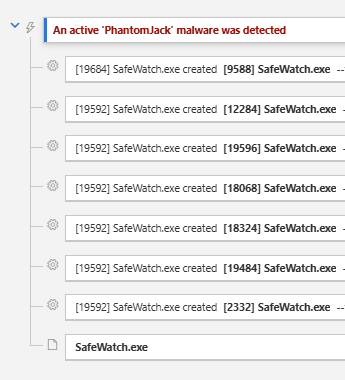
What the heck is SafeWatch, and what the heck is a PhantomJack?
The alert was associated with the process SafeWatch.exe, which was identified as Trojan:Win32/PhantomJack!MTB. It seemed like relatively boring incident: a single user endpoint, detected and quarantined by the EDR agent, a single reflective DLL loading alert, no signs of lateral movement. The kind of mundane, low-severity alert that brings the alarm level down.
Detected. Quarantined. Done.
I knew the organization I was supporting was already on it, but something picked at my brain…
Wait… Where Did This Thing Come From?
This is where things start to get a little more interesting.
During the investigation, we identified SafeWatch.msix in the user’s Downloads folder and started digging into the file. This led us to stumble onto threat intelligence that associated the .msix hash with PhantomJack, a browser-hijacking campaign documented by Trinity Cyber.
Their research specifically identified SafeWatch as one of several malicious applications associated with the campaign and described victims being steered toward malicious apps hosted in the Microsoft Store.
Okay, that seems straightforward enough. Malicious app makes it into the Microsoft Store, user trusts it, browser gets hijacked. Operating on that initial assumption from the threat intel led to some early misconceptions and wasted time looking at the wrong delivery vector. The problem was that isn’t what our telemetry actually showed.
Going backward through the device timeline, the EDR telemetry gave us our first hard piece of directly observed evidence: chrome.exe created SafeWatch.msix, with the file originally downloaded from spot[.]swatchapp[.]online.
Immediately before that download, the browser had made a series of connections across several unusual domains. The sequence looked suspicious, like a possible redirect chain, but the telemetry didn’t establish that every domain in that sequence was part of PhantomJack’s delivery infrastructure.
More importantly, while an .msix file is a Windows app package format often used for Microsoft Store apps, it can also be sideloaded directly from the web. The evidence we had didn’t show this particular copy coming directly through the Microsoft Store like we initially assumed from the threat intel.
A little further research into the associated domain led us to Alienvault OTX, which provided an additional threat intelligence associating the domain with activity tagged as PhantomJack.
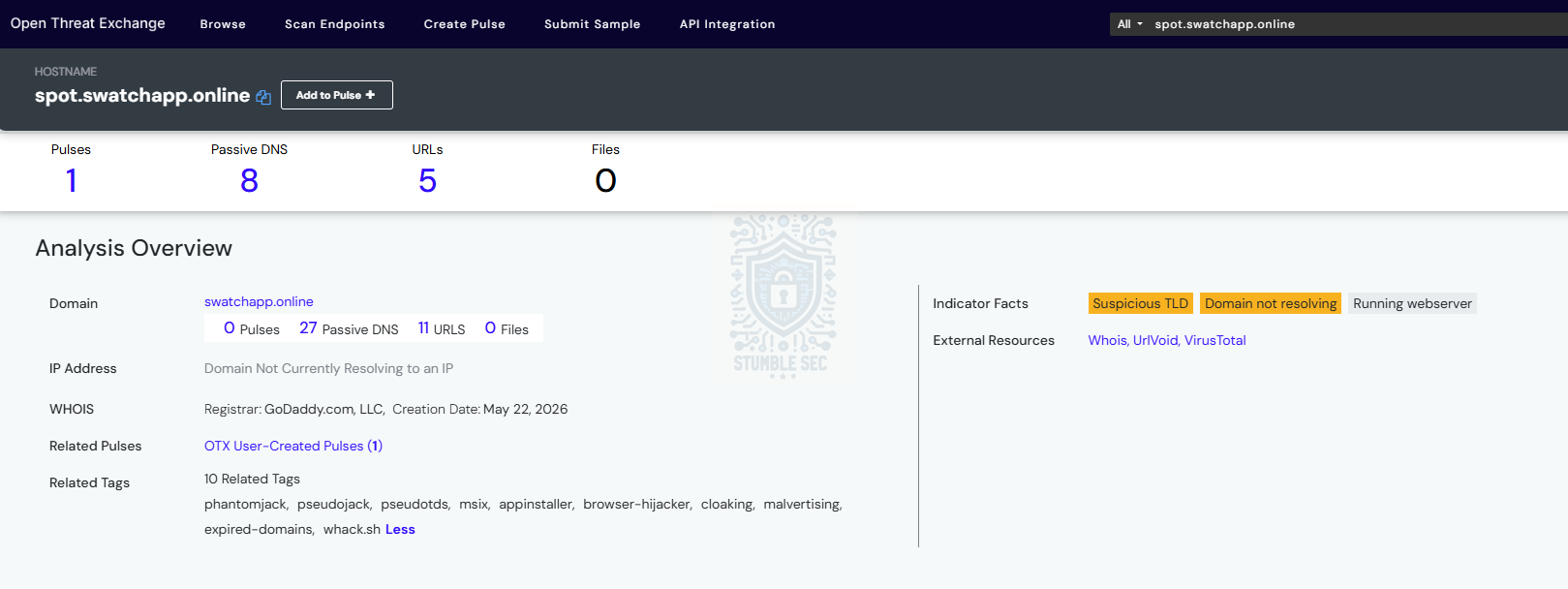 AlienVault OTX page for the SafeWatch.msix download URL
The hashes matched Trinity Cyber’s publicly documented PhantomJack samples. The application name matched. The browser-hijacking behavior we’d eventually uncover lined up with the published research. However, the delivery mechanism observed on this workstation wasn’t the same one described in the report.
The behavior was more closely aligned with what we found from JoeSandbox when researching the download domain:
“This malicious sample implements a brand impersonation and credential harvesting attack targeting users of Mutual of Omaha insurance. The attack uses a fake “Security Check” gateway to trick users into completing verification steps, with the underlying intent to redirect them to credential collection pages or malicious downloads disguised as legitimate software.”
While our available telemetry couldn’t definitively prove whether the user manually sideloaded the package or clicked through a web lure mimicking a Microsoft Store install, the browser download itself was undeniable. We didn’t have to guess how the file arrived on disk, we found it directly.
The evidence was pointing toward PhantomJack. It just wasn’t necessarily pointing toward the exact same TTPs PhantomJack had used before.
And that’s an important point when using threat intelligence during an investigation: CTI gives us context, but our telemetry tells us what really happened on the endpoint. It’s not the last incorrect assumption we’d encounter this time either.
Something Is Weird With the Browser:
By the time Monday rolled around, the team was ready to call it done and get the user back to business. Between brats, we’d asked the user to come visit the helpdesk in person for some last-mile checks on the browser when they came in.
During the conversation and some hands-on-keyboard browser cleanup, the team found another little breadcrumb: the Google Chrome default search provider wasn’t what you’d expect.
It wasn’t Google, Brave, or heck, even Bing. It was set to an innocuous custom default search provider called “News.”
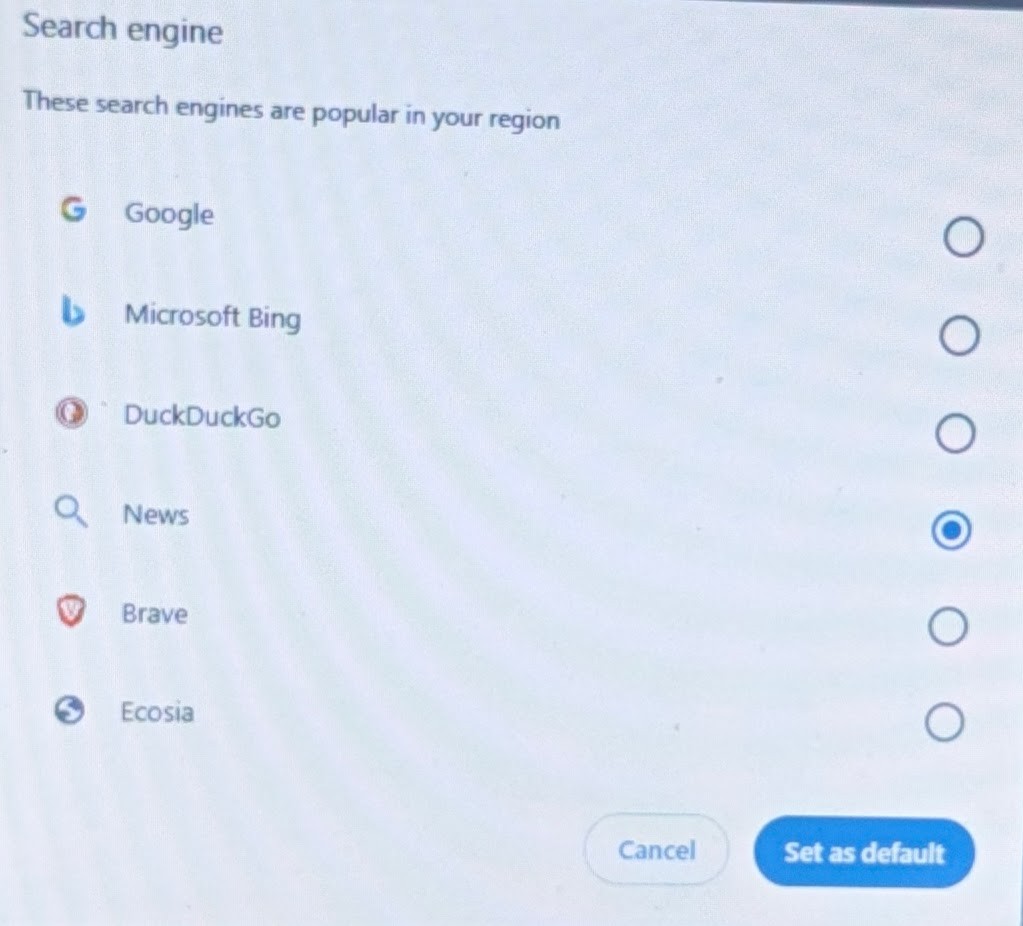 I wonder what the news is today…
Right as the team found this, the user casually dropped:
“For the past few months, I’d been able to get AI answers to questions just by typing the question into the search bar. Great info for my customer research. Then suddenly I was blocked out. You guys have this stuff so locked down, maybe I’ll stop taking it home and get a 40-hour work week in for a change.”
Wait… You Said Months?!
Now let’s walk this backwards. We’ve found evidence of malware, a strange search provider, and an indication that the user may have been affected for months. To correlate things further, the team searched the user’s previous support history.
Sure enough, there was a helpdesk ticket from a couple of months earlier describing essentially the same symptom: the user couldn’t search normally from the Chrome address bar and wasn’t getting the expected AI summary from Google.
In hindsight, this was a pretty big clue, but unfortunately the helpdesk team got stuck on the keyword “AI.” The explanation at the time was basically a compliance one: “We block certain AI services.” Case closed.
The problem is that the explanation never really accounted for the root cause. But when this is the 20th AI-related ticket of the day, it’s easy to develop a kind of pattern blindness.
Fortunately, the user had included a screenshot of the symptom: a block message from Chrome.
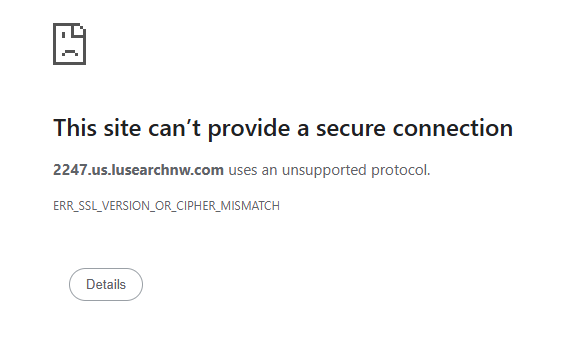
Until this incident, nobody had checked the configured search provider or dug into where the searches were actually going.
Nobody except the user’s EDR network protection sensor.
All this time, the EDR had been blocking the destination associated with those address-bar searches. The destination was classified as a parked domain, blocked by the organization’s policy, and suppressed in informational-level alerts. It took just a little hunting to find that this lined up precisely with the timeline the user had mentioned, starting shortly after SafeWatch.msix was executed.
Meanwhile, the user found the world’s most practical workaround: go directly to Google.com. Problem “solved.”
Who needs IT anyway?
Users Are Unreliable Narrators, But Still Have a Story to Tell
In my experience triaging security alerts, I’ve found that interviewing a user for context can either be a gold mine or a wild goose chase. People frequently describe interpretations, not telemetry. Stop me if you’ve heard these before:
“My Google stopped working!”
“The system is down!”
“Something is blocked!”
“I didn’t click on anything!”
Taken at face value, those statements may send an investigation in completely the wrong direction. But buried inside them can be extremely useful observations.
Just like poring over technical logs, part of our skill set needs to be analyzing and correlating these user narratives too. It’s the human-to-human connection that’s easy to lose in an AI and agentic world.
Take the user’s interpretation in this case: “IT blocked my AI thingy.”
There was actually a useful forensic observation buried in there, and one they had even documented for us: “Something changed, and searches from my address bar stopped working.”
Those aren’t the same statement.
But when we’re slogging through a ticket or incident queue, it’s easy to become nose-blind to what we’re seeing and forget a fundamental principle that I’ve found proven true countless times:
You only know what you know this time.
Treat alerts, artifacts, and anecdotes like it’s the first time you’ve seen them. Don’t get me wrong, my point isn’t to blindly trust the user, but listen to the user, ask questions, then verify what they’re describing.
Approaching it from that perspective might uncover a clue months before the EDR finally puts the pieces together for us.
TL;DR, Triage what you’re seeing right now, not what you saw yesterday.
So, What Actually Happened?
Let’s walk it backwards one last time and tie up some of the technical loose ends.
The evidence painted a pretty convincing picture, but not every piece fit together neatly.
We know SafeWatch.msix was downloaded and executed by the user. We know the file hash matched a publicly documented PhantomJack sample. We know that SafeWatch contacted another associated domain, safe-watch[.]app. We also know that sometime afterward, the user’s default search provider was changed to “News.”
That last part is particularly interesting because Trinity’s research on PhantomJack describes exactly this kind of behavior: modifying browser settings and replacing the default search engine.
But this is where observation becomes important, right? We didn’t have telemetry showing PhantomJack directly modifying Chrome and changing the search provider. We found the changed search provider months later using evidence provided directly by the user, not the security stack.
This observation helped fill in some of the blanks. Instead of going where the user expected, address-bar searches were being directed toward 2247[.]us[.]lusearchnw[.]com. Defensive controls didn’t like the destination and blocked it.
When writing this, I wanted a nice, clean timeline like:
Typosquatted Domain > URL Redirect > SafeWatch downloaded/installed > search provider changes > strange searches start > EDR blocks them > ALERT
But things aren’t always that tidy, are they?
The first activity we identified involving 2247[.]us[.]lusearchnw[.]com appeared about two days after SafeWatch.msix arrived on the endpoint.
Could PhantomJack have changed the search provider and caused those redirects? Absolutely.
Can I prove that definitively from the months-old telemetry I have? Sure can’t.
Although there was additional threat intelligence associating lusearchnw[.]com infrastructure with other similarly structured ####[.]us[.]lusearchnw[.]com hosts, this was correlation, not causation.
What we could actually observe was simpler.
The user’s browser started sending address-bar searches somewhere they didn’t expect. Endpoint security controls blocked that destination. The user experienced the block as a broken search bar, submitted a ticket, got told “sorry,” and eventually worked around it by going directly to Google.com.
It was only months later that a detection against SafeWatch.exe gave us enough additional context to start connecting those previously disconnected observations.
The Stumbling Blocks
If you’ve made it this far, then you probably have some ideas of where this investigation went wrong.
Stumble #1: Threat Intelligence Is Context, Not Fact
During the investigation, the first stumble was the triage team’s assumption that because the SafeWatch.msix hash matched documented threat intelligence, the method of infection must have been the same.
Later, we learned that wasn’t the case.
CTI adds context, but it shouldn’t be a substitute for your own investigation, correlation, and causation. It helps anchor our understanding in deep technical research, but don’t let it override what you actually observe directly.
Stumble #2: Listen First, Translate Second
Plain and simple, there was a couple-month gap between the initial activity and our recognition of the broader compromise. That’s not great.
The point here isn’t to call out a specific tool, detection rule, or faulty definition. It’s to encourage us to think about user reports as another potential log source.
We had near-real-time reporting that something was wrong from the user’s ticket, but the helpdesk team didn’t connect the dots between:
“IT blocked my AI.”
and:
“Something changed about how my address-bar searches work.”
One is interpretation. One is observation.
Asking a few more questions and taking a closer look could have identified the anomaly much earlier.
Stumble #3: A Block Isn’t Necessarily the End of the Story
Technically, the endpoint controls did their job and prevented the searches from reaching the suspicious destination.
However, the control addressed the network destination. It didn’t explain why the browser was trying to reach that destination in the first place.
The malware was still present and, as far as we could tell, undetected. Blocked doesn’t necessarily mean remediated.
The Tech Recs
Now that we understand the story and what went wrong, let’s hit some quick technical recommendations to think about.
Check the Browser
Sometimes, tooling has a blind spot when it comes to monitoring the settings of a web browser. In a world where the browser is the gateway to the internet and should be treated as such, it can be surprisingly easy to forget to check the browser during the triage process.
Check:
- default search provider
- installed extensions
- recent downloads
- site permissions
- synced users and profiles
For example, if your extensions aren’t tightly managed and users are syncing personal accounts, along with their personal extensions, it’s totally possible to uncover something a little out of the ordinary. As a quick check, leverage something like chrome-stats to check popularity and risk.
If there is a browser-based compromise, consider leveraging the built-in browser reset after addressing the underlying cause. There are a host of rich forensic artifacts in the browser databases, too. While that’s out of scope for this article, it’s worth calling out.
Consider Managing the Default Search Provider
If you’re already managing Chrome or Microsoft Edge using enterprise policies, consider whether users need to change the default search provider or whether you want to manage it for them.
For example, using the Microsoft Intune setting catalog to configure the default search provider in Google Chrome as Google:
Google > Google Chrome > Default search provider
- Default search provider name > Set to Enabled and input Google.
- Default search provider search URL > Set to Enabled and input
https://www.google.com/search?q={searchTerms} - Enable the default search provider > Set to Enabled.
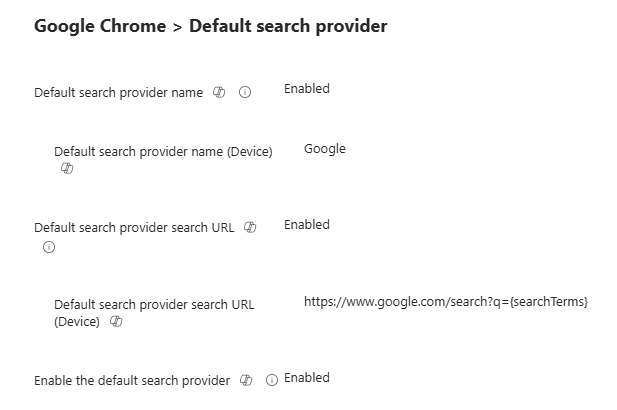
This isn’t a magic browser-hijacker prevention button, but a mandatory browser policy can prevent users from casually overriding the managed search configuration and can make unexpected changes easier to spot. It’s a simple bit of browser hardening to consider.
Connect Helpdesk Observations With Security Telemetry
Sure, it’s not as fancy as connecting another log source into your SIEM, but don’t discount treating user reports as telemetry. They’re on the front line of actually using the systems we’re protecting and are likely to notice when something strange changes.
I’m not saying every hiccup or oddity falls onto the security team, but it’s worth speaking with your IT or helpdesk teams and asking them to look at the problem through another lens.
When a user describes an unexpected change in behavior, have them record:
- what changed
- approximately when it changed
- a screenshot or error message, if available
- whether it’s reproducible
- the affected application or browser
That gives the security team something concrete to correlate later against endpoint and network history.
They might even identify something before the security tooling does.
You Only Know What You Know This Time
All packaged together, hindsight makes all of this look obvious, but it wasn’t.
The technician handling the original ticket didn’t have:
- the later PhantomJack detection
- the reconstructed timeline
- the hash correlation
- the CTI
- the unexpected search provider sitting in front of them
They had a user talking about AI results disappearing.
Users don’t need to understand the deep technical nitty-gritty to tell us that something changed. Sometimes our job is to listen closely enough to separate what they observed from what they think it means.
The user noticed they weren’t getting AI search results and assumed IT had blocked it.
Helpdesk thought security and compliance had blocked yet another AI service.
The EDR was trying to tell everyone something else, but it was buried in an informational-level event that had been tuned out by the SOC.
The bottom line is that with every ticket, every alert, and every oddity:
You only know what you know this time.
Tools & References:
Header Image: Photo by sarah b on Unsplash
Trinity Cyber — “Blurred Lines: AdTech Abuse Delivers Browser Hijackers Through the Microsoft Store” : https://www.trinitycyber.com/blog/blurred-lines-adtech-abuse-delivers-browser-hijackers-through-the-microsoft-store
AlienVault OTX Pulse — “PseudoTDS → PhantomJack/PseudoJack — MSIX browser-hijackers via lapsed brand domain”: https://otx.alienvault.com/pulse/6aa44df9c22be662c552a0a9
Joe Sandbox (Download URL): https://www.joesandbox.com/analysis/1932020/0/html
SocRadar (Search redirect URL): https://ioc.socradar.io/iocs/2247.us.lusearchnw.com?research=1&rid=mwatyspu-8aq2qe81
VirusTotal (SafeWatch.msix): https://www.virustotal.com/gui/file/e0b54f6586f85d2902fde5b052e6591f6f5a9fd70319d82483e6656bf3466124/behavior
Chrome-Stats: https://chrome-stats.com/